Media files that have been uploaded can have additional information added to help identify those images, can be moved to different folders and see the related records the media file has been associated to.
Managing Files Topics
Managing Additional Information
Follow these steps to enter additional information:
This step can be completed either on the upload stage by clicking Edit or from details after the upload has completed.
-
Select a media file from the table by clicking the row
-
Click Details
-
Enter the optional additional information Title | Caption | Description | Alt Text | associate any Tags
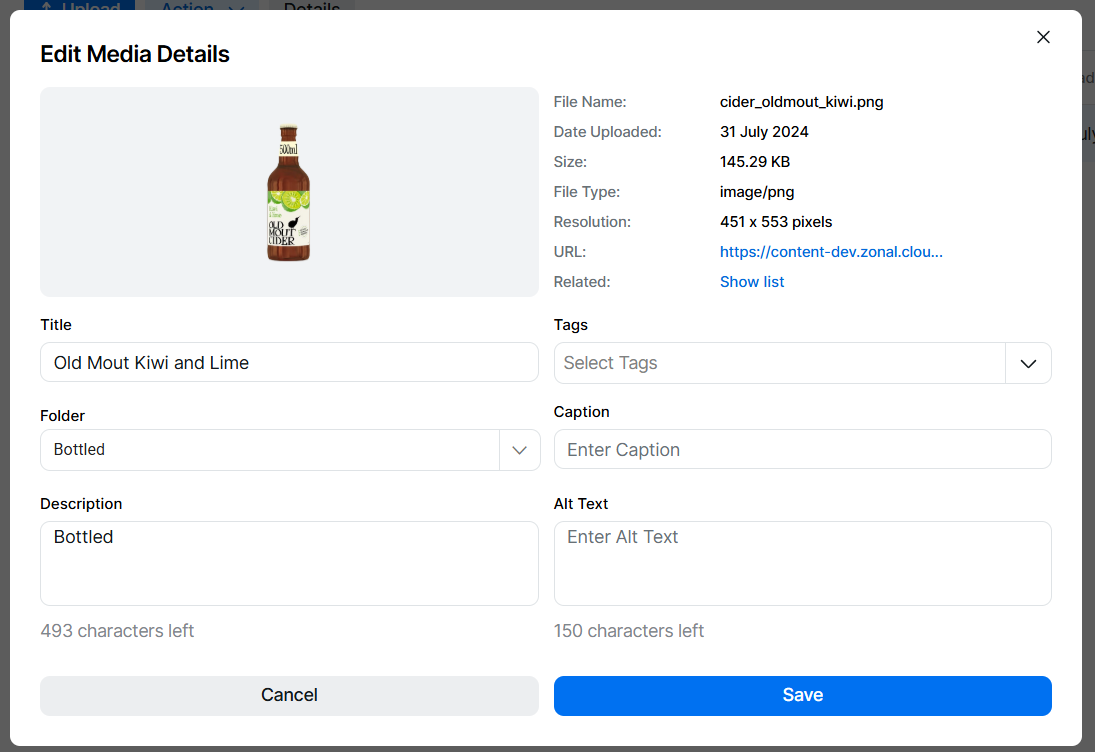 When an image has been uploaded by URL the URL used is an additional field that can be updated
 -
Update the folder, if required - this will move the file to a new folder
-
Click Save
Related Records
When an images has been associated with another record this information becomes available in the related list.
To view the related list:
-
Select a media file from the table by clicking the row
-
Click Details
-
Click Show List
 Any related record will be displayed referencing the media file
Actions
The following actions can be completed when selecting one file:
-
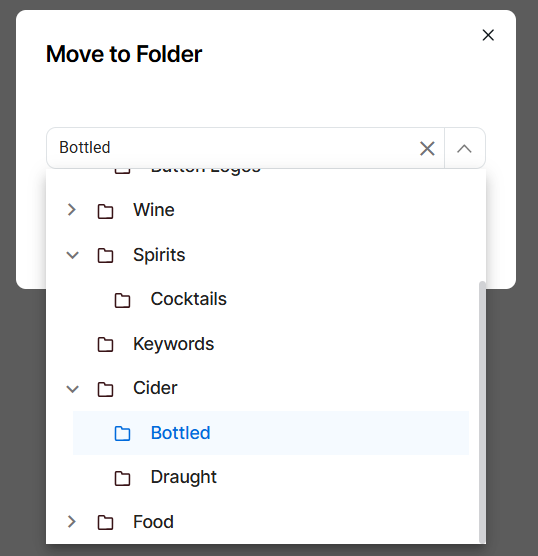
Move - move the media file to an alternative folder
-
Replace - replace the image with an alternative
-
Select a media file from the table by clicking the row
When selecting multiple table rows this only enables "Move" which allows bulk move of media files to another folder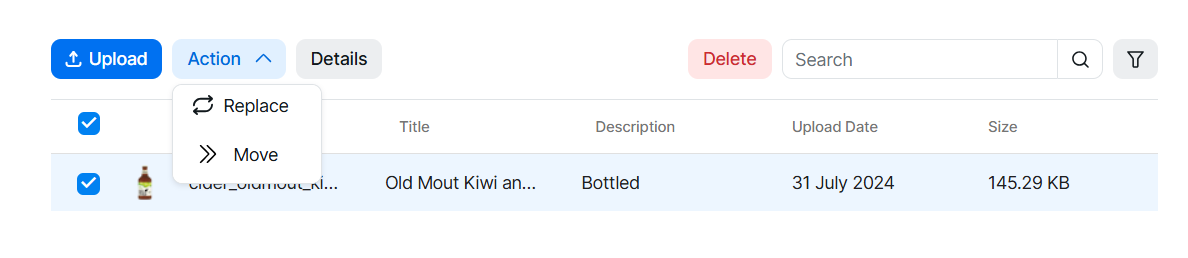
-
Click Actions | select Move | choose alternative folder
-
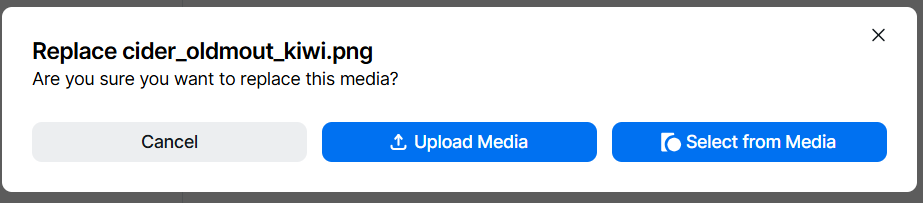
Click Actions | select Replace
-
Choose one of the following options
-
Cancel - stop performing the action and closes the screen
-
Upload Media - perform an upload of a new media file
-
Select from Media - select an existing media file already uploaded
-
Field Settings & Information
Additional Information
| Field | Description |
|---|---|
| Title | Alternate name for the file that can be more user friendly - 225 characters |
| Caption | Caption name for the file - 150 characters |
| Description | Description of the file - 500 characters |
| Alt Text | Alt Text description of the file - 150 characters |
| Tags | Media manager tags associated to the file |