Creating & Managing Tasks
You can create tasks and actions tied to bookings or enquiries. Tasks can be scheduled with due dates, automatically alerting the host when they are approaching or overdue.
Creating Tasks
Follow these steps to add a new task:
-
Select a Booking or Enquiry
-
Select the Tasks tab
-
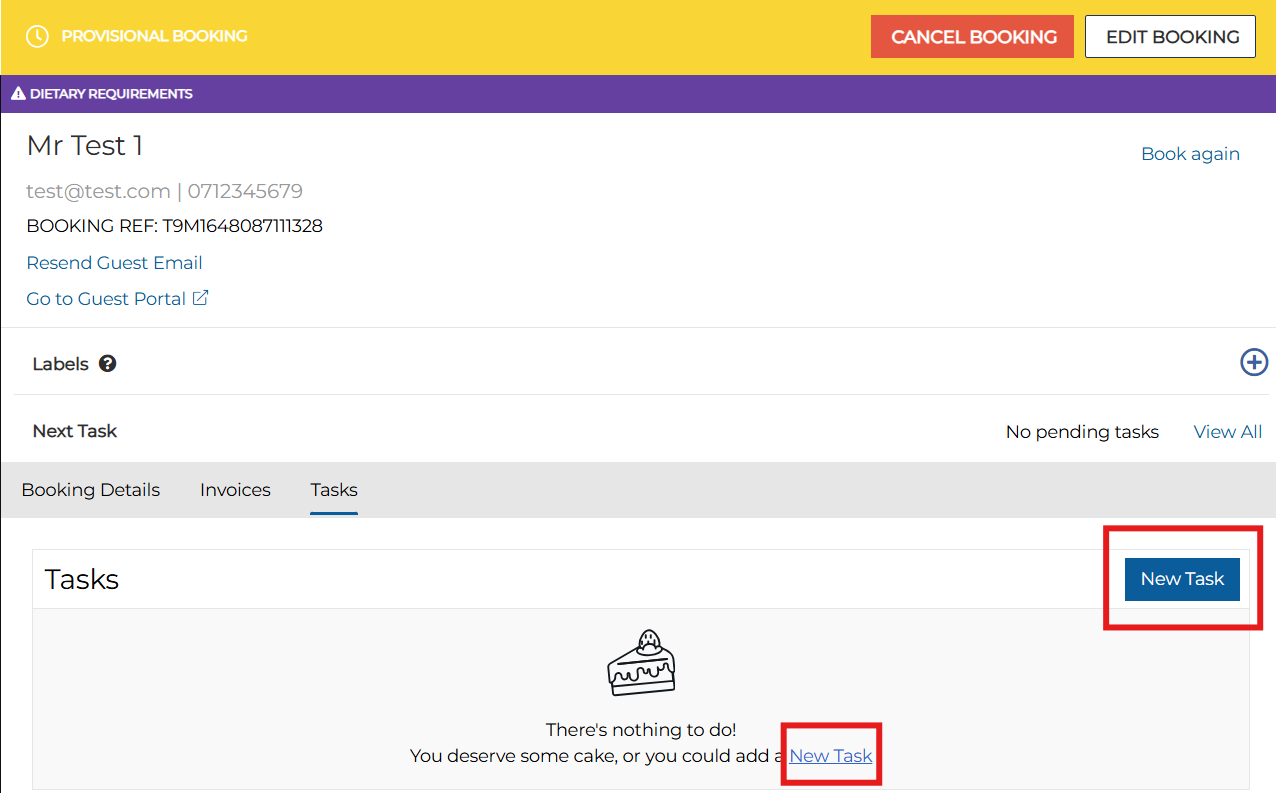
Click New Task
-
Set the Task Requirements
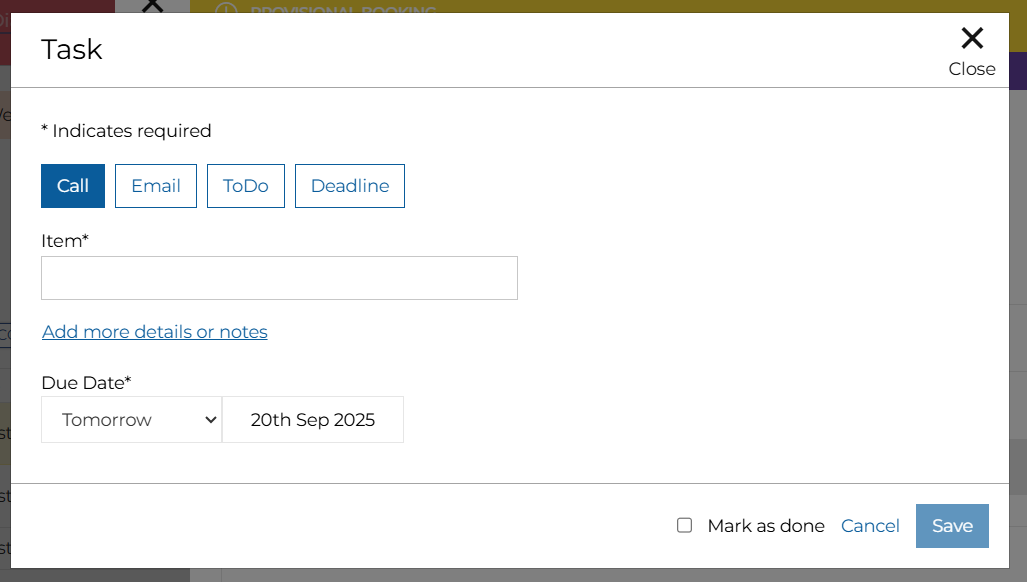
Task Types:
-
Item (mandatory)
-
Add more details or notes (optional)
-
Due Date (mandatory)
-
Mark a Task as Done
-
-
Click Save
Managing Tasks
Once a task has been created, it will appear in a clear list view under the Task tab within the relevant booking or enquiry. From here, you can easily manage each item by editing the details, deleting it, or marking it as complete.
The list also provides a helpful overview of task status, allowing you to quickly see which items are still outstanding and whether any are overdue, helping you stay organised and on track.
Follow these steps to manage booking tasks:
-
Select the Booking
-
Select the Tasks tab
Any existing tasks will be displayed against the booking
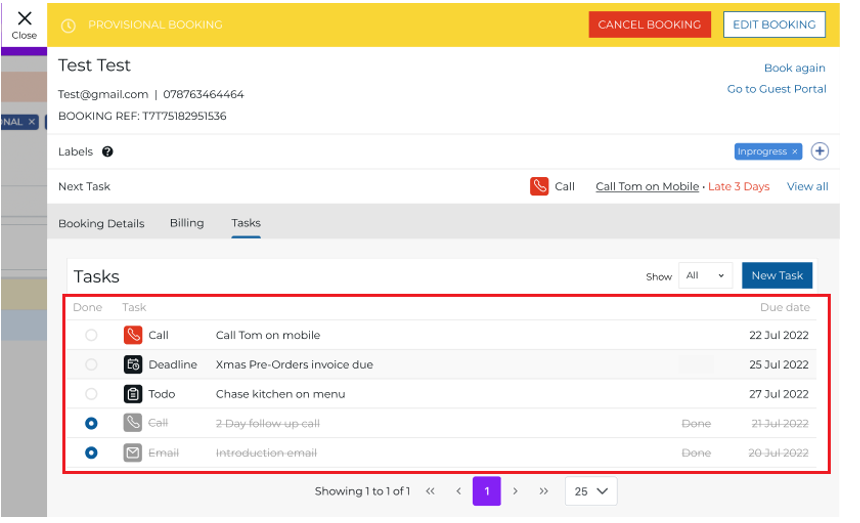 If a task is deleted, it will be removed from the task list view, but there will be a log in the booking audit history
-
Make any required edits to the tasks and exit the booking
Overdue Tasks
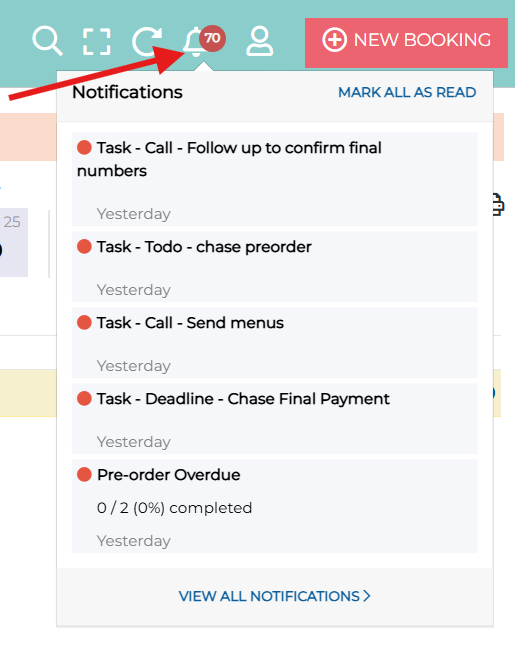
Often tasks may not be completed by their originally specified dates, in this instance they will be classed as overdue. Any overdue or upcoming tasks will show in the notification bell and notification section.
Follow these steps to manage overdue tasks:
-
Select the Notification Icon (bell)
-
Select to View All Notifications
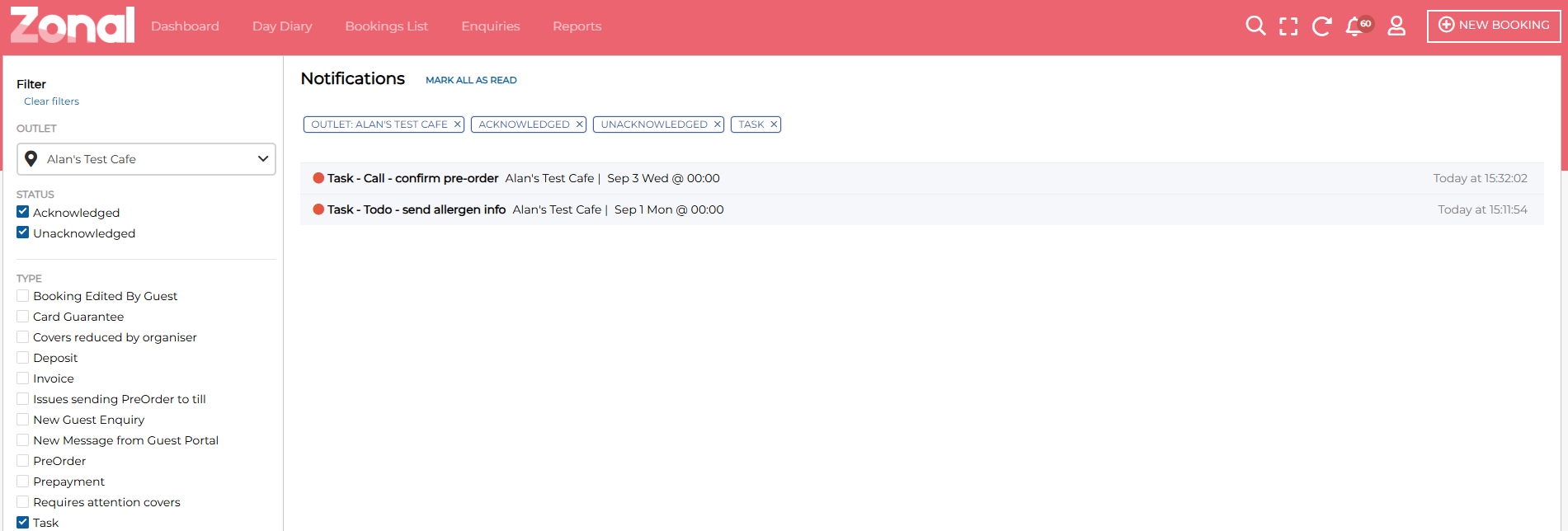
Using the filters on the notifications page, you are able to refine your searches by type. Select the "task" type and this will present you with all outstanding tasks you may need to action.
Reporting on Tasks
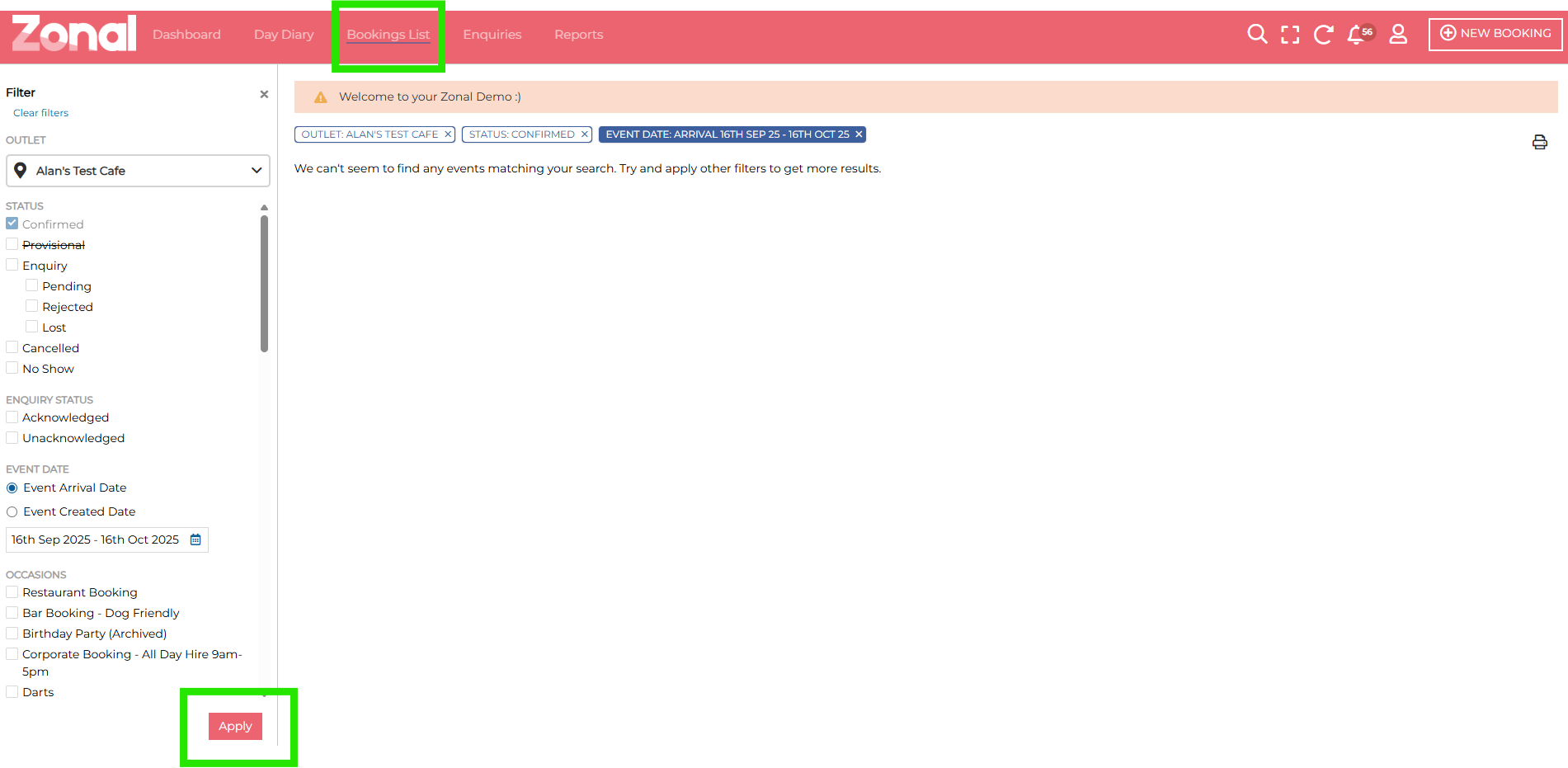
In order to help planning your weekly or daily tasks, you can use the Bookings List to filter by date range any bookings that may have upcoming tasks for you to take action on. We've documented some steps below to help you locate these and get ahead.
When accessing the Bookings List, if you have not used Tasks before, they may not be applied to your view. In order to do this, you may be require to state the columns you want to see.
Follow these steps to report on tasks:
-
Select Date Range | click Apply
-
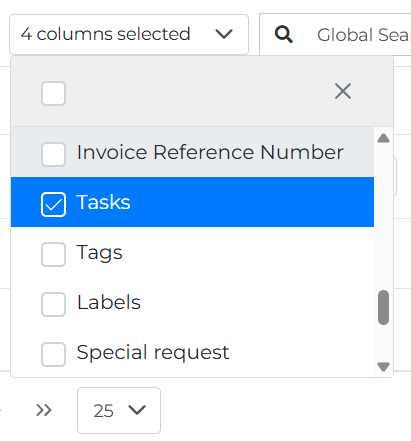
From the columns, check to see that you have "Tasks" showing
At the top of your data being displayed, you have the option to define which columns are selected. You can define as little or as many as you need for the task you are carrying out.
Tasks will show with the symbol type, as well as the due date
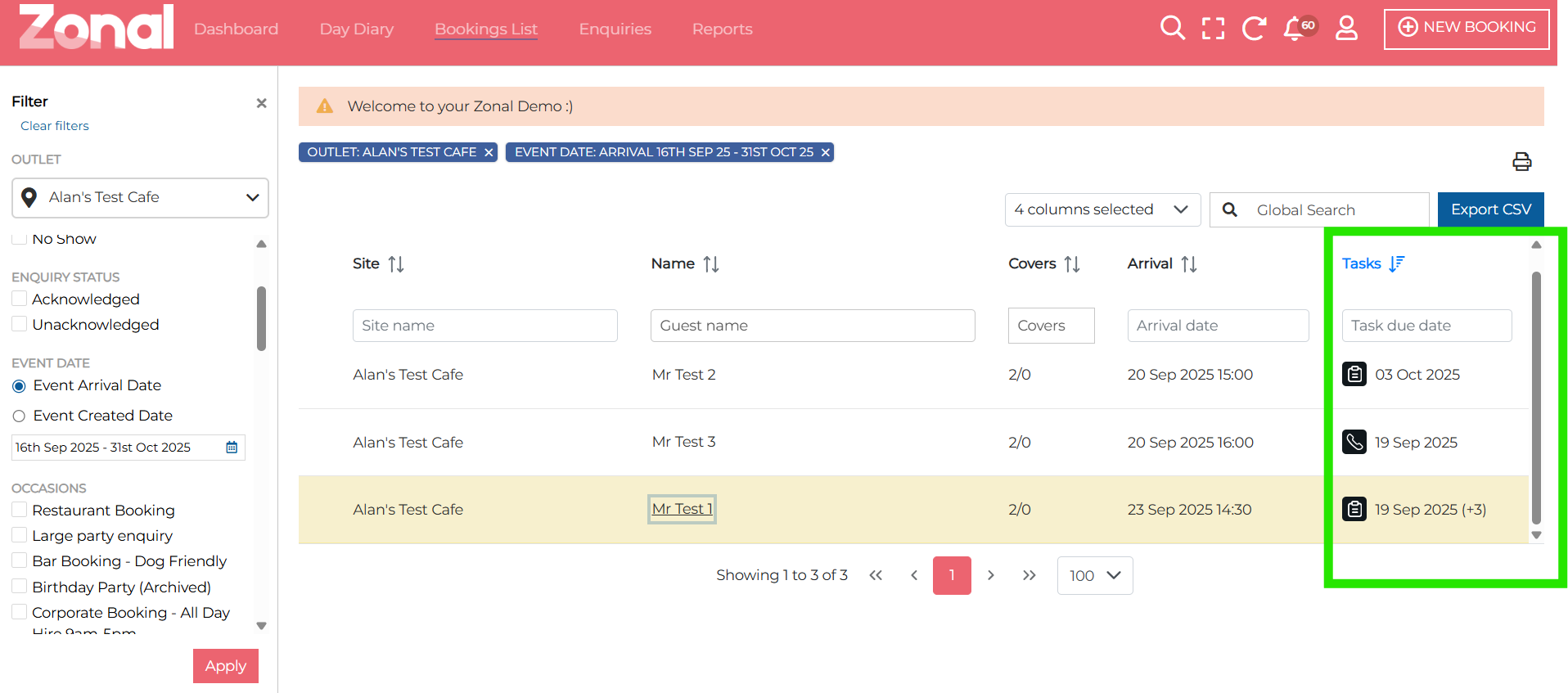
Using the ordering function, you can refine your search by:
-
By earliest due date or latest due date.
-
If there are multiple tasks per booking, they are displayed in the bracket format (e.g., +1, +2, +3…)
-
You can filter further by a specific due date.
-
Click Export to save your data to CSV to Print by clicking the print icon