The first section when configuring an instruction is the main details, this holds all of the primary information for this product type.
There are three options when adding a new instruction:
-
Select an existing instruction and click Add, this will automatically pre-fill various fields based on the selected item
-
Click add without selecting an existing instruction, this will leave all fields blank
-
Select an existing instruction and click Clone, this will copy all details from the previous selected item
When adding instructions from the All Items view:
-
Selecting an existing instruction will update the Add button to show "Add Instruction"
-
Selecting no item will default the Add button to a drop down list where an empty instruction can be added
Main Details Topics
Step 1 of 1
Completing Main Details
Follow these steps to configure this section:
-
Click Add | based on the "add option" chosen some fields will automatically be pre-populated
-
Enter the following details, Main Name | Aztec Name (update as required) | Description (optional) | Aztec Button Name (update as required)
-
Check or set the following fields Subcategory | Tags | Preparation Route | Course
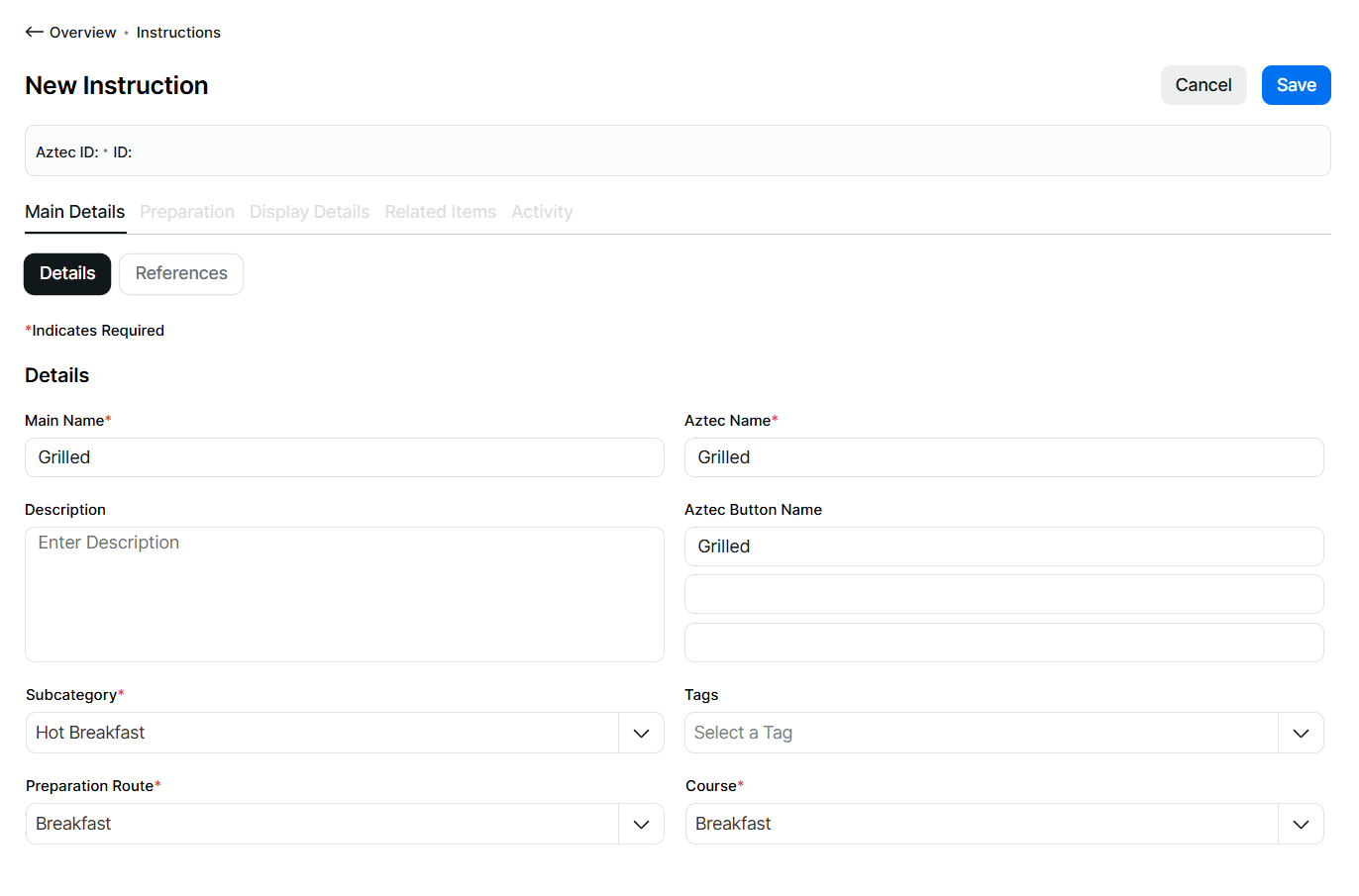
-
If there any item references to be added click References tab | enter a External Reference 1, 2 or 3
The external reference 1 is the new term for an Aztec Product Modelling Import / External Ref -
Click Save
Field Settings & Information
Details
The details section allows you to set the names and other primary instruction information.
| Field | Description |
|---|---|
| Main Name | Main instruction name used across the platform and will be the initial name given to the default display record |
| Aztec Name |
Shorter instruction name used by Aztec product modelling, pre-populated by entering the main name but will stop at 16 characters |
| Description | Description of the instruction |
| Aztec Button Text | Button text used for Aztec instruction |
| External Reference | Third party / optional reference of the instruction |
| Subcategory | Subcategory from the product structure |
| Tags | Product tags associated to the instruction |
| Preparation Route | Preparation route of the instruction |
| Course | Course of the instruction |
References
The references section allows you to set additional IDs against an instruction.
| Field | Description |
|---|---|
| External Reference 1 | Third party / optional reference of the instruction - 15 characters |
| External Reference 2 | Additional third party / optional reference of the instruction - 15 characters |
| External Reference 3 | Additional third party / optional reference of the instruction - 15 characters |