Navigation in Reports
Once a report is open, a range of navigation tools and options are available to view additional details, switch between views, or drill through to related data. This page explains the features and options available across different report types.
Navigation in Reports Topics
Layouts
Some reports include multiple layouts, allowing a single report to present different sets of information. For example, the first layout might show a summary, while additional layouts provide more detailed data. These layouts appear as tabs at the bottom of the report, each labelled with its name, and can be accessed by selecting the desired tab.
Report Examples
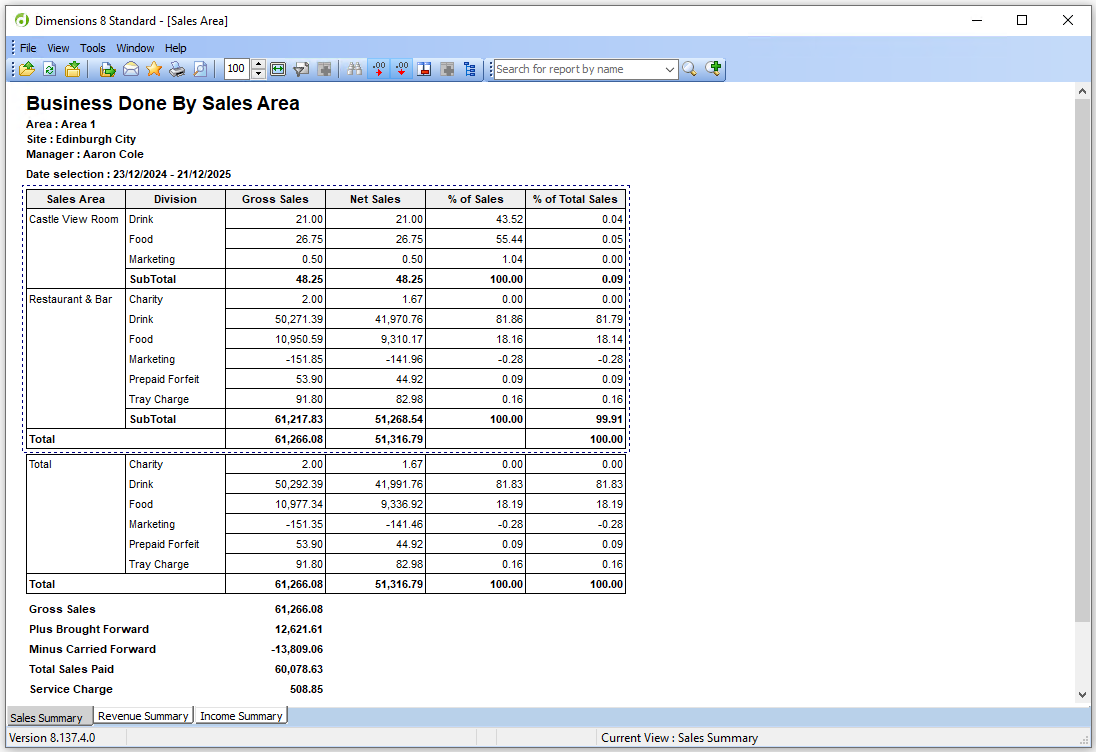
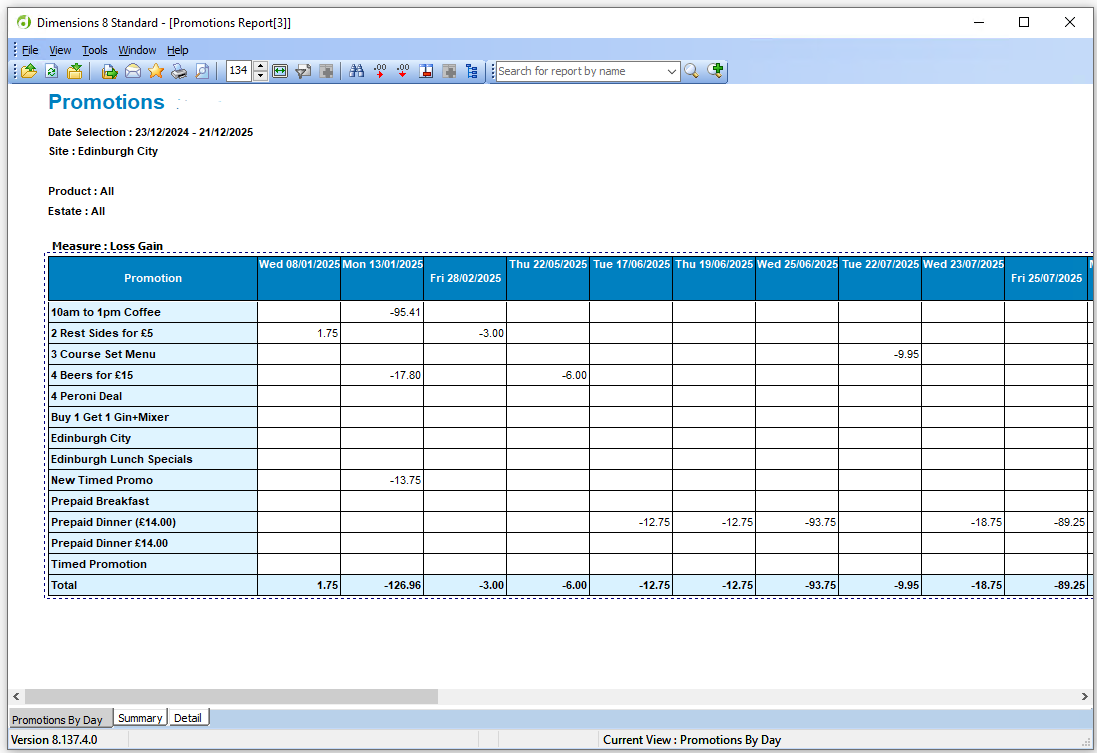
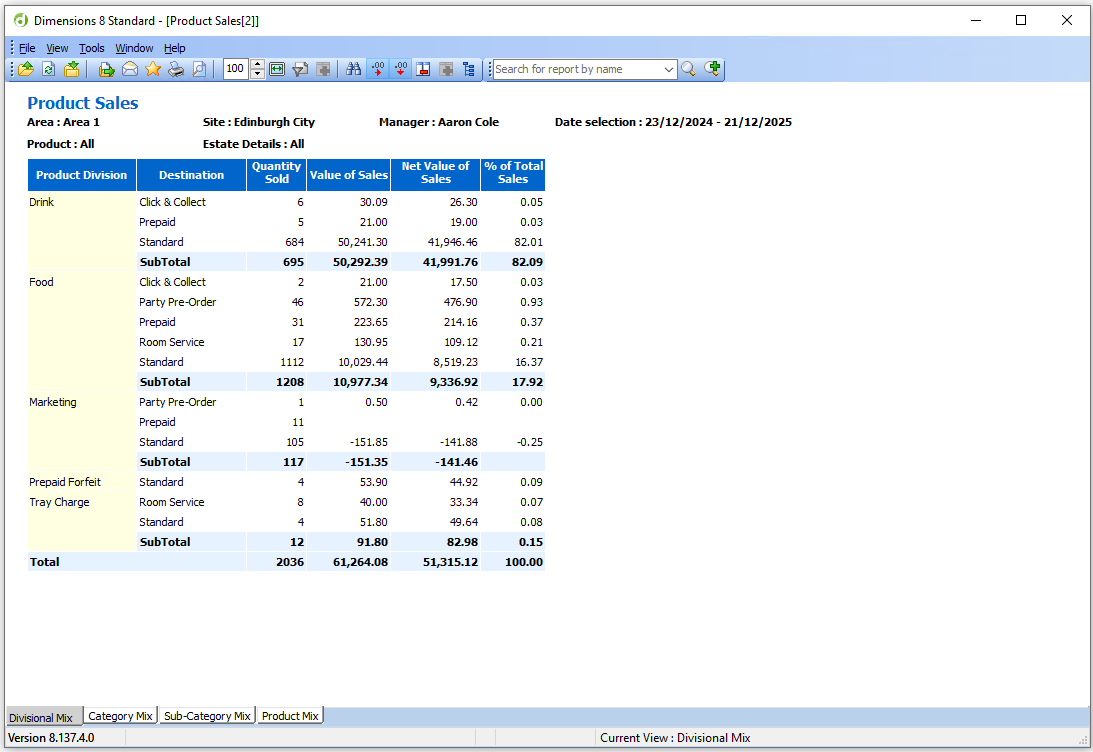
The examples below show three reports that feature multiple layouts, though many other standard reports also include similar functionality.
Business Done by Sales Area
Sales Summary | Revenue Summary | Income Summary
Promotions
Promotions by Day | Summary | Detail
Product Sales
Divisional Mix | Category Mix | Subcategory Mix | Product Mix
Drill To
When working with reports that include multiple layouts, it can be helpful to drill down from summary data into a more detailed view. In these reports, the cursor changes to a cross when hovering over any section that offers a 'drill to' through option.
Follow these steps to use a 'drill to':
-
Right Click on a text section where the cursor changes to a cross
-
Select the required Drill To option
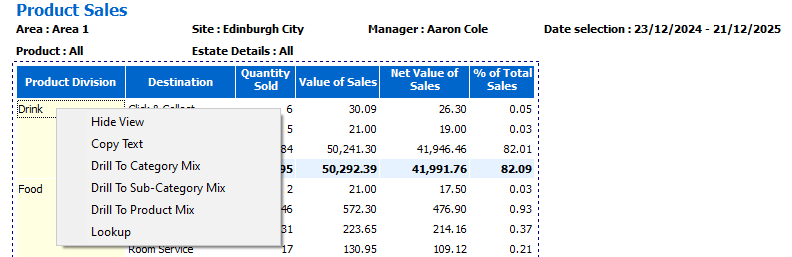
The selected view will open displaying a filtered version based on the choice made in the initial view
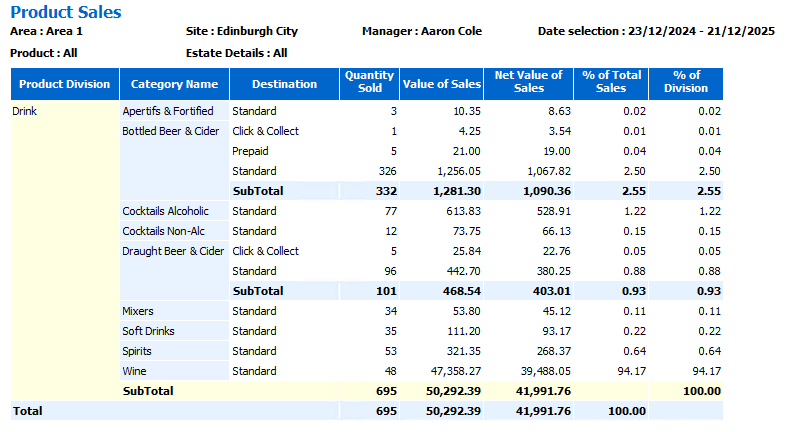
In this example, selecting the product division 'Drink' and 'Drill To Category Mix' applies a filter to only show related structure levels
Additional Information
-
Use the Remove Layout Filter button in the toolbar to remove the filter applied and refresh the report layout to showing all data
-
Some reports also provide the ability to show another report based on the data contained within the initial report
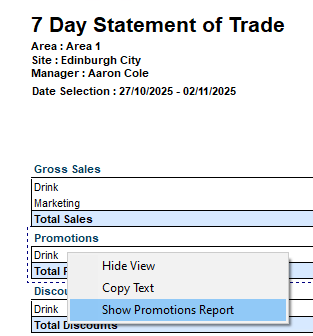
In this example the 7 day statement of trade has an option to 'Show Promotions Report' which will open and display the promotions report for the selected period
Lookups
Lookups are another type of filter that allow you to apply specific criteria to a report, displaying only the data that matches the selected terms.
Follow these steps to apply a lookup:
-
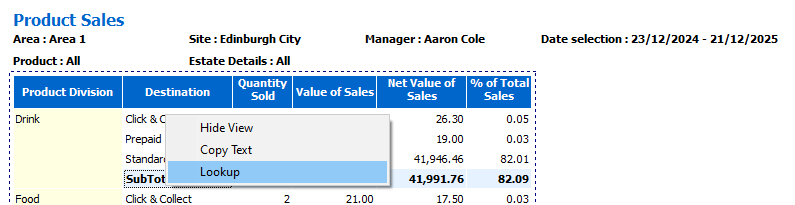
Right Click on a text section within the report from which you want to apply a lookup
-
Select Lookup
-
From the Lookup Dialog make the required selection from the Filter Terms which will be added to the Filters list
The Lookup Dialog will default to showing the column and filter terms selected when starting the lookup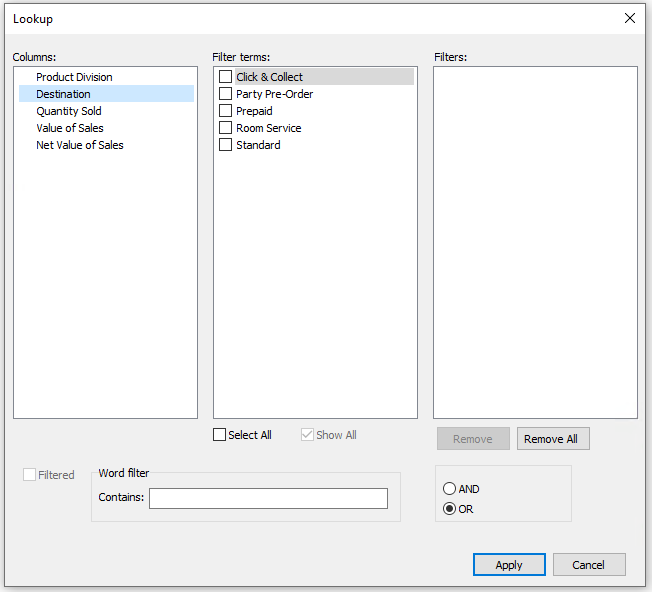
-
Selecting an alternative column will display the available filters terms that can be selected
-
Word filters can be applied by enter the filter term
-
Filters can be removed by deselecting the check box or selecting from within the filters and list and clicking remove / remove all
When applying filter is it important to check that the correct AND / OR statement is selected to ensure the expected results are returned when applying lookup filters -
-
Click Apply | the report will update and only show the results based on the lookup filters applied
Hiding Columns
When viewing a report, some data may not be relevant to the current analysis. Using the hide columns option can simplify the report and make it easier to focus on the information that matters.
Follow these steps to hide columns:
-
Click the Hide Columns icon in the toolbar
-
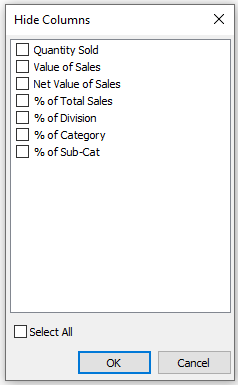
Select the required columns to hide by setting the check box
-
Click OK | the report will update and remove those columns
Additional Information
-
Click the Hide Columns button and adjust columns as required
-
Click the Show All Columns button to display all hidden columns