Hotel Receipt Viewer
The Hotel Receipt Viewer is a lightweight application that allows operators to quickly search for and view product receipt details from point of sale transactions. It’s particularly useful when guests query charges on their invoices during checkout, enabling reception and other team members to promptly locate and verify the relevant information.
The application can be installed on Windows PCs connected to the network, provided they have access to the Aztec PC for site and site master installations.
Hotel Receipt Viewer Topics
Opening, Filters & Viewing Receipts
Follow these steps to open the app and apply filters to view receipts:
-
Double click the Receipt Viewer short cut
The application will launch with no password required -
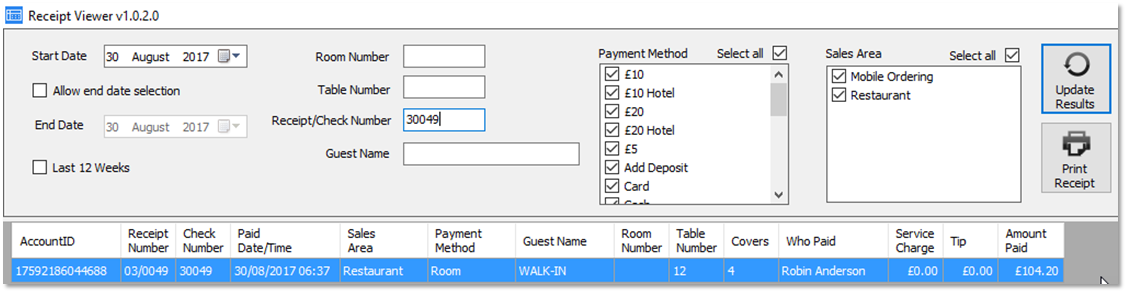
Set the Start Date to be the required date of the posting | optionally select Allow End Date Selection and set the End Date
By default when launching the app it will always default to a start date of yesterdays date -
Apply other filter criteria as required
-
Room Number
-
Table Number
-
Receipt / Check Number
-
Guest Name (as entered on the point of sale terminal)
-
Payment Method
-
Useful to set to Room so that only those entries that were room charges are displayed
-
-
Sales Area

-
-
Click Update Results
Any matching records will be displayed in the table
-
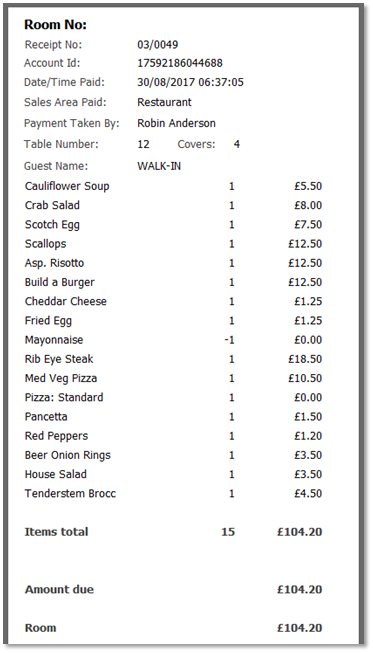
Click a Row
The receipt product information will be displayed in the right hand panel
-
Optionally click Print Receipt to send the information to the local printer