Hotel Import
The Hotel Import application enables the configuration of sales data imports from hotel property management systems using a CSV file. This allows hotel sales information to be included in selected reports and combined with any payment values recorded in the Finance module.
Before configuring the Hotel Import, ensure that all required product structures, products, and payment methods are created. This allows the mapping process to be completed without the need for additional setup.
Hotel Import Topics
General Settings
When the CSV import file is received from the property management system it should be added to the required import folder on the Aztec back of house PC.
There are two options available:
-
Set this on a global basis in the folder location input
-
Set this as a onsite setting (using the same hotel import configuration applicable)
Sales Mappings
Any sales included in the CSV import file are mapped to an equivalent Aztec product within the sales mapping section.
Follow these steps to map sales lines:
-
Click Add
-
Enter the Hotel System Category Sale Name | click OK
The category sales name information should be provided by the PMS company on how they choose output this information from their system, for example this could be and ID / Descriptor / Other option such as combination of characters -
Click the Aztec Product Input | click the 3 dot button
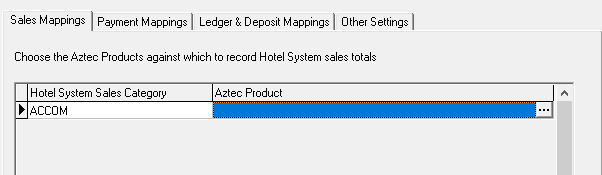
-
Select the required product to map the hotel sales category to | click OK
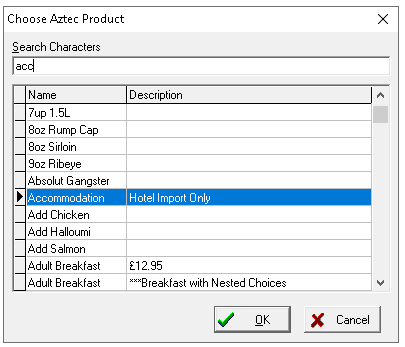
Complete the addition and mapping of all categories and Aztec products as required
It is important to map all possible categories, if the sales file contains an unmapped category it will fail to import into Aztec - Click Save
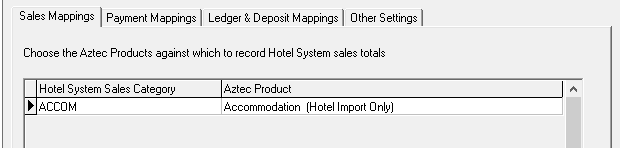
Payment Mappings
Follow these steps to configure payment method mappings:
-
Select Payment Mappings tab
-
Click Add
-
Enter the Hotel System Payment Method Name | click OK
The payment method name information should be provided by the PMS company on how they choose output this information from their system, for example this could be and ID / Descriptor / Other option such as combination of characters -
Select the drop down and choose the Aztec Payment Method
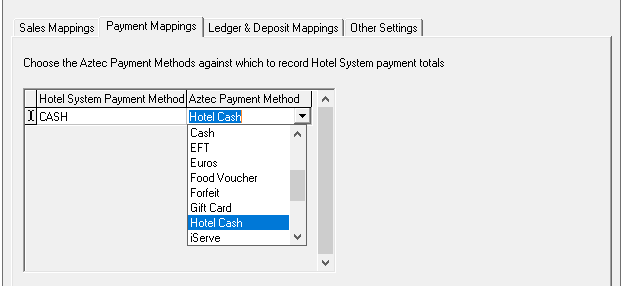
-
Click Save
Ledger & Deposit Mappings
Follow these steps to configure payment method mappings:
-
Select Ledger & Deposit Mappings tab
-
Map the following to the setup Aztec payment methods
-
Room
-
Post Payment Method → HRoom Post
-
Settle Payment Method →HRoom Settle
-
-
Hotel Ledger
-
Post Payment Method → HLgr Post
-
Settle Payment Method →HLgr Settle
-
-
Hotel Deposit
-
Take Payment Method → DepositAdd
-
Redeem Payment Method → HDeposit Rdm
-
-
-
Click Save
Other Settings
When the CSV import file is received from the property management if there are any tips contained within the file this setting should be applied
-
Select Other Settings tab
-
Enter the Tip Identifier as received from the PMS
-
Click Save