Data Cleanse
The Data Cleanse tool is an additional application installed with Aztec that allows bulk deletion of any product type within Product Modelling. It provides detailed system information about each product, helping you make informed decisions on whether a product can be safely deleted.
Data Cleanse Topics
Filters
By default, when the Data Cleanse tool opens, it loads all products. It is recommended to apply filters when working within the application to narrow the list of products, making it easier to review, verify, and mark items for deletion if required.
The following table outlines each filter and its corresponding functionality.

| Filter | Description | Additional Information |
|---|---|---|
| Last Purchase Before |
This filter enables the last purchase before date to be set |
|
| Not Present in Stock Since (date) |
This filter enables any products not present in any stock since a set date to be set |
|
| Last Sold Before (date) |
This filter enables products that are last sold before a selected date to be set |
|
| Created Before (date) |
This filter enables the date created before to be set |
|
| Not Currently Used on a Theme Panel |
This filter enables products not included in any theme / theme panel design to be set |
|
| Discontinued in Product Modelling |
This filter enables products set as discontinued to be set |
This filter is applicable to Standard and Purchase Line product types only |
| Product Type |
The following product types can be selected for filtering:
|
|
| Product Structure |
The following levels of the product structure can be selected for filtering:
|
Filter options:
-
When setting filters they will automatically update the product grid below
-
The radio option will move from Show All to Show Filtered Selection
-
Reset Filters will remove all filters and display the full product list
Product List & Delete
The product list displays all products by default, and then only those relevant to any filters applied. The information shown in the grid helps operators make informed decisions about whether an item can be marked for deletion.
The product list displays columns relevant to the applicable filters applied with the addition of barcode, and is ingredient (which specifics if its an ingredient within another product).
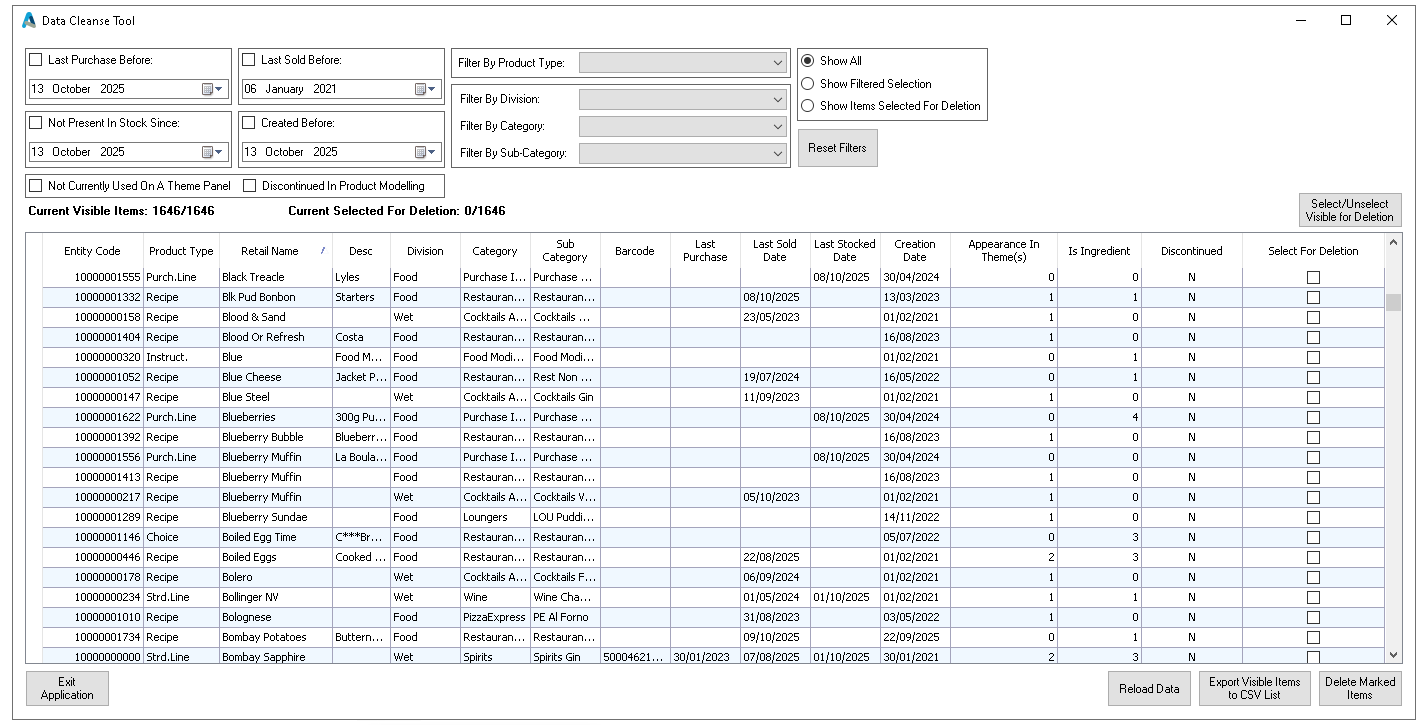
Follow these steps to delete products:
-
Set the check box Select For Deletion
Repeat for all products that require deletion
-
Click Delete Marked Items
Extreme care should be taken when deleting itemsA csv export of all files removed will be added to a selected folder on the machine performing the action
-
Click Yes or No to close the application