Enhanced Stock Mode - Operations
The enhanced stock mode option allows products to be marked as out of stock both at the point of sale terminal and in the back office. In this mode, operators can mark an ingredient as out of stock and the system will automatically mark as out of stock any products that use that ingredient.
Enhanced Stock Mode - Operations Topics
Back Office Operations
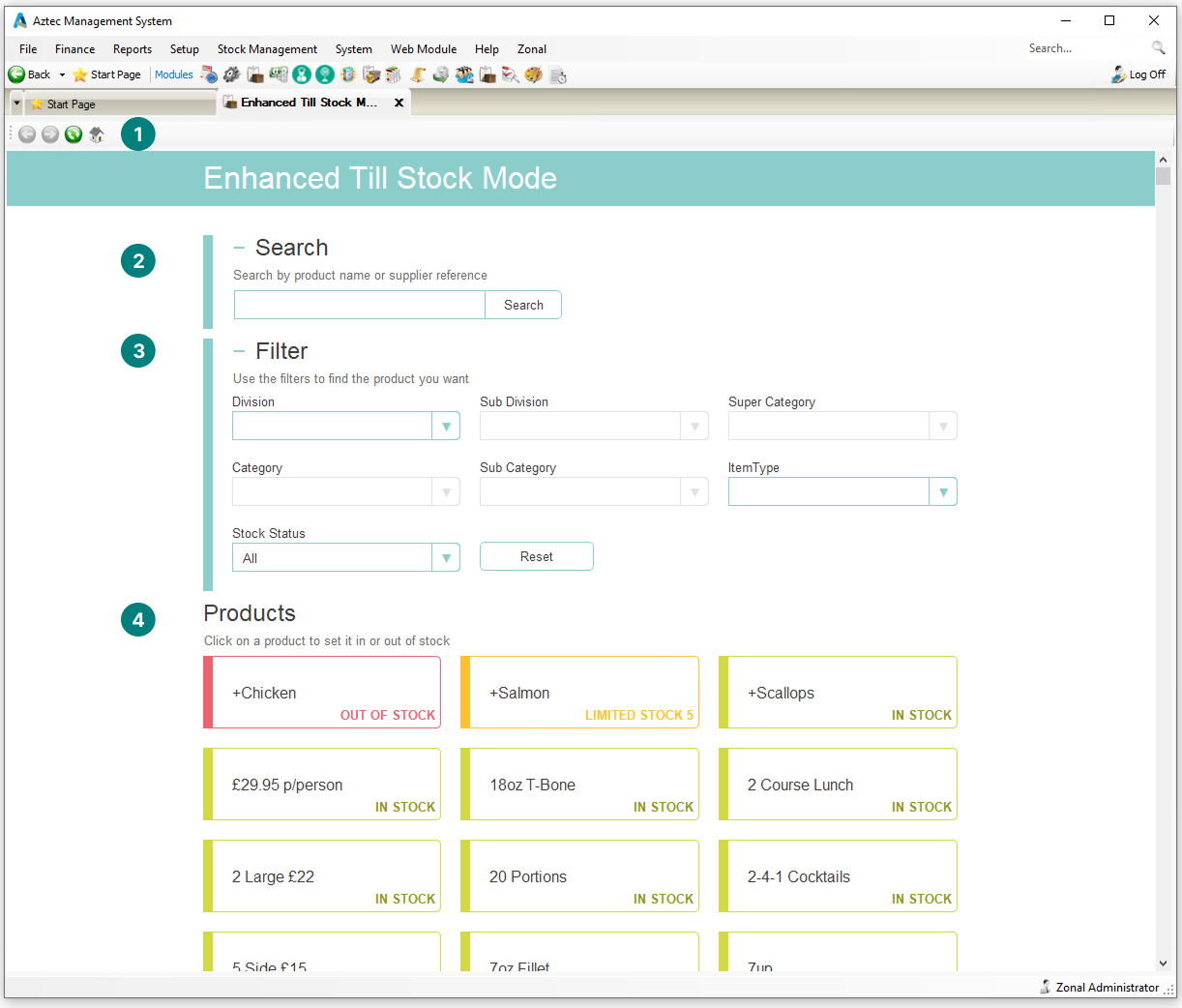
From the back office, you can manage items that are in or out of stock and set limited stock values for prep items, purchase lines, recipes and standard lines.
Layout
-
Tool Bar
-
Back / Forwards | Refresh List | Navigate to Home Page (default page when launching)
-
-
Search
-
Search by Product Name or Supplier Reference
-
-
Filters
-
Filter Products by Product Structure | Item (Product) Type | Stock Status
-
-
Product List & Status
-
List of all products based on any search or filter parameters displayed with their current stock status
-
Setting Stock Modes
Out of Stock
-
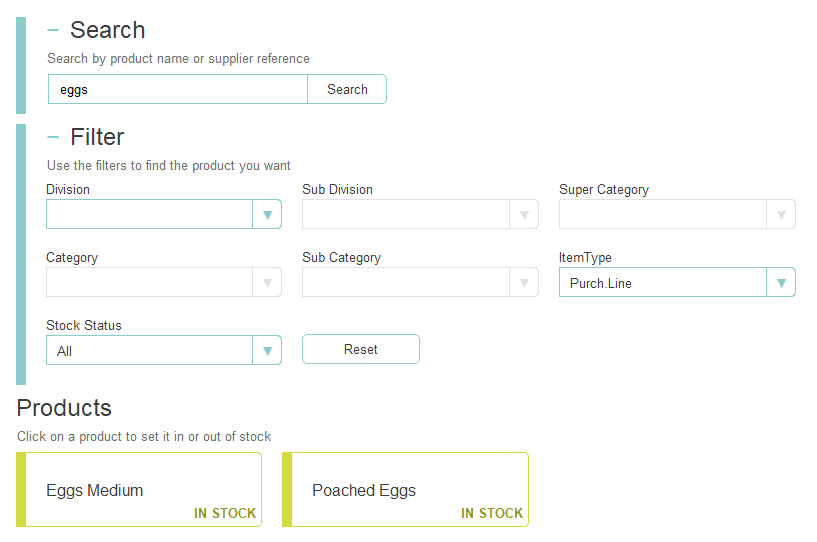
Apply a Search or Filters to find the required product
-
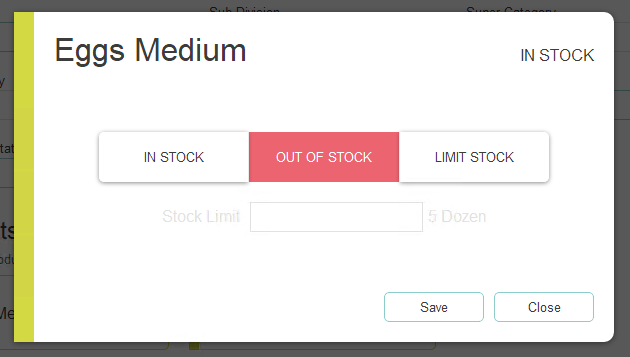
Click the Product
-
Click Out of Stock
-
Click Save
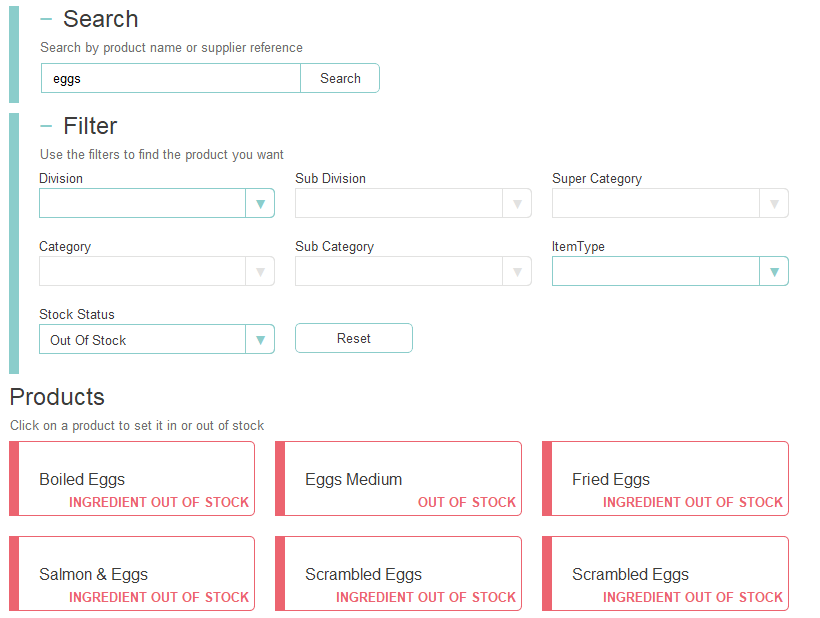
When an ingredient has been put out of stock that is used across other products they will be automatically be put out of stock and displayed in the list as Ingredient Out of Stock
Applying a Stock Status filter of 'Out of Stock' will display all items currently out of stockIn this example as eggs were put out of stock and so all products containing eggs were also put out of stock
Products that use ingredients marked as minor will not be automatically set out of stock. For example, if a soup includes a chive garnish, the chives can be marked as a minor ingredient because the soup can still be sold without them
Limit Stock
-
Apply a Search or Filters to find the required product
-
Click the Product
-
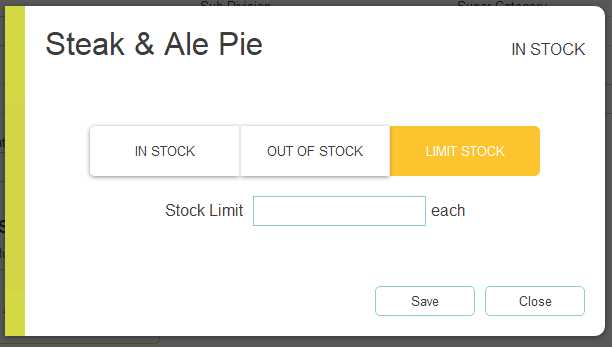
Click Limit Stock
-
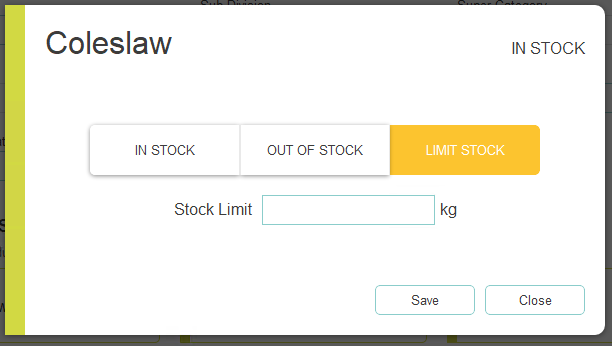
Enter the Limit Stock Value for the selected product
Stock limits values are set in the unit of measure configured for the selected product -
Click Save
For each product sold through point of sale, iServe or guest ordering channels, the system deducts the relevant stock. Once the limited stock is fully used, all related products will be automatically set as out of stock.
In Stock
-
Apply a Search or Filters to find the required product currently out of stock or with limited stock
-
Click In Stock
-
Click Save
-
Click Yes to confirm
POS Operations
Layout
-
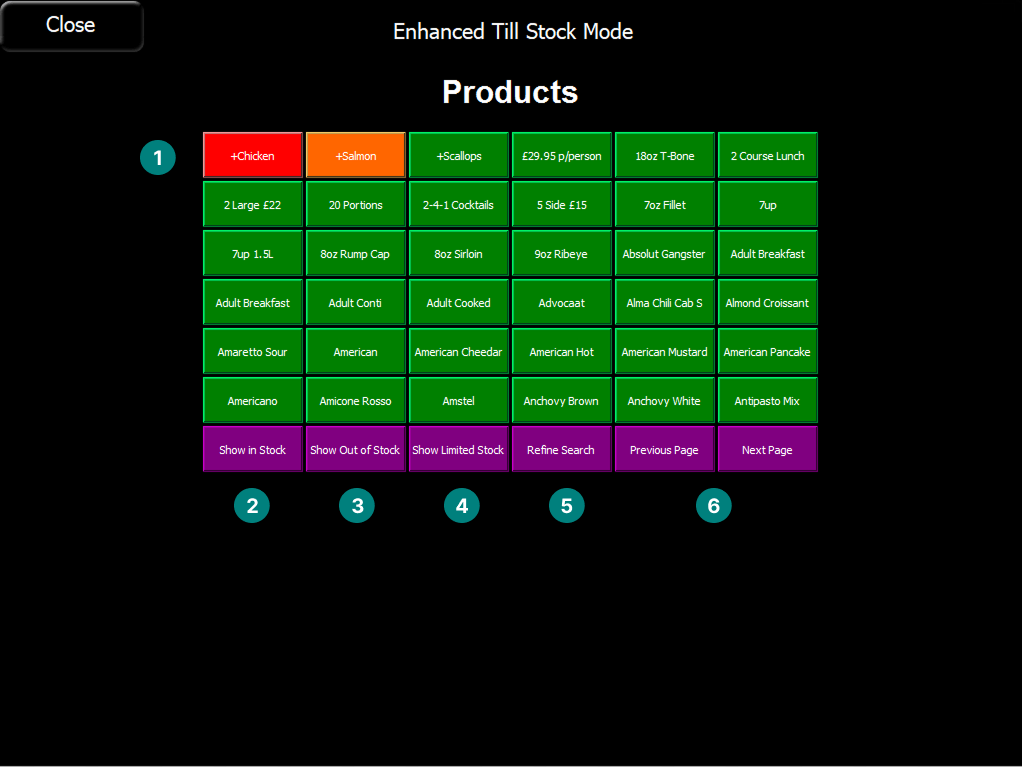
Product List
-
Filter for Show in Stock
-
Filter for Show Out of Stock
-
Filter for Show Limited Stock
-
Search
-
Page Navigation
Setting Stock Modes
Out of Stock
-
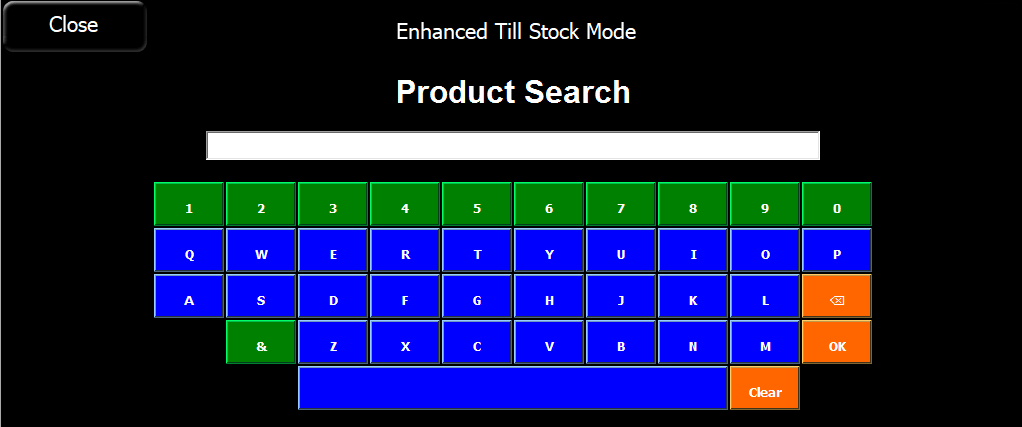
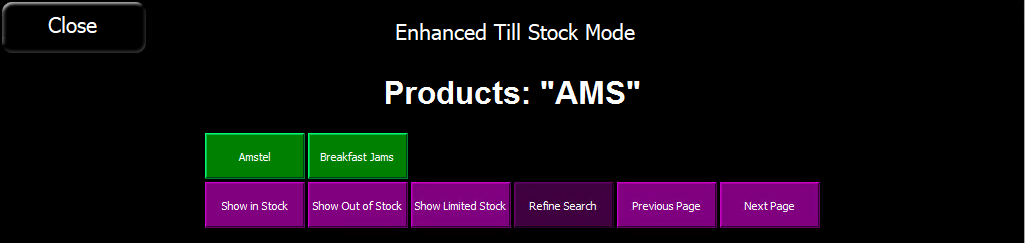
Tap Refine Search
-
Enter required Search Term | tap OK
-
Tap the required Product
-
Tap Out of Stock

-
Tap OK
In Stock
-
Tap Show Out of Stock
-
Tap the required Product
-
Tap In Stock
-
Tap OK
In Stock - Restricted by Ingredient
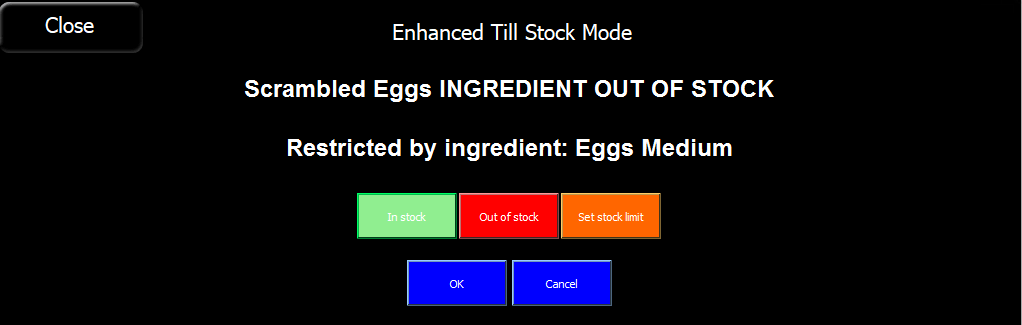
Products that have been automatically marked as out of stock based on the ingredient require the ingredient to be set back into stock, and subsequently the related products will go back into stock.
Stock Limit
-
Tap Refine Search
-
Enter required Search Term | tap OK
-
Tap the required Product
-
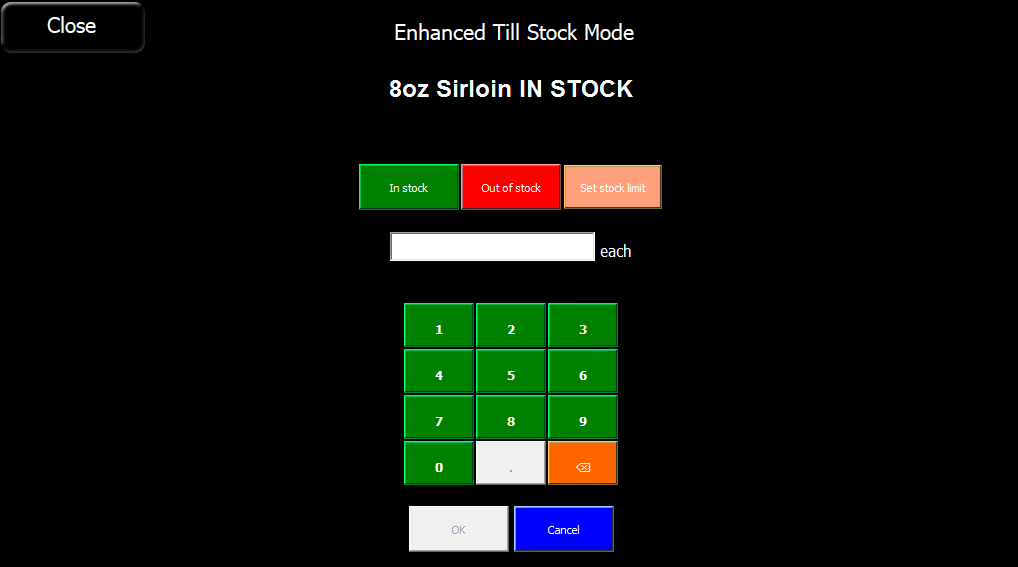
Tap Set Stock Limit
-
Enter the required Quantity Limit
-
Tap OK