The second section when configuring a prep item are the ingredients that are being added within item details.
Item Details Topics
Step 2 of 2
Adding Ingredients to the Prep Item
Follow these steps to configure this section:
-
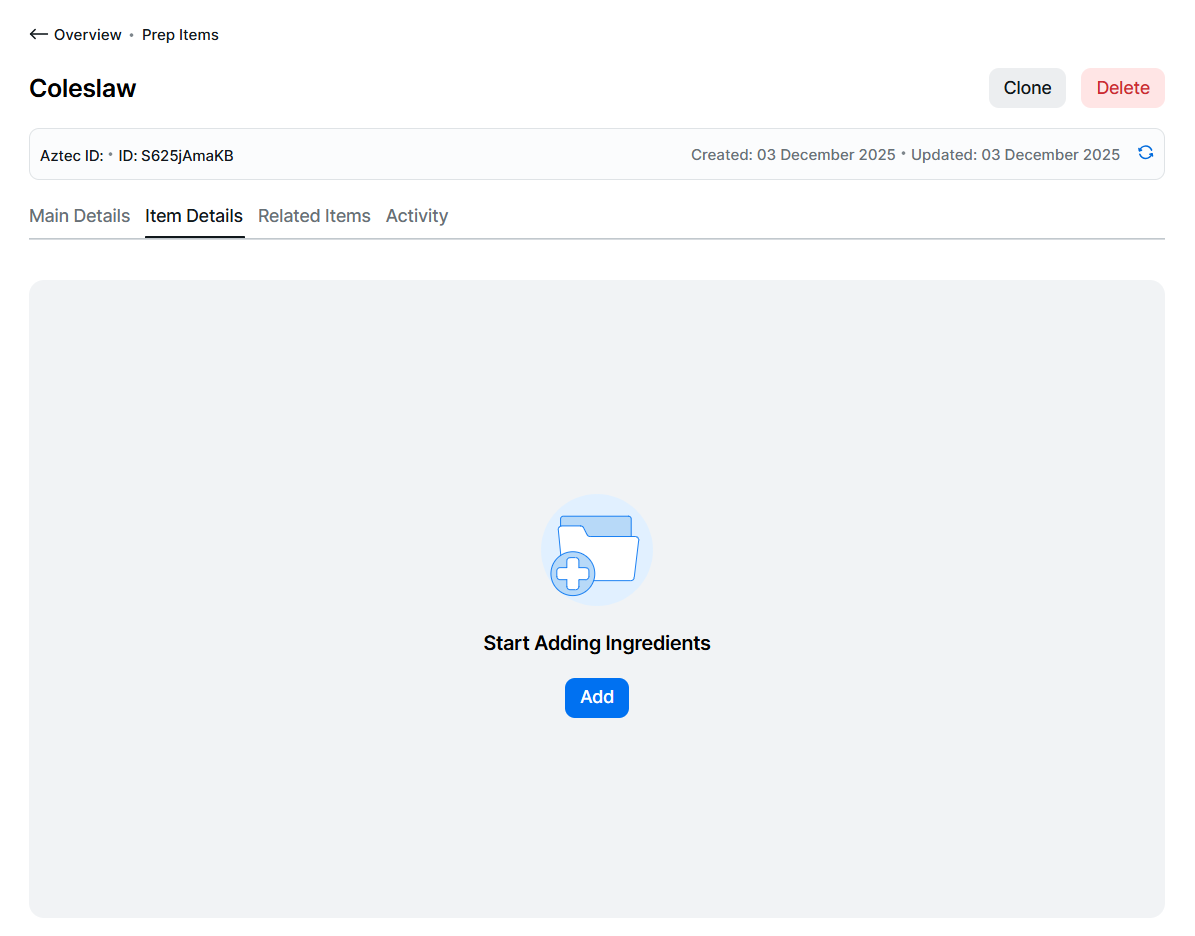
Click Add
-
Search for the required ingredients to add to the prep item
The following types can be added to a sales item: Sales Item (purchasable) | Purchase Item | Prep ItemClick here for more information on filtering and searchingProduct Structure Filter & Search Tips
When searching for product types you can:
-
Use the product structure to select 1 or more parts of the hierarchy
-
Click into a drop down and either type to search or scroll through the list of available items and select
-
Select filters from multiple sections, to provide more accurate results
-
Click the X on the selected item to remove
-
-
Apply a filter by selecting product tags
-
Use search to find items by main name, description, Aztec ID or external reference
-
-
Select the required ingredients | click the check box for each option or to select all check the box in the table header
To help the selection each option listed is displayed with its type badge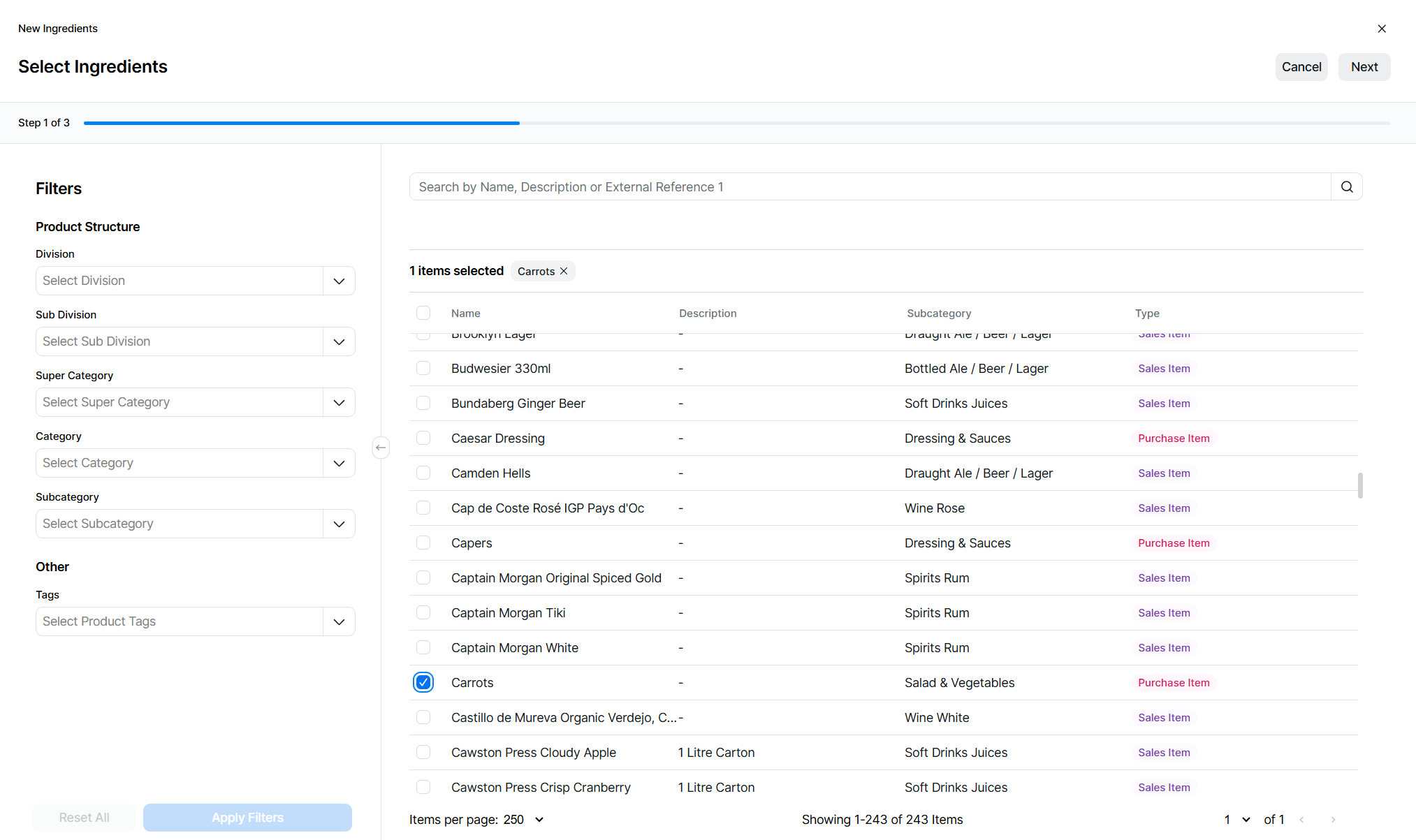
-
Continue filtering and searching until all options are selected, selected items are displayed at the top of the screen, clicking the X on an option will remove it from the selection
-
Click Next
-
The ingredients list can be sorted, follow this step or click Next
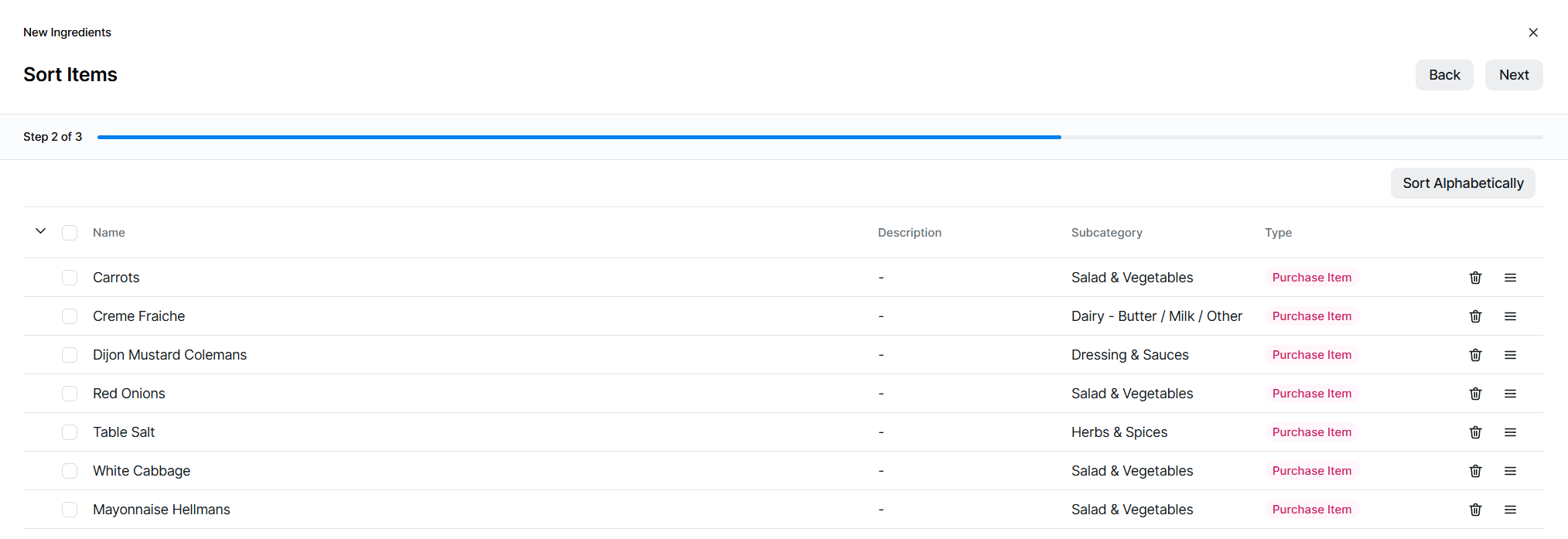
Sort the ingredients to set the correct order to be displayed in the ingredients table
 Click here for more information on sorting
Sorting Tips
To help sort options you can:
-
Click Sort Alphabetically to automatically sort items
-
Use the drag and drop icon to move options up and down
-
-
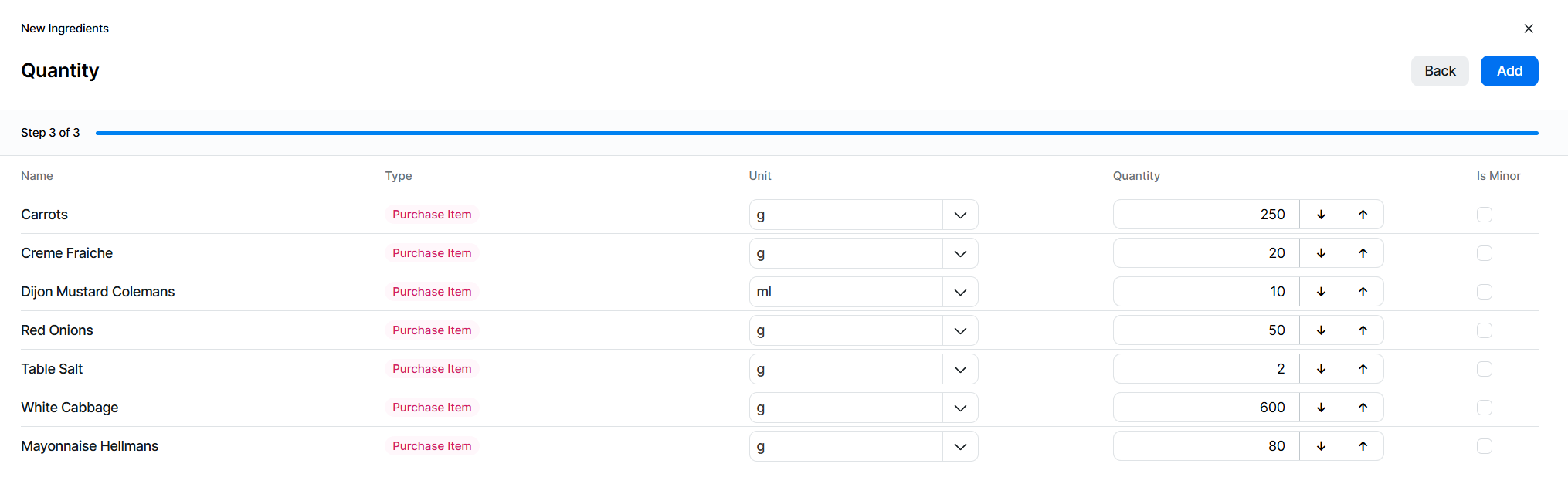
For each ingredient added the required mapping between the unit, and quantity needs to be completed for the correct stock reduction when the prep item is used as an ingredient within a sales item
-
Unit
-
Select the required unit of measure
-
-
Quantity
-
Enter the quantity of the ingredient
-
-
Is Minor
-
If the ingredient does not effect the overall item for example a garnish of chives on soup and the item can be still sold selecting "Is Minor" check box will enable the sales item to be still be sold
-
-
-
Click Add
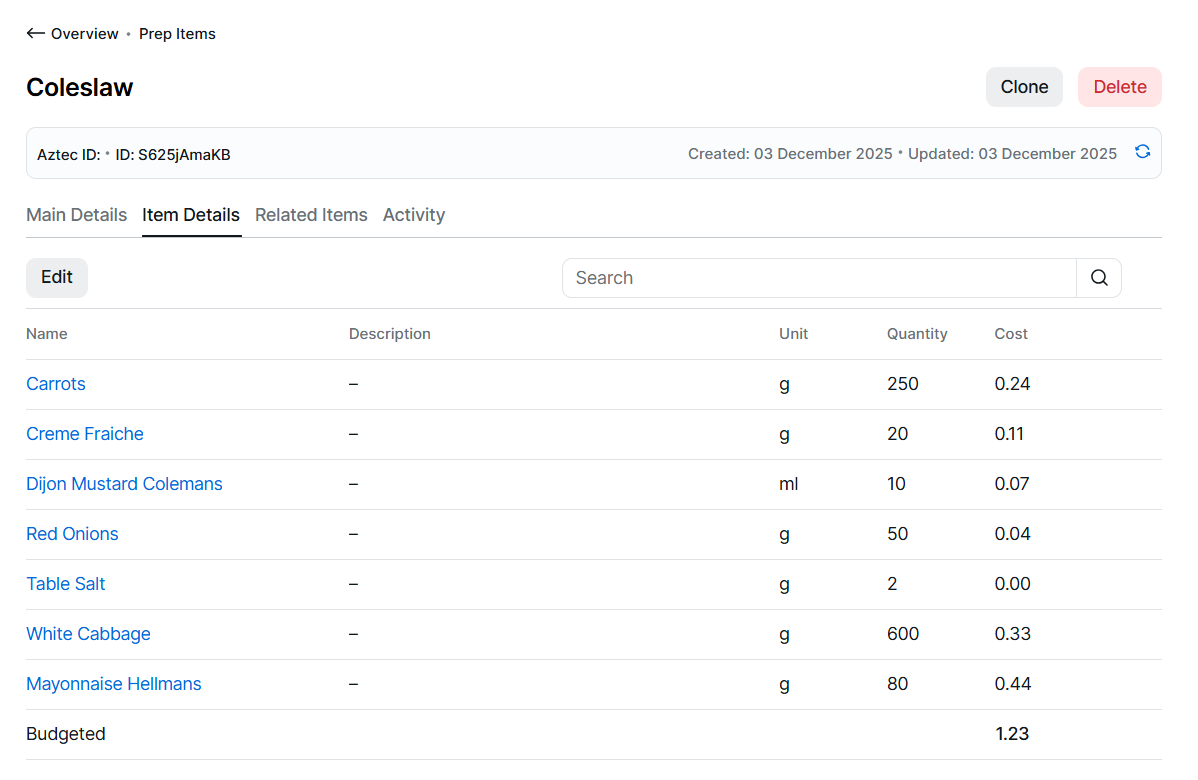
The ingredients added will be displayed in a table where you can:
-
View the ingredient, unit, quantity, is minor
-
Navigate to the ingredient by clicking the link
Editing Ingredients
Follow these steps to configure this section:
-
Click Edit
-
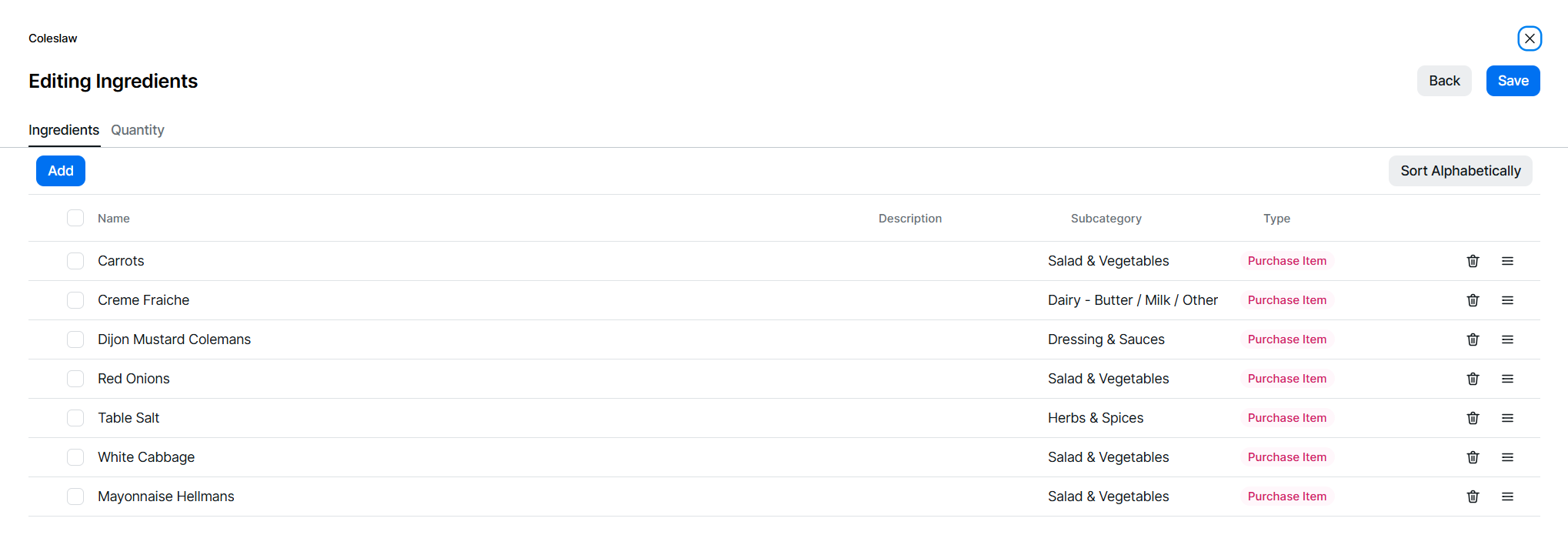
From the Ingredients tab the following options can be edited:
-
Sort Ingredients - sort by drag / drop or click Sort Alphabetically
-
Remove an Ingredient - select 1 or more ingredients | click Remove | or click the Delete icon
-
Add Ingredients - click Add
-
-
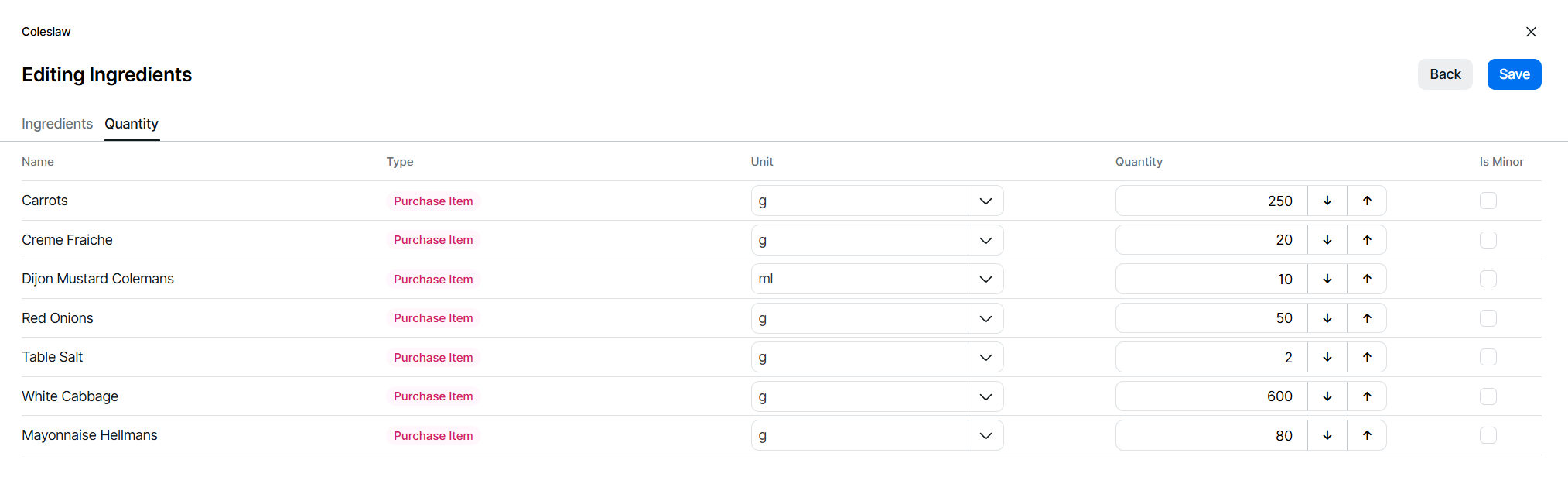
From the Quantity tab the following options can be edited:
- Change Unit and Quantity
-
Update Is Minor setting
-
When all edits have been completed, click Save