Threads are assigned to a product division, which means any standard line, purchase line, or prep item within that division will be included in stock counts for the selected thread. Depending on the organisation’s requirements, there may be one thread per division, or multiple threads for the same division. For larger businesses, it is common to have two threads: one for an Auditor and one for a Manager. In this setup, both threads operate independently and produce their own stock results.
When an Auditor stock count is performed, it acts as the master thread. The system automatically creates a stock entry for the Manager thread covering the period between the Manager’s last closing count and the Auditor’s count. For example, if the Manager completed a stock count on Sunday and the Auditor completed a count on Tuesday, the system will automatically generate a Manager thread stock from Sunday to Tuesday, resetting the closing count to match the Auditor’s results. The Manager’s next stock count will then continue from Tuesday onwards.
Thread Configuration Topics
Creating Threads
Follow these steps to create threads:
-
Click Create Thread
-
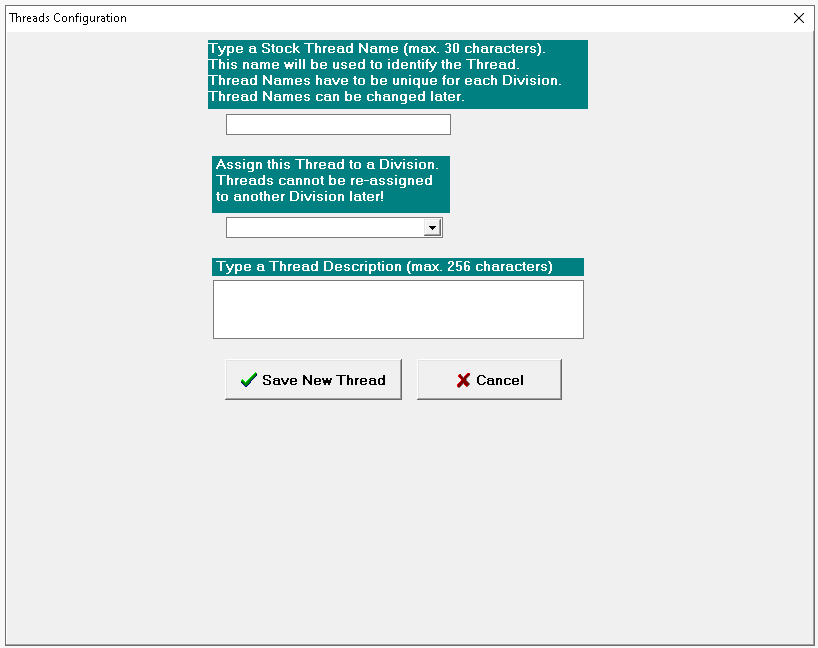
Enter Thread Name
Zonal recommends 'Type' followed by 'Who' - for Example Food Manager / Drink Auditor -
Select the Product Division
-
Enter Description (optional)
-
Click Save New Thread
-
Click Yes to proceed
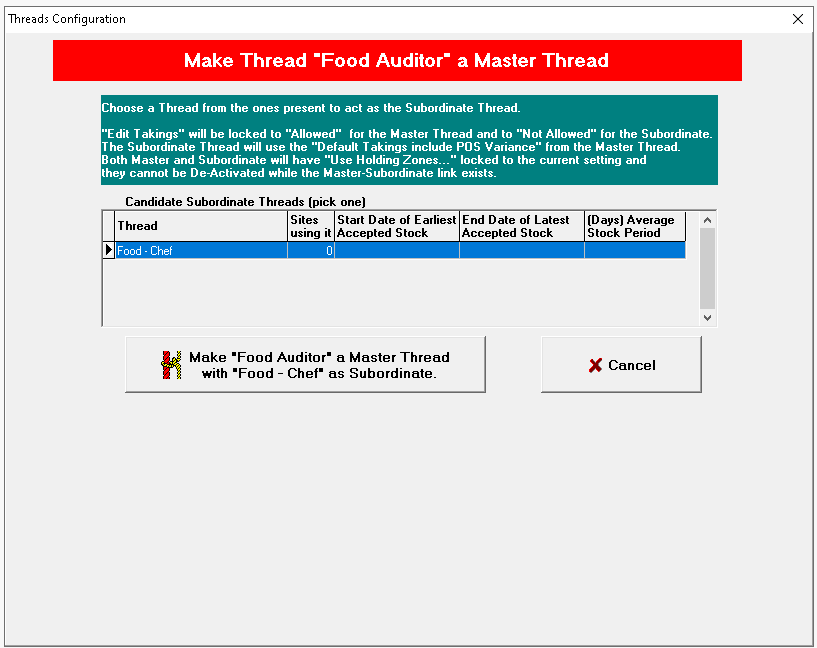
When a created it is classed as a 'normal thread' and has no relation to any other threads of the same product division, if you wish to have a relationship between an auditor and manager thread where the auditor will be classed as the master and auto create stocks the selected thread needs to be converted to a master thread.
-
Select the Auditor (or thread classified to be the master) from the thread list
Threads that can be converted to master are shown with green information text -
Click Make This a Master Thread
-
Select the required thread from the list | click Make "thread name" a Master Thread with "thread name"as Subordinate
Threads that have previously been setup as master / subordinate can be converted back to a normal thread:
-
Select the required thread
-
Click Make This a Normal Thread
-
Confirm Yes to proceed
Settings
Each stock thread can have different settings applied, this controls the behaviour of the stock count, reporting options and more.
The following table outlines each setting and its corresponding functionality.
| Setting | Description | Additional Information |
|---|---|---|
|
Allow Setting of Nominal Price where Nominal Price (from Sales) is Null |
The nominal price is the average retail price of the product |
This figure is important as it used to calculate many of the stock reports, if the product is purchased but not sold the nominal price will be zero. If this is turned on during the stock take the correct price can be entered |
| Disallow change of Nominal Price derived from the Tariff Price |
When Allow Setting of Nominal Price is enabled this setting will become available, when selected any nominal prices calculated from the tariff price will become read only |
|
| Disallow change of Nominal Price manually set on prior stocks |
When Allow Setting of Nominal Price is enabled this setting will become available, when selected products that had there nominal prices set on a previous stock audit will be read only |
|
| Blind Stocks (Theo Figures not shown on Audit) |
When enabled the theoretical stock closing figures will not be displayed on the audit screen |
|
| Hide Button 'Fill Blank Counts with Theo Closing |
When enabled the button to fill blank count fields with the theoretical values will not be displayed on the audit screen |
|
| Automatically Fill Blank Counts with Theo Closing |
When the Blind Stocks (Theo Figures not shown on Audit) setting is enabled this setting will become available, when selected when a stock count is to be entered it will automatically populate the counted values with the theoretical closing values |
|
| Use 'Must Count Items' Template (where set) |
When Automatically Fill Blank Counts with Theo Closing setting is enabled this setting will become available, when selected templates will apply to sites stocks |
When using this feature templates must be created and assigned to sites in Stocks → Configuration → Must Count Items |
| Set Count Sheet Fields |
The follow fields can be enabled / disabled for count sheets:
|
Theoretical fields can only be enabled when the stock thread is not configured as blind |
| Use Special "Dozen / Units" format |
When enabled entry into the audit / count screen can be made in Dozens / Units format |
|
| Use special "Gallons / Pints" format |
When enabled entry into the audit / count screen can be made in Gallons / Pints format |
|
| Auditor is Allowed to Edit Takings |
When enabled master threads can edit the takings values displayed |
|
| Default Takings include POS Variance |
When enabled the default takings for the stock period will use the values that have been declared rather than the expected takings |
|
| Use Gross Profit Reporting |
When enabled reporting will be in gross profit format (rather than cost of sales) |
|
| Signature Line on Summary Reports |
When enabled signature boxes for manager and auditor can be enabled for summary results reports |
|
| Show Cumulative Period Summary box on the Summary Reports | ||
| Auto Print Reports on Acceptance |
When enabled the follow reports can be automatically configured to print after accepting the stock on this thread:
|
|
| Allow Wastage Adjustment when Auditing |
When in the Audit / Count screen and this setting is enabled wastage adjustments for any product in the count can be made |
|
| When Accepting Stock Lock all Purchases used by the Stock |
When enabled all purchases will be locked and can no longer be edited |
|
| Use Hold Zones or Count Locations |
When enabled holding zones or count locations can be configured at site for this stock thread |
|
| Confirm Mobile Stock Count Imports for Locations | ||
| Show Expected Items Only in Mobile Stocks |
When enabled and performing counts on mobile devices only the expected products will be shown |
Expected products are those that have had stock movement by a purchasing, sale, wastage or were in stock in the last stock period |
| Do Unattened Mobile Auto Count Stock Take | ||
| When in the Trading Day are Mobile Counts Done |
After or Around End fo Day Before or Around Start of Day |
|
| What Recipes to use for Theo Reduction in Stock Calculation |
As they are at calculation time Set when starting new stock |
|
| Stocks of this Thread can be used as Base for Line & Spot Checks |
When enabled line checks and spot checks can be performed using calculations of stock reduction and purchases for this thread |
|
| Show the Import / Export Reference when Auditing |
When enabled the Import / Export Reference will be displayed on the Audit / Count screen |
|
| End Date Only Allowed this Week Day |
|
Thread Security
Each thread can have different security settings applied according to the organisations requirements, security settings are applied to back of house job roles.
The following table outlines each setting and its corresponding functionality for site general security.
| Setting | Description | Additional Information |
|---|---|---|
| Initialise Thread |
When enabled operators with this permission can initialise new threads |
For any new stock threads before full stocks can be completed the thread has to be initialised by entering opening values for all required products, this process is only completed once |
| New Stock |
When enabled operators with this permission can start a new stock |
|
| Site Configuration |
When enabled operators with this permission can access the site configuration section of stocks |
|
| Do Line Checks |
When enabled operators with this permission can access and perform line checks |
|
| Line Checks Not Blind |
When enabled operators with this permission can see expected count values within a line check |
|
| Deselect Line Check Mandatory Items |
When enabled operators with this permission can deselect mandatory items within a line check |
|
| View Line Check Reports |
When enabled operators with this permission can view all line check reports |
|
| Internal Transfer |
When enabled operators with this permission can perform internal transfers between holding zones |
This setting is separate to transfers in the purchasing module which are related to the transfer of products between sites |
| Enter Waste |
When enabled operators with this permission can have access to the wastage section and enter waste |
The following table outlines each setting and its corresponding functionality for site current (when in a current stock / auditing) security.
| Setting | Description | Additional Information |
|---|---|---|
| View Current Stocks in Grid |
When enabled operators with this permission can view current stocks in this section |
|
| Re-Calculate |
When enabled operators with this permission can recalculate the stock |
|
| Enter Audit |
When enabled operators with this permission can enter the audit / count screen and enter count values |
|
| Complete Audit |
When enabled operators with this permission can complete the audit |
When an audit has been entered if a role is enables to enter back into the audit / screen this setting should be enabled |
| Edit Audit |
When enabled operators with this permission can edit the audit |
|
| Enter Takings & Misc Expenses |
When enabled operators with this permission can enter updated takings values / misc expenses that have a reflection on the stock result |
|
| Edit takings & Misc Expenses |
When enabled operators with this permission can edit values entered |
|
| Accept Stock |
When enabled operators with this permission can accept the stock |
An accepted stock if the final step and will make it no longer available for editing unless it is unaccepted with separate permissions for accepted stocks |
| View Current Reports |
When enabled operators with this permission can view reports for current stocks |
|
| Cancel Stock |
When enabled operators with this permission can cancel a stock that is shown in the current stock list |
Cancelling a stock will remove all entered count information only and would require the stock to be started again |
| Enter Misc Allowances |
When enabled operators with this permission can enter other allowance values that have a reflection on the stock result |
The following table outlines each setting and its corresponding functionality for site accepted stocks security.
| Setting | Description | Additional Information |
|---|---|---|
|
View Accepted Stocks in the Grid |
When enabled operators with this permission can view all accepted stocks for the thread in the list / grid |
|
| View Accepted Reports |
When enabled operators with this permission can view reports for accepted stocks in this list / grid |
|
| Unaccept Stock |
When enabled operators with this permission can unacept a stock |
Unaccepting a stock will return it to a current stock, this can be useful to correct mistakes or resolve other issues |
The following table outlines each setting and its corresponding functionality for reports security.
| Setting | Description | Additional Information |
|---|---|---|
| View Stocks in the Grid |
When enabled operators with this permission can view stocks in the reports list / grid |
|
| View Current Stock Reports |
When enabled operators with this permission can view current stocks in the list / grid |
|
|
View Accepted Single Stock Reports |
When enabled operators with this permission can view accepted stocks in the list / grid |
|
|
View Accepted Multi Stock Reports |
When enabled operators with this permission can view stock reports for multiple stocks by the multi select option |