Internal Transfers
For organisations set up to handle internal transfers, this option allows products to be moved from one site to another, ensuring stock can be redistributed to locations where it is needed.
Internal Transfers Topics
Transfers
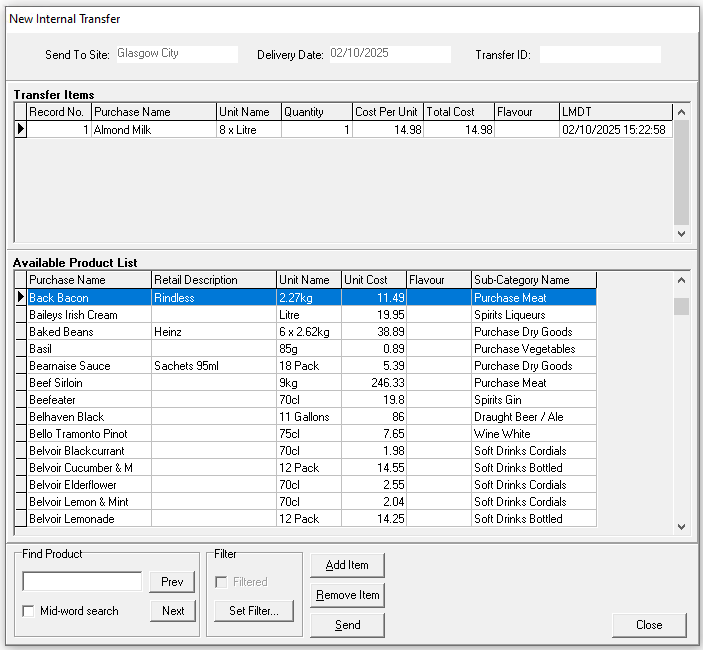
Follow these steps to add a transfer:
-
Click New Internal Transfer
-
Select the required Site to transfer to
-
Select the required Delivery Date
-
Click OK
-
From the Available Product List find the required products by using the search and filter options
-
Click Add Item | specify the Quantity of items to be transferred
-
Click Send and OK to complete
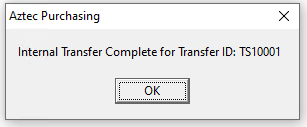 The receiving site must accept the stock transfer, until then, the stock remains at the sending site
Accepting Transfer
Receiving sites will automatically be shown a notification on their Things To Do List that an internal transfer has been completed from the sending site, this must be actioned and accepted so that it updates both sites stock levels.
Follow these steps to accept the transfer:
-
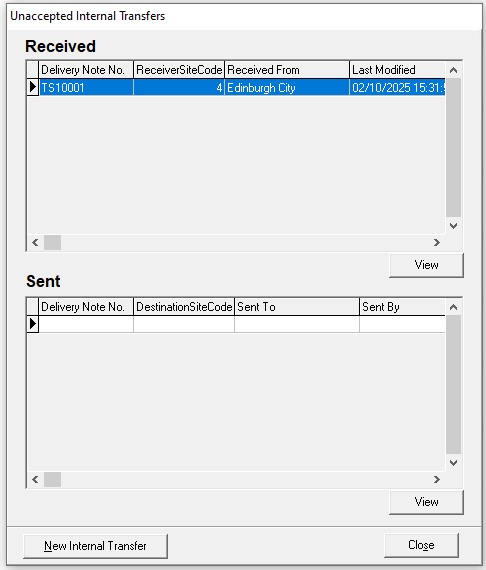
Click Unaccepted Transfers
-
The Received panel will display any transfers yet unaccepted, select the required transfer and click View
-
From the Unaccepted Transfer Details click Accept
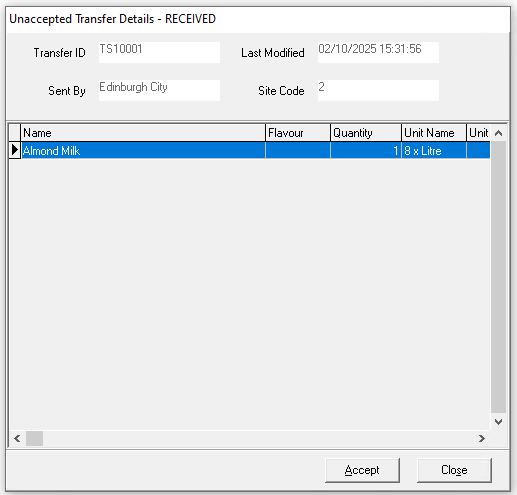
Stock levels will be updated at both the sending and receiving sites, if there is any discrepancies between what was sent and what is received the transfer should be accepted and the then a corresponding transfer should be made back to the original site so that the stock position is corrected