Delivery notes can be created either as a new note or by selecting an existing purchase order. Each delivery automatically updates the inventory levels of all products and is reflected in the stock module.
Viewing Delivery Notes Topics
Adding Delivery Notes
Follow these steps to add delivery notes:
-
Click Add Delivery Note
-
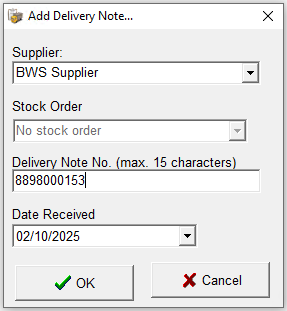
Select the required Supplier
-
If a stock order was previously created select the required order from the list
When proceeding to the delivery note the products on the stock order will be automatically added, the quantities can be updated, additional items add or deleted as required -
Enter the Delivery Note Number
-
Update the Delivery Date (defaults to the current day)
-
Click OK
-
From the Add Item window locate the required products
-
Type to Search
-
Apply Different Search Criteria - Description / Subcategory / Import Export Ref / Midword or Advanced
On the selected product click Accept or press <Enter> to add the item to the delivery
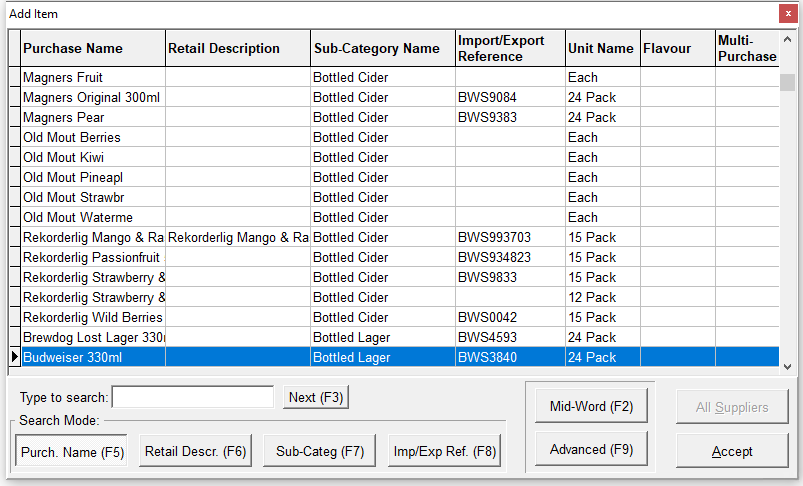 Press <Enter> or <Down Arrow> to quickly move back to the Add Item window
 -
-
Add all the required items to the delivery and click Close to save complete the entry | click Yes to save the delivery
Other Options Adding a Delivery
-
Delete Item - items can be removed from the delivery using this option
-
Select a Row | click Delete Item | click OK to confirm the deletion
-
-
Item Search - when there are a large number of products on the delivery the item search can help find it
-
Click Item Search | select the product from the drop down or apply a different selection and make a change
-
-
Free Item - if permitted any items from that selected supplier can be added as 'free'
-
Click Free Item | select the product from the Add Item window | enter the required Quantity
-
-
Date Change - the delivery date is set when first adding the delivery, this can be updated if required
-
Click the Calendar Icon (top right next to Delivery Note Date) | select New Date | click OK
-
Credit Notes
If you are required to send stock back to the supplier or are issued a credit note these can be added as follows:
-
Create a new delivery note for the required supplier, date and credit note number
-
Add the required products to the delivery
-
Set the quantity to be a minus value, this will automatically remove the items from stock
Editing Delivery Notes
Delivery notes that have been entered and not yet accepted through the finalisation of an accepted stock can be edited.
Follow these steps to edit a delivery note:
-
Click Edit Delivery Note
-
The following information is displayed
-
All delivery notes for the current stock period
-
Ability to search by supplier, delivery note number or date
Select the required note to edit | click OK
-
-
Make any changes to add missing items, change quantities or delete items as required
-
Click Close | click Yes to save
Current Delivery Notes
Current delivery notes are those within the current stock periods, once a stock has been completed notes are moved automatically into accepted.
Follow these steps to view current delivery notes:
-
Click Current Delivery Notes
-
The following information is displayed
-
All delivery notes for the current stock period
-
Ability to search by supplier, delivery note number or date
Select the required note to view | click OK
-
-
Click Close after viewing
Auditing Delivery Notes
In some organisations, where an auditor reviews delivery notes for accuracy, a note can be frozen. This means it is locked within the current stock period and can no longer be edited. During the audit process, product amendments can also be made to address missing items, incorrectly recorded items, or quantity errors.
Follow these steps to audit a delivery note:
-
Click Audit Delivery Note
-
The following information is displayed
-
All delivery notes for the current stock period
-
Ability to search by supplier, delivery note number or date
Select the required note to audit | click OK
-
-
Make any changes to add missing items, change quantities or delete items as required or click Freeze Delivery Note
-
Click Close | click Yes to save if there any changes made
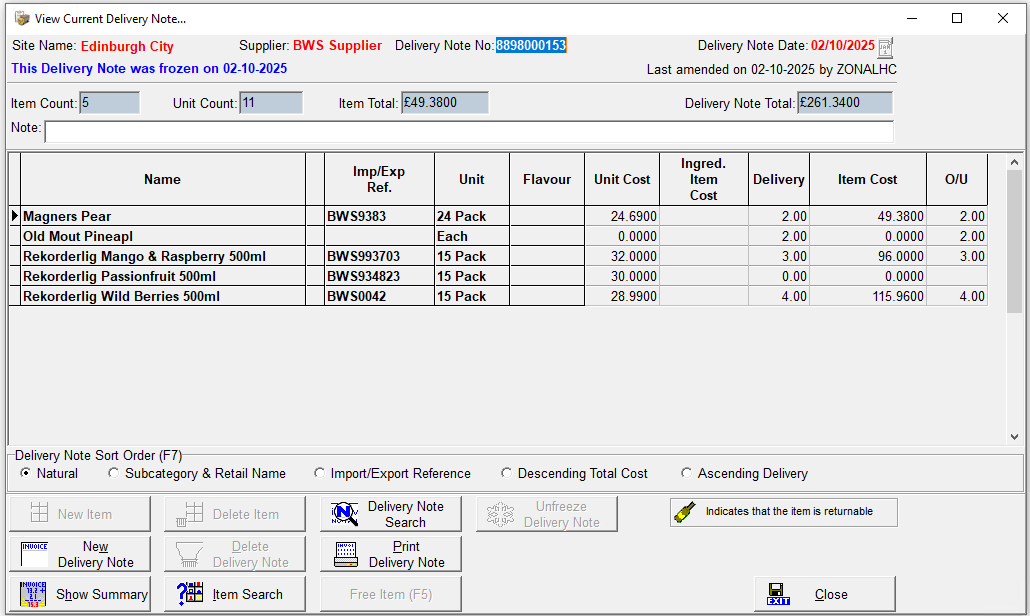 When editing delivery notes any 'frozen' deliveries will be prevented from being edited and display the frozen date in blue at the top of the window
Accepted Delivery Notes
Once a stock has been accepted the delivery notes will move from being current to accepted.
Follow these steps view accepted delivery notes:
-
Click Accepted Delivery Notes
-
The following information is displayed
-
All delivery notes for the current stock period
-
Ability to search by supplier, delivery note number or date
Select the required note to view | click OK
-
-
Click Close after viewing