Configuration
This configuration option allows settings to be applied for mandatory line checks as well as optional must count items.
Configuration Topics
Global Settings
The following table outlines each setting and its corresponding functionality.
| Setting | Description | Additional Information |
|---|---|---|
|
Show Line Checks on Reports even if Variance = 0 |
When this setting is enabled any line checks that do not have a variance will continue to be displayed |
|
|
Set Misc Allowance #1 to be Sum of PC Wastage Adjustment Retail Value |
When this setting is enabled the misc allowance field 1 will be auto populated with the calculated value |
|
| Suppress Count Sheet Dialog |
When this setting is enabled back of house operators will not be prompted to print count sheets |
|
| Stock Type |
The stock type setting will enable the count sheets and audit / count screen to be displayed either by category or subcategory |
Mandatory Line Check
The mandatory line check function enables sites to be prompted each day with the selected products that did not obtain their target yield from the last accepted stock audit, this ensure these items can be monitored through the next stock period. Exclusions to selected subcategories or products can be made so that these will never be included due to them either being low value or low selling items.
Follow these steps to configure mandatory line checks:
-
From the Default Settings tab select the required Division | set the check box to be enabled for Mandatory Line Check
-
Set the required Number of Products to mandatory line check
-
Set the required Exclusions and Target Yield % values
-
Select a Subcategory from the list
-
Set the Target Yield
and
-
Set any excluded Subcategories or Products which will not be used to calculate the list of mandatory items to check

-
-
Click Save Changes
Site Exceptions
If the default settings are not suitable for all site locations exceptions can be made on a per site basis to allow flexibility in the configuration rules.
Follow these step to add site exceptions:
-
Select the Site Exceptions tab
-
Select a Site from the drop down list
-
Apply the required Exclusions and Target Yield % as required
-
Click Save Changes
Must Count Items
In some organisations, certain products must always be physically counted during a stock take, while others are recorded using their theoretical closing figures. This means that when completing the stock, only the mandatory items need to be entered.
To use the must count functionality the following must be configured:
-
-
Blind Stocks (Theo Figures not shown on Audit) - Enabled
-
Automatically Fill Blank Counts with Theo Closing
-
Use 'Must Count Items' Template (where set)
-
Creating Templates
Follow these steps to create templates and assign to sites:
-
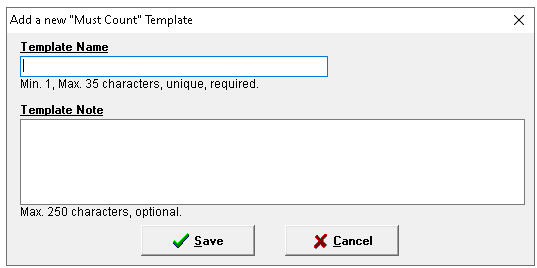
Click Add Template
-
Enter Template Name and Description (optional)
-
Click Save
-
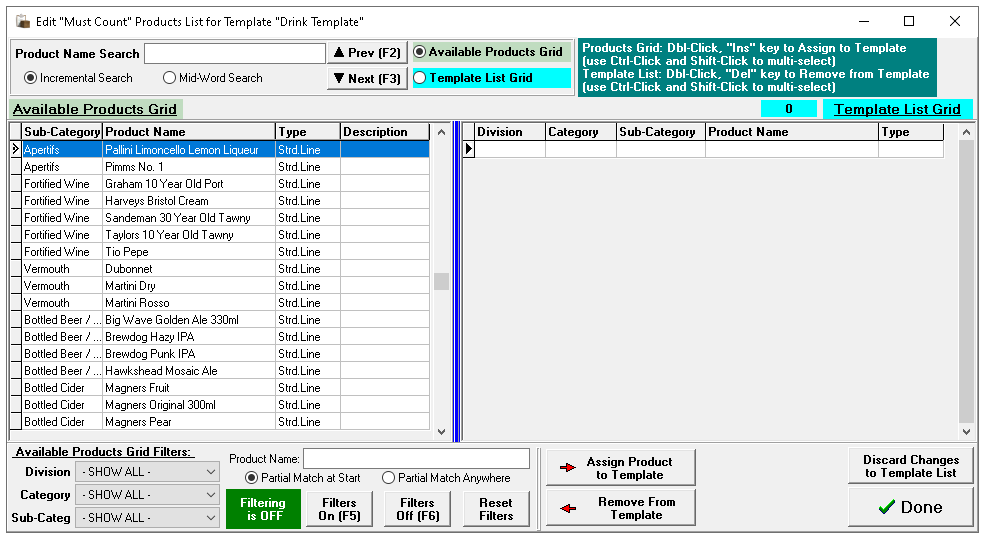
Select the template from the list | click Edit Template Product List
-
Apply filters or search criteria to find the required products and add them to the template
-
When all required products are added click Done
-
Select the required template from the list | select the required site(s) and click Assign Template to Site(s)
Control + Left Mouse click can be used to multi-select required site rows -
Click Save Changes
Other Options
-
Delete Template - will remove the template
-
Select a template currently not assigned to a site | click Delete Template | click Yes to confirm the deletion
-
-
Edit Template - will enable the name and description to be updated
-
Select a template | click Edit Template | update the Name and Description as required | click Save
-