Code Folders & Groups
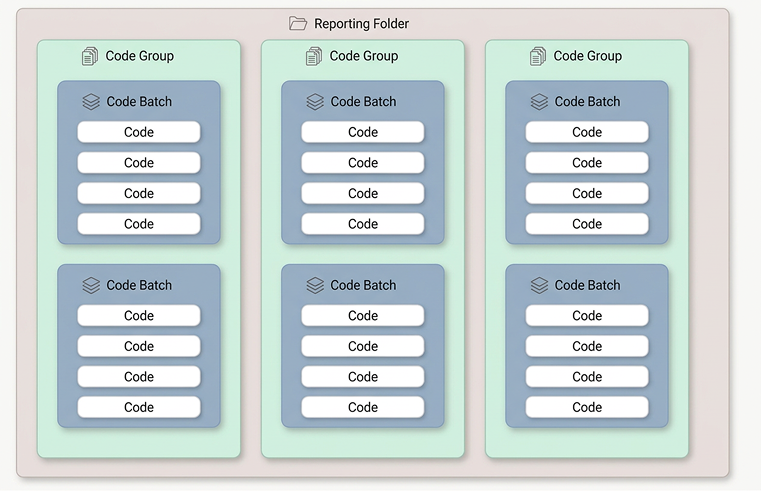
When creating batches of codes they are assigned to a code group and reporting folder.
-
Code Groups - can be used to determine if a code batch is included in a campaign
-
Reporting Folders - allows reporting across batches and groups
Folders and groups must be created before creating voucher code batches.
Code Folders & Groups Topics
Example
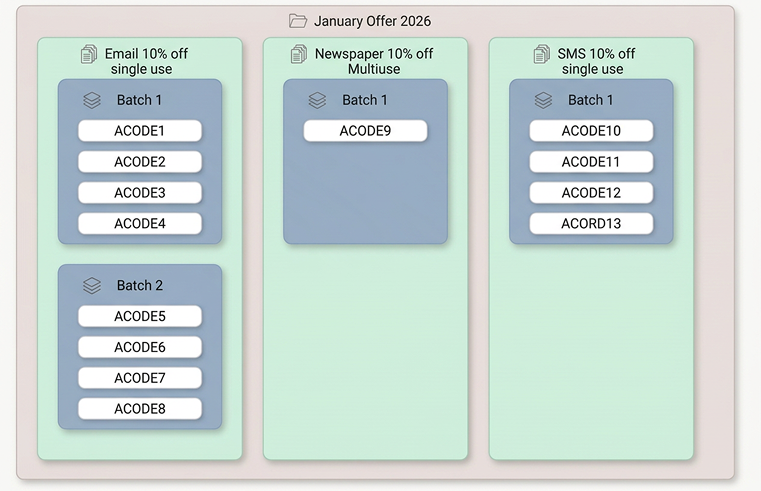
In this example, the overarching reporting folder is 'January 2026,' which lets a marketing manager report on all activity within this promotion. Three groups have been set up, reflecting how the codes are being distributed: email, newspaper, and SMS. Email and SMS use single-use codes, with many codes issued across different batches. The newspaper advert sits in its own group because, since it's printed, it uses a single code that can be redeemed multiple times. These three groups let the marketing manager drill down into activity and report on uptake for each distribution method."
Adding Code Folders
Follow these steps to add a new code folder:
-
Enter the New Folder name
-
Click Create Folder
Code folder names can be updated by clicking Edit and updating the name and clicking Save
Viewing Folder Information
From the All Folders section additional information can be seen by clicking View against a folder name:
-
Redeemed
-
Individual Codes
-
No. of Ranges
-
Total Codes
Adding Code Groups
Follow these steps to add a new code folder:
-
Enter the New Group name
-
Click Create Group
Code group names can be updated by clicking Edit and updating the name and clicking Save
Viewing Code Group Information
From the All Groups section additional information can be seen by clicking View against a code group name:
-
Redeemed
-
Individual Codes
-
No. of Ranges
-
Total Codes