Price groups are a comprehensive collection of price bands, encompassing all the pricing information for each sales item. Within a price group 702 price bands can be accommodated, spanning from A to ZZ. Furthermore, these bands can be assigned custom names, allowing for enhanced operational support when dealing with intricate pricing strategies.
Price Group Topics
Step 1 of 3
Selecting Price Groups & Bands
Follow these steps to select price groups and bands:
-
From the drop down select a Price Group
If you only have one price group configured this will be the only one displayed in the drop down list, a price group can be used to separate prices for different brands or concepts within your organisation
For more information on price group settings click here
-
Select one or more Price Bands | from the drop down each of the configured price bands with their corresponding letter and custom name are displayed, search or select as required
Price bands can be selected by entering the following search criteria:
-
Comma-seperated values (E.G B, K, Z, A)
-
Letter Ranges (E.G B-J, K, T, AA-AB)
-
Mixed syntax (E.G B-J, K, T, AA-AB)
When selecting price bands the first 15 chosen will be displayed in the grid, any additional bands selected will only be available for price updates through the Excel Export -
Apply Filters
Follow these steps to set filters before loading the price group:
-
Select the required filters from the product structure and other filters
As least one level must be selected from the product structure filters to be able to load the price groupClick here for more information on filteringProduct Structure Filter Tips
When filtering for parts of the product structure you can:
-
Use the product structure to select 1 or more parts of the hierarchy
-
Click into a drop down and either type to search or scroll through the list of available items and select
-
Select filters from multiple sections, to provide more accurate results
-
Click the X on the selected item to remove
-
-
Select 1 or more portions
-
Apply a filter by selecting product tags
-
-
If required, select Priced or Unpriced from the price filter drop down | or select Show Only Items with Off Band Prices, (this selection will only display any products that have an off band price set)
-
Click Apply Filters | the price group should now be displayed based on the filter criteria selected
By default 250 rows will be displayed in the grid, if there are more sales items these will be displayed on further pages, alternatively the number of items displayed on a page can be increased to either 500 or 750 -
Additional searching can be applied to the grid using the search, this will return any results based on the search term entered, you can search by Name, Description, Aztec ID or External Reference 1
-
By default the following columns are displayed:
-
Name (sales item)
Clicking on an item name will open the sales item setup and configuration screen in a new browser tab, ideal if you want to check the setup of an item during the pricing session -
Description
-
Subcategory
-
Portion
-
Selected Price Bands
Additionally using the column button will allow the following to be added to the grid (or default columns removed for that session):
-
Category
-
Aztec ID
-
External Reference 1
-
Managing Prices - Grid View
Follow these steps to manage prices in the group:
-
Click into a price cell and add or edit prices as required | navigate around the grid by using mouse and clicking into a cell or by the keyboard up / down arrows, enter or tab keys
-
Cells displayed in "Purple" are new prices that have been entered but not yet saved
-
Cells displayed in "Green" are prices that have been saved or imported
-
Cells displayed in "Yellow" are items that have off band prices set, additionally at the beginning of each row an indicator icon
 will be displayed which shows there is off band pricing set, hovering over the indicator will display "Show Details" which will provide further information
During a pricing session and prior to save clicking "Undo" will remove or changes prices back to their original stateIf the price group has been loaded with multiple pages before changing the page any price changes must be saved -
-
Click Save
After price changes have been saved clicking "Revert Last Saved" will cancel all changes made in the last saved session and revert to the previous saved session
Bulk Price Changes
The grid view provides the functionality to allow prices changes to be performed in bulk saving time manually enter price values.
Follow these steps to manage bulk price changes in the group:
Selecting
-
Select a range of cells either from the same column or multiple adjacent columns
-
Click the cell without setting direct focus into pricing mode
-
Drag down or across to start selecting cells
-
Copy & Paste
-
Right click | select copy
-
Navigate to a new cell and right click | select paste, which will paste the equivalent data from the copied rows to the new location
When performing the paste option there is no need to select the same cell range, the grid will automatically paste the values to each row and column
+ / - Adjustments
-
Click +/-
This button is only active when there are a range of cells selected -
From the menu select the required price adjustment
-
Set Value - enter a price for all selected items
-
Value Increase - enter a price for all selected item to be increased by
-
Value Decrease - enter a price for all selected items to be decreased by
-
Percentage Increase - enter a percentage value for all selected items to be increased by
-
Optionally add a rounding value up or down
-
-
Percentage Decrease - enter a percentage value for all selected items to be decreased by
-
Optionality add a rounding value up or down
-
-
Drag & Drop
Each of the columns displayed within the grid can be moved around, simply drag a column to a new position or when focused on a column use keyboard commands to move the columns
Control+Left Arrow - move column to left
Control+Right Arrow - move column to right
Column Sorting
Click a column to change the A-Z / Z-A ordering
Freeze Columns - Use any columns with a padlock to lock that columns so its frozen and always displayed when scrolling through price bands, name and description are frozen by default
Filter Columns - Use any column with a filter to apply filters or search for specific values
Alt+Down Arrow - when column filter in focus allows open the filter menu
Arrow Keys Up / Down - Move between the cells (above / below)
Enter Key - Moves down to the next cell in the column
Tab Key - Moves across to the next available cell (to the right)
Managing Prices - Export & Import
Follow these steps to manage prices in the via export to spread sheet and import:
Exporting
-
Click the 3 dot menu
 | select Export Price Group
 -
Confirm the export by clicking Export
The exported spread sheet will be added to your downloads folder, open the sheet to begin editing
The spread sheet will contain all of the items and price bands that were shown in the price group (across all pages) at the time of export, the price group name and exported date
The file name of the spread sheet will be the following format: PriceGroupName_XX/XX/XX
Editing the Spread Sheet
-
Add or edit prices as required in any of the banded columns
Any column in the spread sheet can be edited, care should be taken to only edit price columns
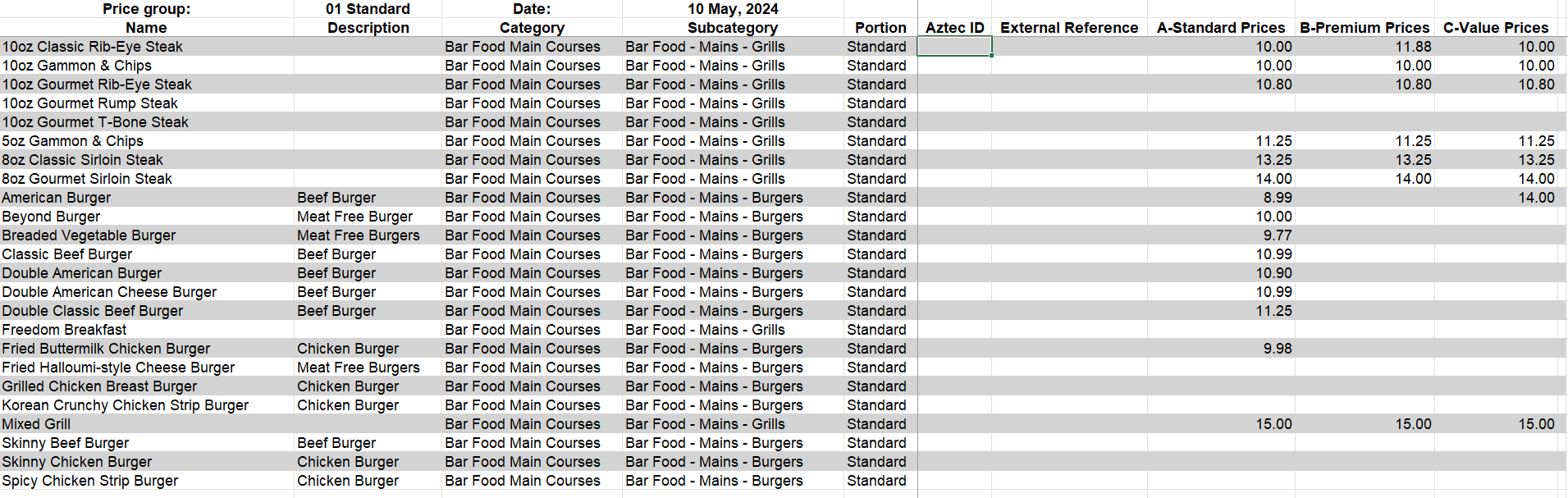 The spread sheet is automatically configured with filtering on each column enabling quick access to apply filters
 -
Save the spread sheet
Importing
-
Select Price Groups
-
Click Import | or from an open Price Group click the 3 dot menu
select Import Price Group -
Set the required Date of Change from the calendar | select today if the prices are to take effect immediately or set the future date
The same file can be used to import different future dates without having to export the file from that advanced date -
Drag and Drop the file into the import area or click the link and locate the file to upload
One file can only be uploaded at a time, the file will be validated and displayed that it uploaded correctly, if the wrong file was selected it can be deleted at this time and the process repeated to select the correct file -
Click Import
During the import process the file contents will be validated, if there are any price cells with incorrect formatting the file will automatically download and include an additional column stating the reason for the file failing to importWhen the file has imported the price group will be updated with the new prices which will be displayed in green as per a manually entered and saved price change (the page will need to be reloaded)
After price changes have been imported "Revert Last Saved" will cancel all changes made in the last import and revert to the previous saved session
Optional Future Dated Prices
To prepare for price changes that might take effect on a future date the price group enables you to set multiple dates.
Follow these steps to manage prices in the group:
-
Select the calendar at the top of the screen titled "As of Today"
Future dates with prices already configured will be displayed with a yellow dot below the date
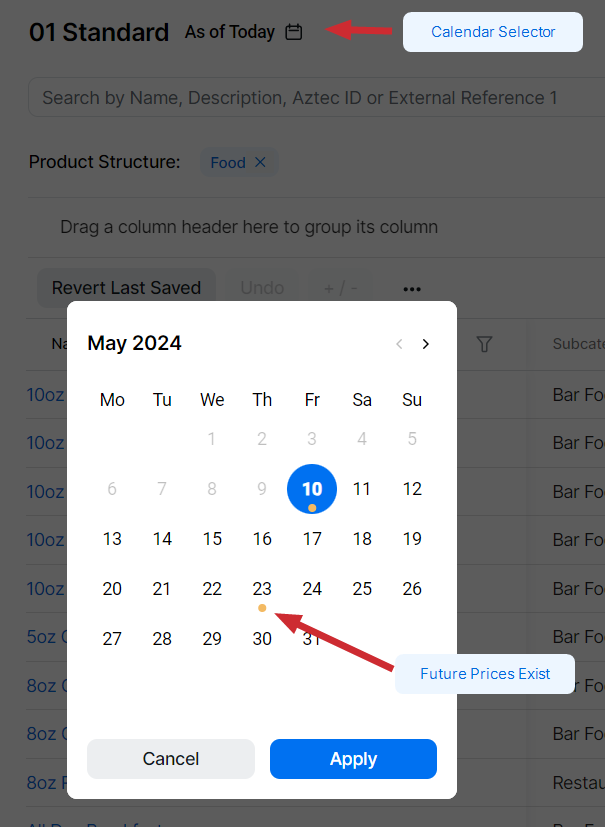
-
Choose a date in the future for which you wish to set prices | click Apply
-
The price group will be now displaying prices for the selected date | follow from the beginning of step 3 to manage prices - grid view or managing prices by export and import
-
Click Save
Other Features & Settings
Price Group Settings
Price groups can be managed from the settings menu, accessed from the price group drop down.
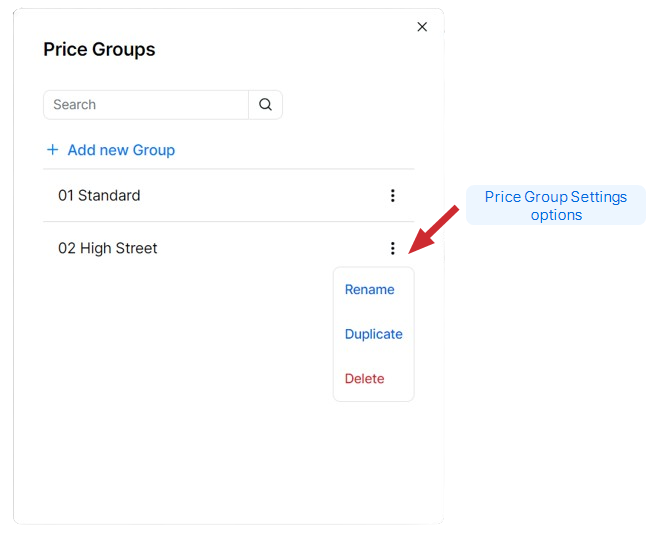
The following functions are available within settings:
-
Search for a Group
-
Add New Group
When creating new price groups price, bands will need to be added in price band settings -
From the 3 dot menu:
-
Rename a Group
-
Duplicate a Group (including all bands and prices)
-
Delete a Group
-
Price Band Settings
Price bands are used to set prices for each of your sales items, depending on your operations and requirements you may have just one band or many across setup across a price group. When creating a new price group price bands are required to be added to the group.
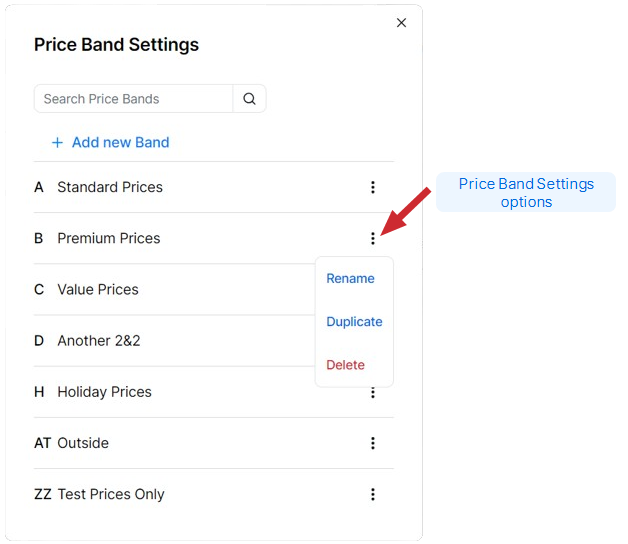
Price bands can be managed from the settings menu, accessed from the price band drop down or from the 3 dot menu when the price group is displayed.
The following functions are available within settings:
-
Search for a Price Band
-
Add New Price Band | select next available or select a band letter | add optional custom band name
-
From the 3 dot menu:
-
Rename a Price Band
-
Duplicate a Price Band | select next available or select a band letter | update optional custom band name
-
Delete a Price Band
-
Sites Allocated to Price Group
Each site within the organisation is allocated to a price group, when working with prices in the price group the sites allocated to the group can be viewed. This information can be accessed from the 3 dot menu, selecting Sites Allocated to Price Group.
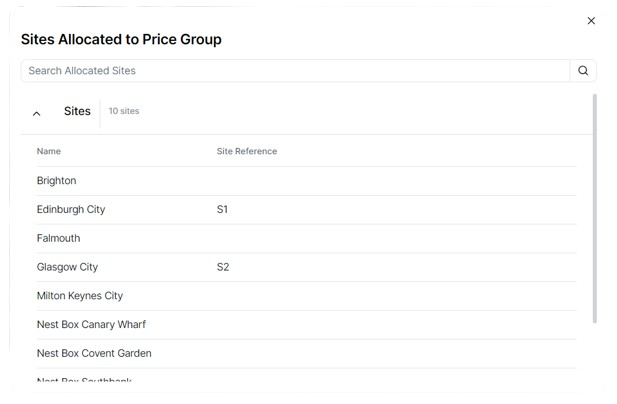
The following information is available within sites allocated to price group:
-
Name of Site
-
Site Reference
-
Future Date (if the site is being added to this price group on a future date)
Information Indicators
Cell Colours
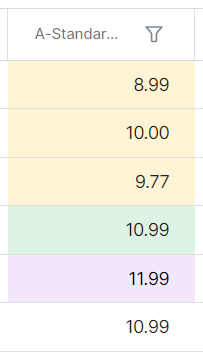
When viewing a price groups a price cell can have various colours depending on the state of the price.
The following colours are displayed and when:
-
Purple - are new prices that have been entered but not yet saved
-
Green - are prices that have been saved or imported
-
Yellow - are items that have off band prices set
Off Band Prices
When viewing a price group if there are off band prices set against a sales item the additional information icon is displayed before the item name, this indicator enables you to view additional information about the bands and prices.
The following functions are available when this icon is displayed:
-
Hover over the information icon to display tool tip | click "Show Details | or hover over the yellow cell to display tool tip | click "Show Details", which will display further information
-
Price Bands with Overrides (off band prices set) - list of prices bands that have off band prices set against them
-
Sites with Overrides (off band prices set) - list of sites which have had off band pricing set including, site | sales area | band (being overridden) | date | price
-
Sync Status
The sync status gives visibility of the latest status updates between Zonal Connect and Aztec.
| Icon | Status |
|---|---|

|
Sync OK |

|
Sync in Progress |

|
Sync Failed |
Information
The following information is displayed before loading a price group:
-
The overall status of all price groups is displayed next to the price groups page title
-
Clicking the status icon will display a status of each price group
-
Sync OK - all price groups will be displayed with a green tick
-
Sync in Progress - the relevant price group will be displayed with the in progress icon
-
Sync Failed - the relevant price group will be displayed with the failed icon
-
The following information is displayed when a price group is loaded:
-
The overall status of the specific price group is displayed next to the page title
-
Clicking the status icon will display more information on the current status
-
Sync OK - all bands, settings and prices are correctly synced and the last sync time and date
-
Sync in Progress - all bands, settings and prices are currently syncing and the last sync time and date
-
Sync Failed - the number of failed items and the last sync time and date
-
Sync Now - click the button to retry the failed items and send to Aztec
-
-