In order to effectively manage sites or sales areas requiring price adjustments for specific items, the utilisation of off band prices proves invaluable. Off band prices enable the application of override prices to the main banded price, thereby avoiding the need to completely remove the location from its existing banding structure. This flexible approach ensures that targeted price modifications can be implemented without disrupting the overall banding framework, providing a seamless solution for localised pricing adjustments while maintaining the integrity of the existing structure. By accommodating the specific needs of individual sites or sales areas, off band prices offer a practical and efficient method to tailor pricing without the need for extensive restructuring.
Off Band Price Topics
Step 1 of 2
Applying Organisation & Product Structure Filters
-
Select the required filters from the organisation and product structure filters
As least one level must be selected from both filter sections to be able to load the off band pricing gridClick here for more information on filteringSite Filter Tips
When filtering for parts of the organisation hierarchy you can:
-
Use the site, sales area or site reference to select 1 or more parts of the hierarchy
-
Click into a drop down and either type to search or scroll through the list of available items and select
-
Select filters from multiple sections, to provide more accurate results
-
Click the X on the selected item to remove
-
-
Apply a filter by selecting location tags
Product Structure Filter Tips
When filtering for parts of the product structure you can:
-
Use the product structure to select 1 or more parts of the hierarchy
-
Click into a drop down and either type to search or scroll through the list of available items and select
-
Select filters from multiple sections, to provide more accurate results
-
Click the X on the selected item to remove
-
-
Select 1 or more portions
-
Apply a filter by selecting product tags
-
-
If required, select Priced or Unpriced
-
Click Apply Filters | the off band pricing grid should now be displayed based on the filter criteria selected
When the grid is initially displayed it will be displaying "as of today" which can be seen next to the calendar at the top of the screen -
By default the following columns are displayed:
-
Site
-
Sales Area
-
Subcategory
-
Sales Item
-
Description
-
Portion
-
Start Date (which will always display the last starting date of an off band price)
-
Off Band Price
Additionally using the column button will allow the follow to be added to the grid (or default columns removed for that session):
-
Site Reference
-
Category
-
Aztec ID (Entity Code)
-
External Reference
-
Step 2 of 2
Setting Off Band Prices
Follow these steps to manage off band prices:
-
When the grid is initially displayed "As of Today" will be set, from the Calendar drop down select the required date to be setting prices | click Apply, the grid will reload for the new date
Any sales items that have already been set with an off band price will be shown with the start date of that off band price and the price they have been set at, these can be changed on any new dates selected from the calendar -
Click into off band price cell and add or edit prices as required | navigate around the grid by using mouse and clicking into a cell or by the keyboard up / down arrows, price updates will be displayed in red
-
Click Save
Items can have multiple future off band prices set, following the above steps by selecting new future dates and setting the required prices -
To remove an off band price and revert back to the normal banded price held within the price group select the date from the calendar, click in to the off band price cell and remove the price so the field is empty | click Save
Drag & Drop
Each of the columns displayed within the grid can be moved around, simply drag a column to a new position or when focused on a column use keyboard commands to move the columns
Control+Left Arrow - move column to left
Control+Right Arrow - move column to right
Group by Column Header
Drag a column header to the grouping section to change the grid view to including grouping
Control+Up Arrow - collapse all groups
Control+Down Arrow - expand all groups
Column Sorting
Click a column to change the A-Z / Z-A ordering
Filter Columns - Use any column with a filter to apply filters or search for specific values
Alt+Down Arrow - when column filter in focus allows open the filter menu
Arrow Keys Up / Down - Move between the cells
Control+P - Printable view of the grid
Managing Prices - Export & Import
Follow these steps to manage prices in the via export to spread sheet and import:
Exporting
-
Click the 3 dot menu
 | select Export Off Band Pries
 -
Confirm the export by clicking Export
-
The exported spread sheet will be added to your downloads folder
The spread sheet will contain all of the items and price bands that were shown in the price group (across all pages) at the time of export, the price group name and exported date
The file name of the spread sheet will be the following format: OffBandPrices
Editing the Spread Sheet
-
Add or edit prices as required in any of the banded column
Any column in the spread sheet can be edited, care should be taken to only edit price columns
The spread sheet is automatically configured with filtering on each column enabling quick access to apply filters -
Save the spread sheet
Importing
-
Select Off Band Pricing
-
Click Import | or from an open selection of off band prices click the 3 dot menu
select Import Off Band Prices -
Set the required Date of Change from the calendar | select today if the prices are to take effect immediately or set the future date
The same file can be used to import different future dates without having to export the file from that advanced date -
Drag and Drop the file into the import area or click the link and locate the file to upload
One file can only be uploaded at a time, the file will be validated and displayed that it uploaded correctly, if the wrong file was selected it can be deleted at this time and the process repeated to select the correct file -
Click Import
During the import process the file contents will be validated, if there are any price cells with incorrect formatting the file will automatically download and include an additional column stating the reason for the file failing to import -
When the file has imported the off band prices will be updated with the new prices which will be displayed in green as per a manually entered and saved price change (the page will need to be reloaded)
After price changes have been imported "Revert Last Saved" will cancel all changes made in the last import and revert to the previous saved session
Other Features & Settings
Information Indicators
Cell Colours
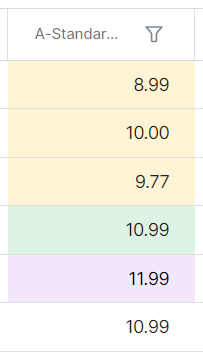
When viewing a price groups a price cell can have various colours depending on the state of the price.
The following colours are displayed and when:
-
Purple - are new prices that have been entered but not yet saved
-
Green - are prices that have been saved or imported
Sync Status
The sync status gives visibility of the latest status updates between Zonal Connect and Aztec.
| Icon | Status |
|---|---|

|
Sync OK |

|
Sync in Progress |

|
Sync Failed |
Sync Information
The following information is displayed before loading off band prices:
-
The overall status of all off band prices is displayed next to the off band prices page title
-
Clicking the status icon will display a status of off band prices
-
Sync OK - all prices are correctly synced and the last sync time and date
-
Sync in Progress - prices are currently syncing and the last sync time and date
-
Sync Failed - the number of failed items and the last sync time and date
-
Learn More - click to display the failed date list
-
Sync Now - click the button to retry the failed items and send to Aztec
-
-
The following information is displayed when off band prices are loaded:
-
The overall status of all off band prices s is displayed next to the off band prices page title
-
Clicking the status icon will display more information on the current status
-
Sync OK - all prices are correctly synced and the last sync time and date
-
Sync in Progress - prices are currently syncing and the last sync time and date
-
Sync Failed - the number of failed items and the last sync time and date
-
Learn More -click to display the failed date list
-
Sync Now - click the button to retry the failed items and send to Aztec
-
-