Match Settlements
The account class assigned to an account includes a setting that determines whether settlements are matched automatically or manually. If manual matching is enabled, each settlement must be linked to a specific posted charge to record exactly what the payment was applied against.
Match Settlements Topics
Matching Settlements
When a settlement has been on the point of sale to an account that requires matching will be automatically displayed in the match settlements screen with the views selected of Unmatched and Partially Matched.
-
Settlements List by Account
-
Filters
-
Unmatched Charges for a Selected Account
-
Matched Charge for Selected Account
-
When an unmatched charge is selected and matched it will move into this section
-
-
Written Off Charges
-
When an unmatched charge is selected and written off it will move into this section
-
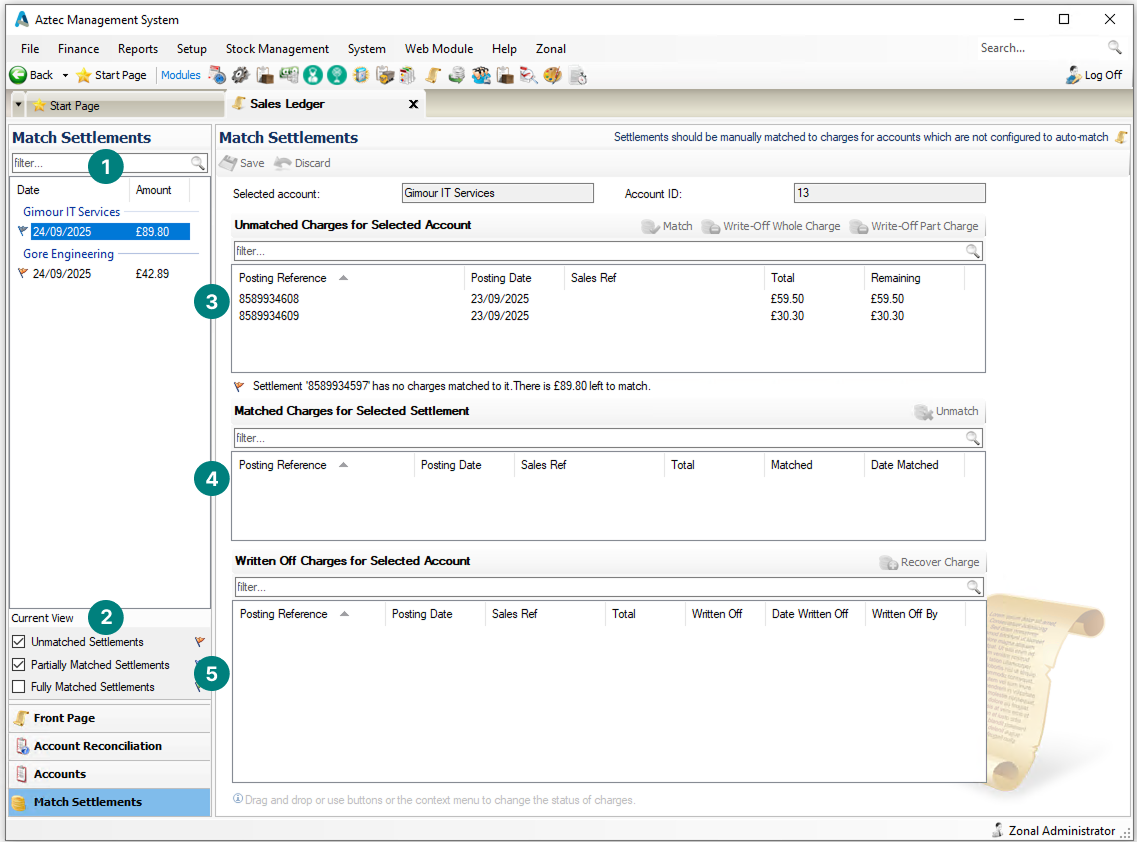
Follow these steps to match a settlement:
-
Select the Unmatched Settlement from the Match Settlements list
There could be multiple settlement values showing per account -
Select the required Unmatched Charges for the account
-
Clicking a row
-
Shift+Click to select multiple rows
A settlement can be matched to multiple charges either in bulk or individually
-
-
Click Match or Drag & Drop the charges into the Matched Section
The selected charges will move into the matched section, if a mistake has been made using the Umatch option will move the charge back to the unmatched section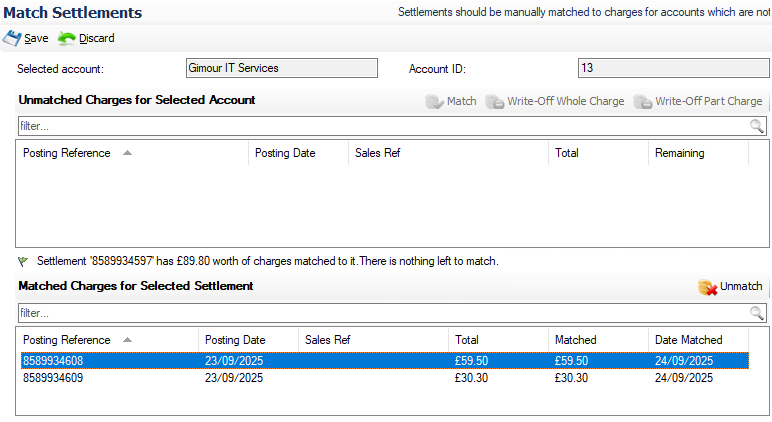
-
Click Save
Additional Information
Settlement values might not always match those of the charges for an account, in this case partial matching can occur where a charge is either fully matched leaving an outstanding settlement value or the opposite where the settlement was not enough to cover the full charge amount.
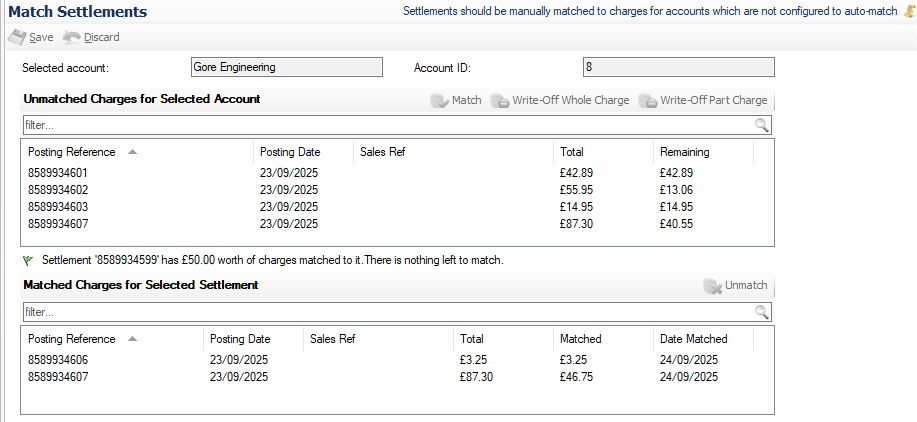
Example
A settlement of £50.00 was made and matched to 2 charges:
-
£3.25 - fully settled
-
£87.30 - partially settled leaving a remaining balance of £40.55
A previous settlement was also matched to the charge of £55.95 leaving a remaining value of £13.06 still to be settled
Write Off Charges
During matching charges can be written off either because:
-
The outstanding balance will not be paid
-
The settled amount is not enough to cover the remaining amount due
Follow these steps to write off charges:
-
Select the Unmatched Settlement from the Match Settlements list or select the filter Fully Matched
-
Select an Unmatched Charge
-
Select the required Write Off option
-
Write Off Whole Charge - the full charge will move to the write off section
-
Write Off Part Charge - enter the amount to be written Off
-
-
Click Save