Accounts
In the sales ledger, accounts are used to record charges from the point of sale terminal and to generate invoices and statements.
Adding Accounts
Follow these steps to add accounts:
-
Click Add
-
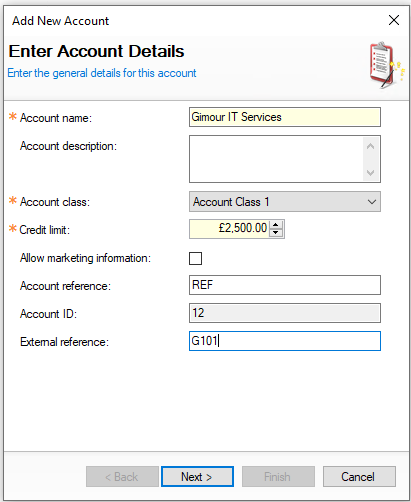
Enter the Account Name and Description (optional)
-
Select the Account Class
-
Set the required Credit Limit
The credit limit is automatically populated based on the account class setting. It can be reduced if required, but it cannot be increased beyond the class limit -
Set the following other options
-
Account Reference (only displayed if enabled for the site)
-
Allow Marketing Information (not require / redundant setting)
-
External Reference
-
-
Click Next
-
Enter any required Billing Details (Address Line 1 and Postcode are mandatory fields)
Billing details will be displayed on invoices and statements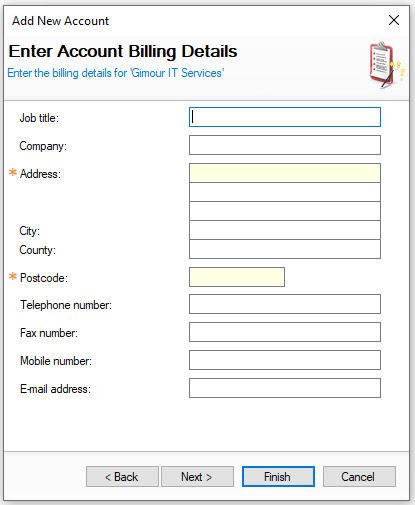
-
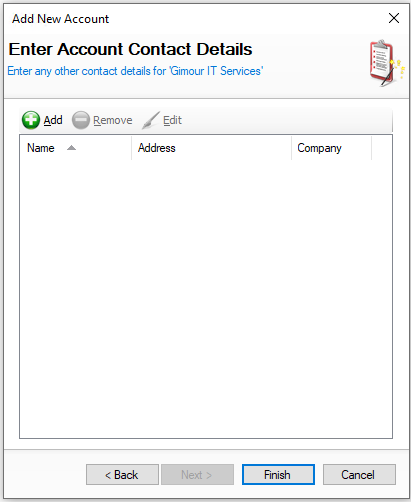
Either click Finish to complete the setup or to add Contacts click Next
-
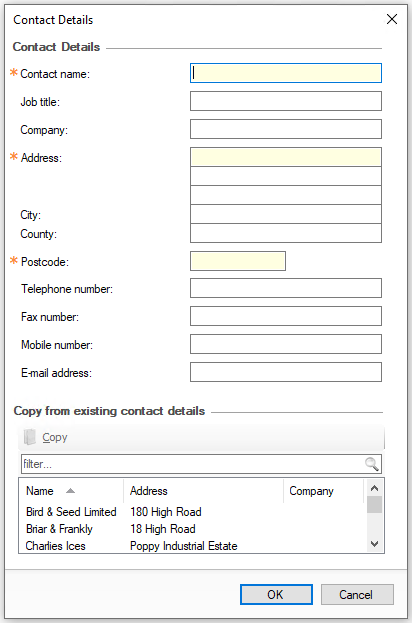
Click Add | enter the required Contact Details | click OK
-
Click Finish
Adding Accounts with Start / End Dates
If an account class is configured with start and end dates, additional options are displayed when creating an account. These date and time bound accounts are particularly useful for one off events or functions, as they are manually closed once payment has been taken and are no longer required. The end date and time also prevent any further charges being added beyond the specified period.
Follow these steps to add accounts with start / end dates:
-
Click Add
-
Enter the Account Name and Description (optional)
-
Select the Account Class
-
Set the required Credit Limit
If selecting a class that is configured with start and end dates this will be automatically populated on to the account details setup -
Set the following other options
-
Account Reference (only displayed if enabled for the site)
-
Allow Marketing Information (not require / redundant setting)
-
External Reference
-
Start Date - set the start date of the account
-
End Date - set the end date of the account
-
End Time - set the end time of the account
Once the end date and time has been reach it will not be possible for point of sale operators to charge any further amounts to the account, if this is required the time or date should be extended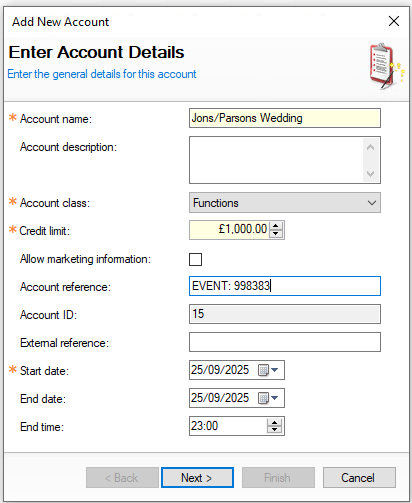
-
-
Click Next | continue the setup of the account
Other Account Options
Swipe Cards
If enabled, swipe cards can be linked to an account, allowing the card to be used at the point of sale terminal to quickly locate and charge the correct account.
Follow these steps to assign swipe cards to accounts:
-
Select the Account
-
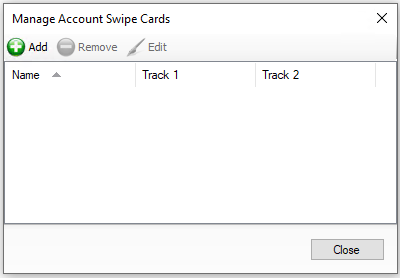
Click Swipe Cards | click Add
-
Click Add
-
Enter the Card Holder Name and Card Number
If the card number runs on track 2 enable this setting and add the card number to the track 2 card number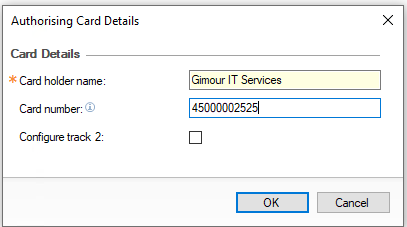
-
Click OK | and click Close on the Card List
Accounts on Hold
Accounts may automatically be put on hold if their balance is not paid within the expected time period, this prevents additional charges being made to the account when outstanding balances are due.
-
An account will be put on hold automatically if there is an over due balance
-
An account can be unheld for additional charges to be made to the account, this will remain only unheld (by deselecting the check box) until the configured system business date change, if this was set to 03:00 then after that time the account will be return back to being on hold
-
An account can be put on to hold manually be selecting
-
Selecting On Hold
-
Clicking Save
-
Account Details - Status
When there is account activity this is displayed within the 'Account Status' section.
-
Next Statement Due Date - based on the rules configured on the Account Class will determine when statements are due
-
Current Balance - the balance of the account
-
Status Chart of values
-
Red - Overdue
-
Orange - Settlements Due to Today
-
Green - Settlements Not Yet Due
-
Blue - Still to be Invoiced
When an invoice has been issued this will move to green, 'settlements not yet due'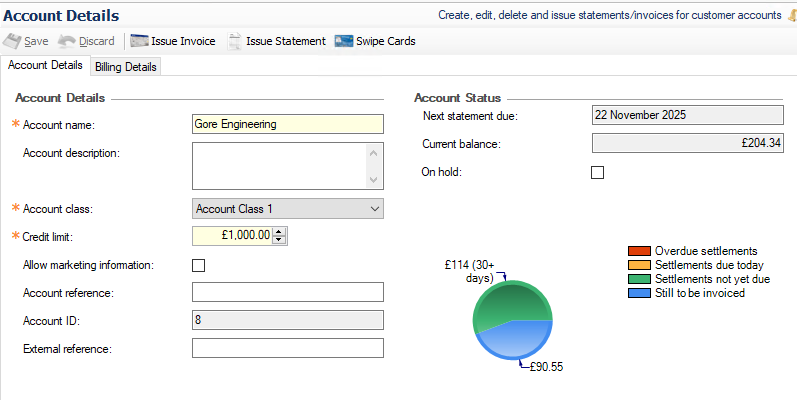
-
Closing Accounts
Accounts that have account classes that enable start / end dates can be closed to remove them from the open accounts list.
Follow these steps to close accounts:
-
Select an Account
-
Click Close
-
Click Yes to confirm the account closure