Invoices & Statements
Invoices and statements can be generated through the sales ledger module and issued to customers as part of the payment process. Invoices provide a detailed breakdown of charges made to an account, while statements give an overview of outstanding balances over a period of time. Together, these documents ensure customers have clear and accurate information, helping to support timely payments and effective account management.
Invoices & Statements Topics
Issuing Invoices
When a charge has been made from the point of sale to the account it will automatically show on the 'Things to Do List' with accounts that have uninvoiced charges
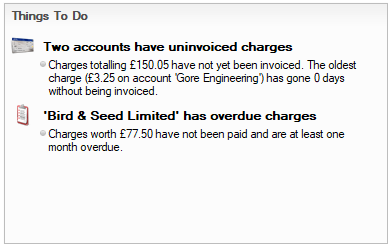
There are several options to issuing invoices:
Option 1
-
Click the Information Message within the Things to Do List
-
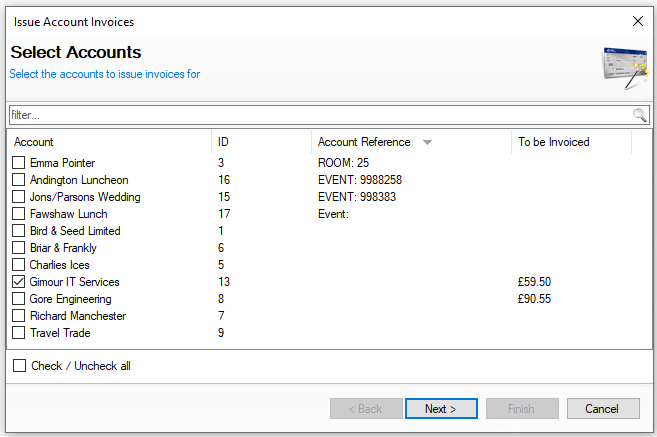
Select the Account with values in the 'To be Invoiced' column
-
Click Next
-
Select the required Postings to be printed on the invoice
Multiple postings can be included on an invoice or alternatively separate invoices can be issued per posting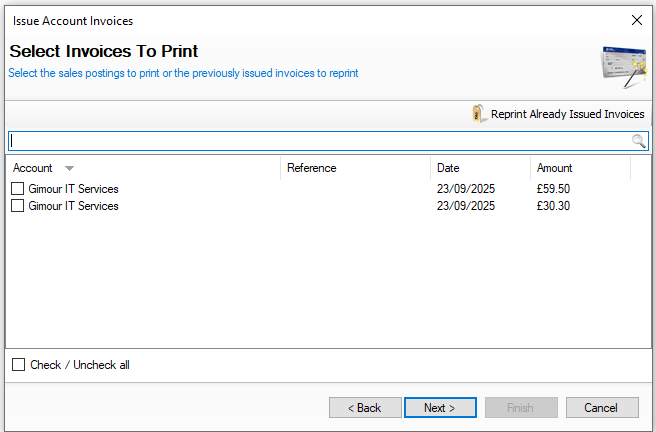
-
Click Next
-
Confirm to proceed by clicking Finish
-
Print or Export the Statement generated from Reports as required
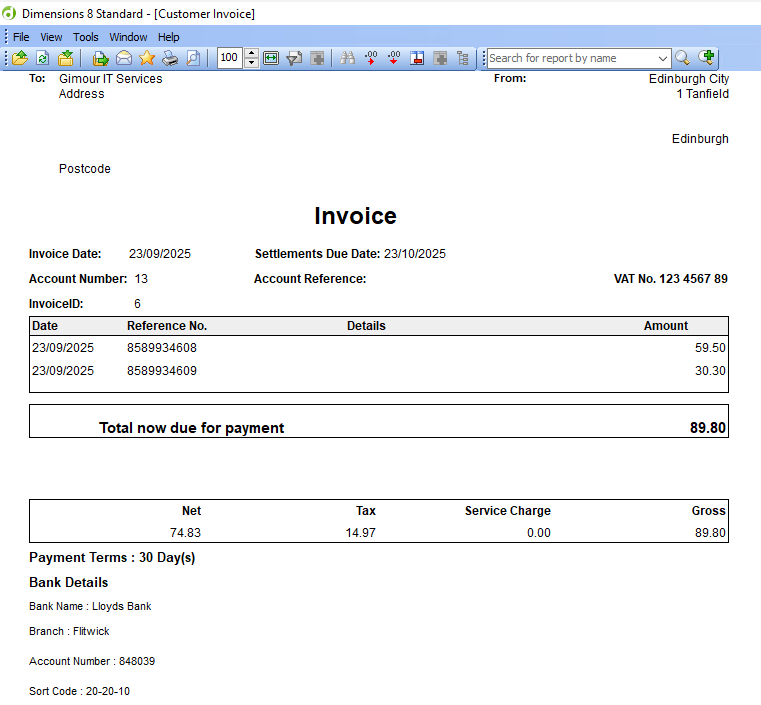 If there is a reference entered as part of the charging process on the point of sale this will be displayed under the invoice 'Details'
Option 2
-
Select 'Issue Account Invoices' from the Quick Links on the Front Page
-
Follow the same process to issue as option 1
Option 3
-
Select an Account
-
Click Issue Invoice
-
Follow the same process as option 1, from step 4
Reprinting Invoices
Once an invoice has been issued it can be reprinted if needed.
Follow these steps to reprint an invoice:
-
Select an Account
-
Click Issue Invoice
-
Click Reprint Already Issued Invoices
-
Select the required invoices to be printed | click Next | click Finish
Issuing Statements
When a statement is due it will automatically show on 'Things to Do List' either for the current day or if statements are overdue to be issued.
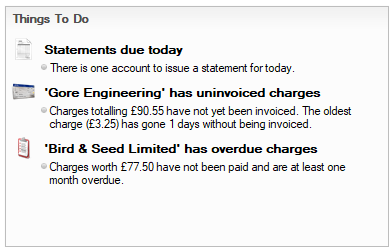
There are several options to issuing statements:
Option 1
-
Click the Information Message within the Things to Do List
-
The accounts requiring statements will be preselected | click Next
-
Confirm the selected statement Start and End Dates | click Next
-
Click Finish
Option 2
-
Select 'Issue Account Statements' from the Quick Links on the Front Page
-
Follow the same process to issue as option 1
Option 3
-
Select an Account
-
Click Issue Statement
-
Follow the same process as option 1 from step 3