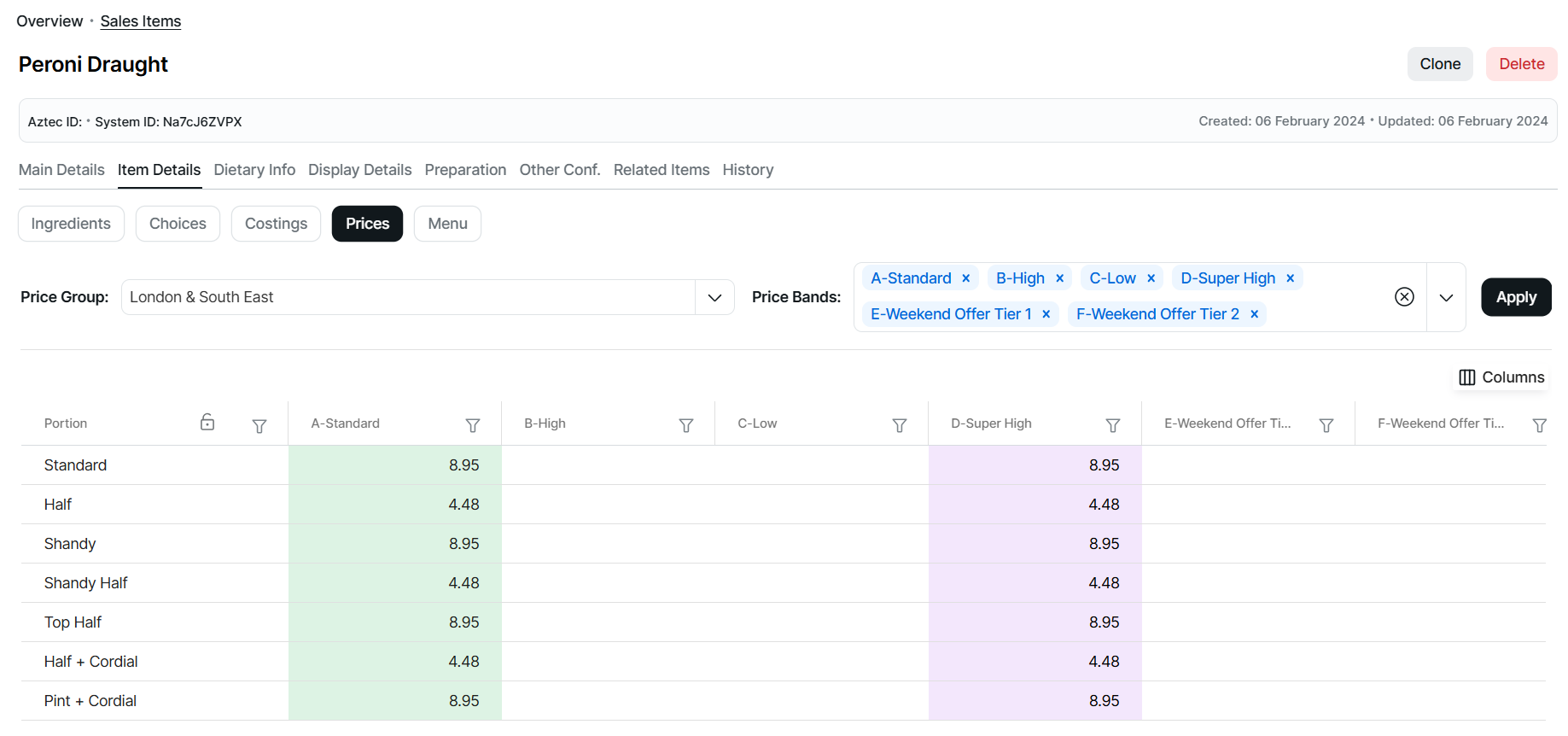
Price your sales items at the time of creation to accelerate your setup experience
To enhance the efficiency and ease of setting up new sales items, we are excited to announce a significant update to the products app. This new feature allows for comprehensive pricing capabilities across all price groups and bands, ensuring a seamless experience allowing you to fully price all portions for an item without leaving products and navigating to pricing.
How do I get started?
Well, this is really quite simple you can follow our full guide on pricing sales items here, or view our quick steps below.
Quick Steps for Adding Prices to Sales Items
-
From the drop down select a Price Group
-
Select one or more Price Bands | from the drop down each of the configured price bands with their corresponding letter and custom name are displayed, search or select as required
-
Click Apply
By default the following columns are displayed:
-
Portion
-
Selected Price Bands
-
-
Click into a price cell and add or edit prices as required | navigate around the grid by using mouse and clicking into a cell or by the keyboard up / down arrows, enter or tab keys
-
Click Save