Guest Ordering → Reward Redemptions
Redeeming a Reward or a Currency amount
When using Guest Ordering, a guest can utilise their available Loyalty rewards or Currency balance in their basket in White Label App and Web Ordering.
Reward Redemptions
Adding rewards or currency to a basket in Guest Ordering
After a Loyalty Card is linked to Guest Ordering, if there are available compatible rewards or currency balance to be redeemed, the guest can add them by selecting "Add a reward" from the basket.
Note that the text "add a reward" is customisable.
Once this is selected a screen will display with multiple banners. Each banner represents a reward and there is a unique banner for currency. The banners are split in two lists, the first one include all rewards that can be redeemable in White Label App and Web Ordering. The second list contains rewards that can only be redeemable at till. All text is customisable.
Follow these steps to customise the text in this area:
-
Update the required fields
For more information click here to view iOrder Elements overview -
Click Save Changes
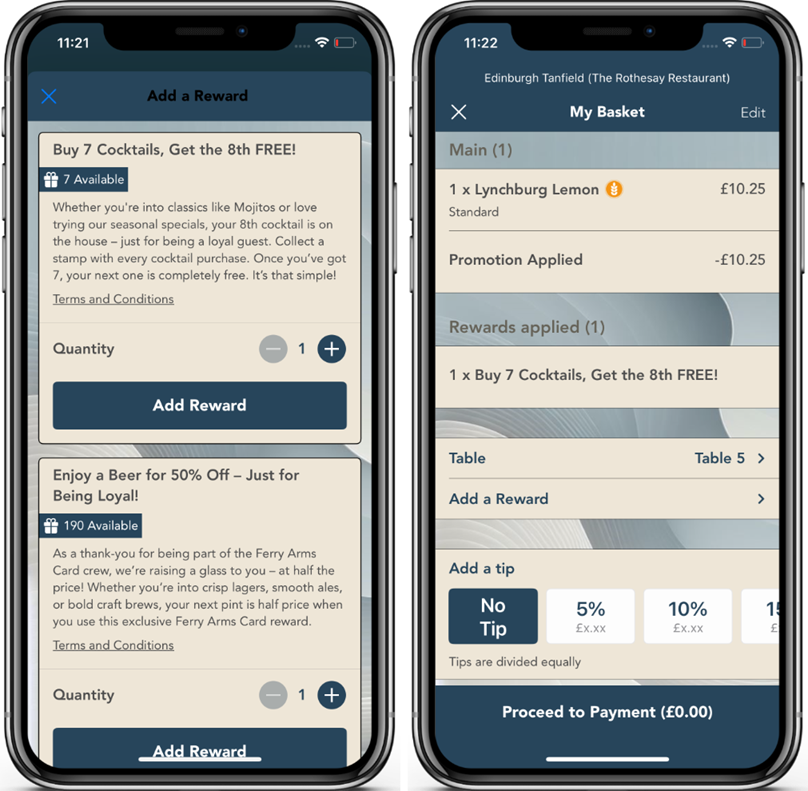
Once a reward or currency is added in the basket by the guest, the basket will be updated to display the added reward/discount.
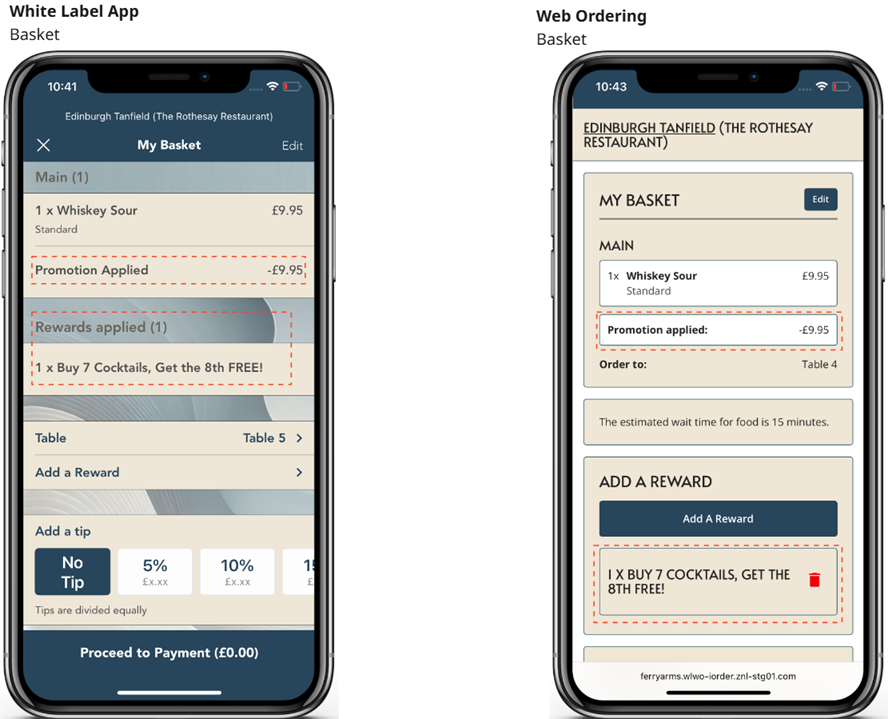
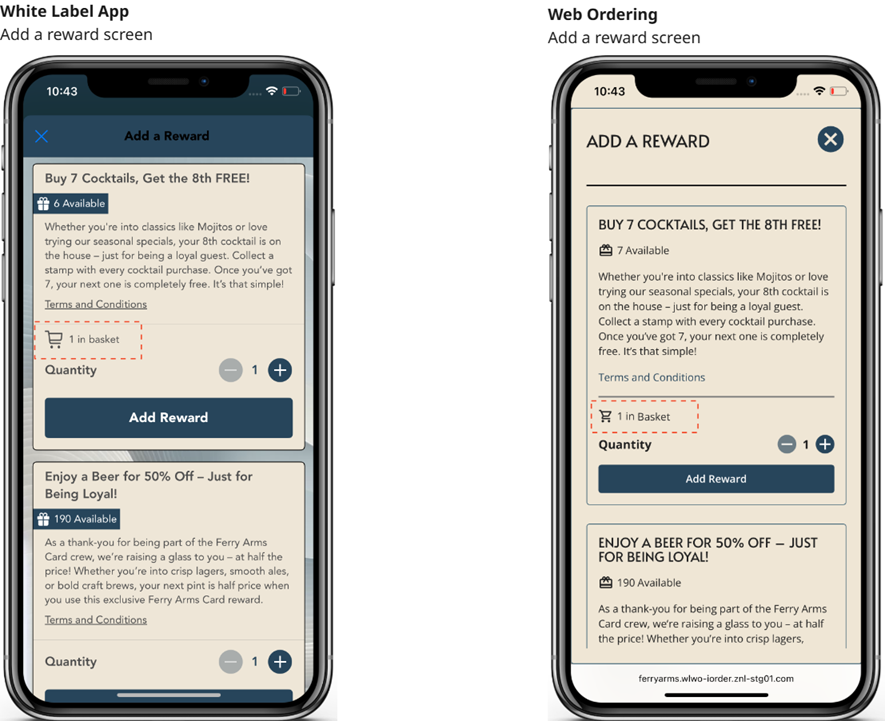
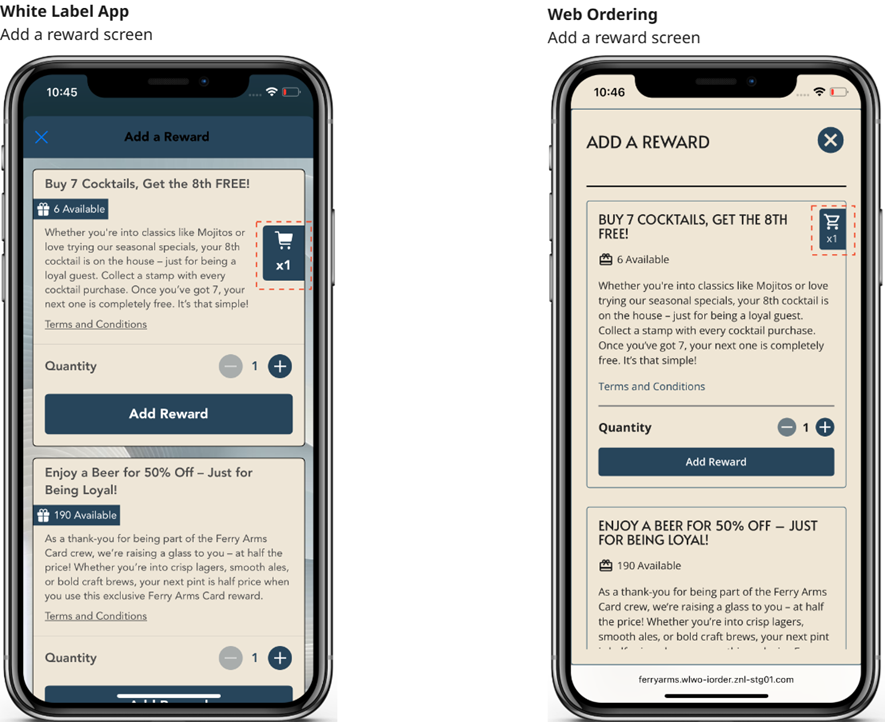
If "Add a reward" is selected again, the list will display if a reward or currency has already been added to the basket. There are two possible layout options to display: Inline or Bookmark.
This can be configured in App Manager → Configure → App Theme → Loyalty Rewards → Basket Reward Indicator Style
-
Inline
-
Bookmark
Loyalty rewards banners
Rewards configured in Loyalty for a program, will display in the "Add to basket" screen automatically.
The only text within a reward banner that can be configured in iOrder is the "Button".
This can be configured in App Manager → Configure → App Theme → Loyalty Rewards → Reward Button Text
The following conditions must be observed when setting the reward in Loyalty for the reward to display:
-
Aztec ID (i.e. promotion, discount or product) of the reward MUST BE unique in loyalty (same id cannot be used in more than one reward)
-
The rewards must be within the valid period
-
The rewards must be configured with a cost value type of Points or must be a Buy x Get Y type of reward. (Any other cost types will not be displayed.)
-
Price” and “Percent” must be empty (price and percent override from Loyalty is not supported in guest ordering).
-
If linked to an event (Registration, birthday, etc.) must be within the configured interval
-
Must be valid for the card
-
Must be valid for the tier
-
If the reward is limited to a period, must be within the valid period. (It will not display outside that period)
-
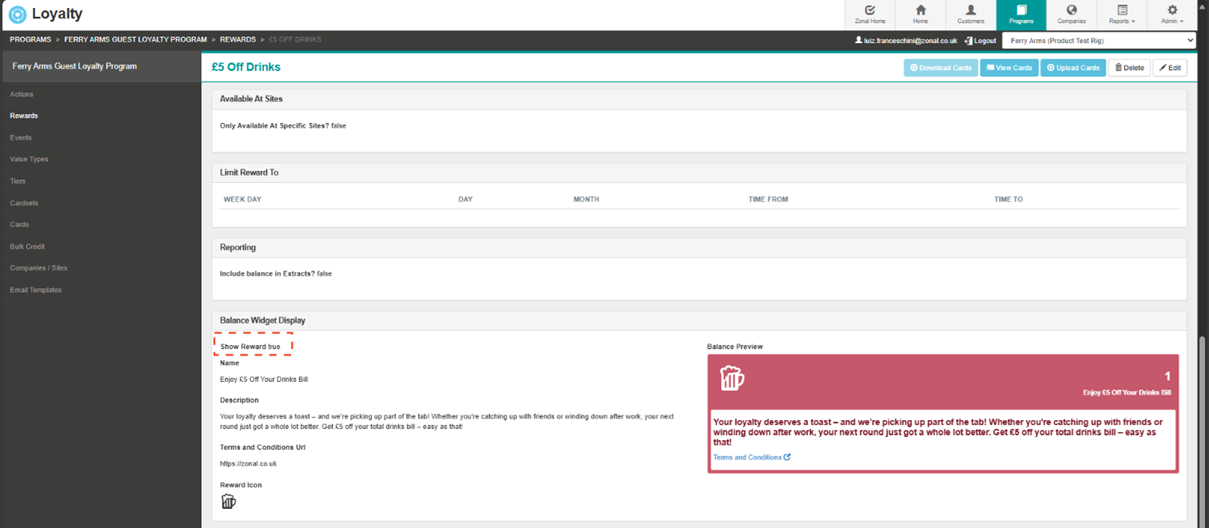
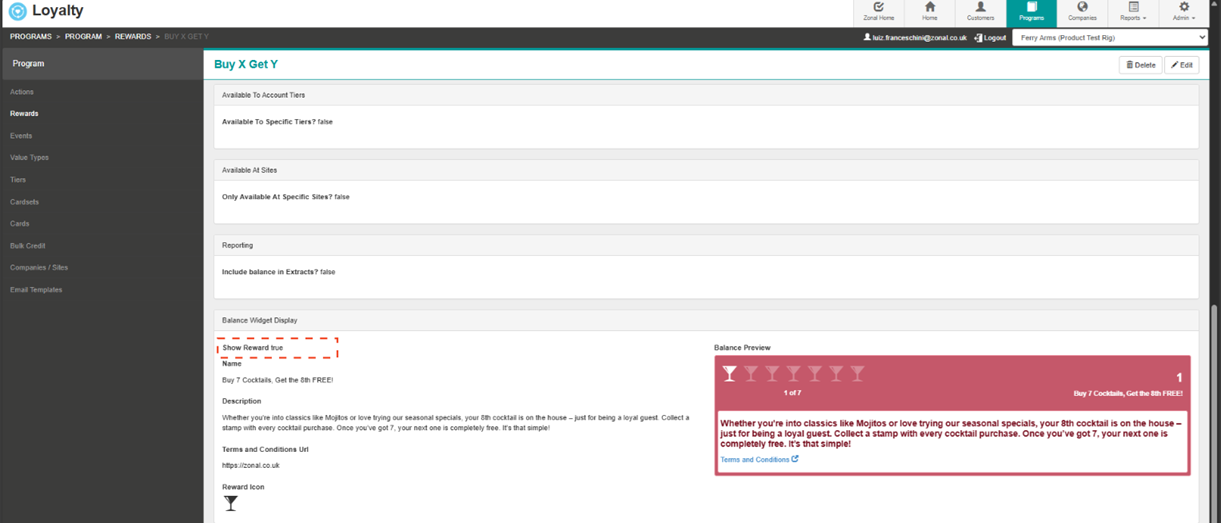
The reward must be configured to display in the widget. Balance widget display | Show reward | Must be selected (true) - Some reward types will need to be converted to "Advance reward" to allow this option to display in Loyalty.
-
The reward balance must not be 0
In addition, when setting up the rewards in loyalty, the Aztec ids must be:
-
A Discount (see example 1 below); or
-
A Promotion Trigger (zero cost) product (see example 2 below)
Setting up Guest Ordering compatible rewards
Here are a couple of examples on how to set a Loyalty reward redeemable in Guest Ordering:
Example 1: Based on an Aztec Discount
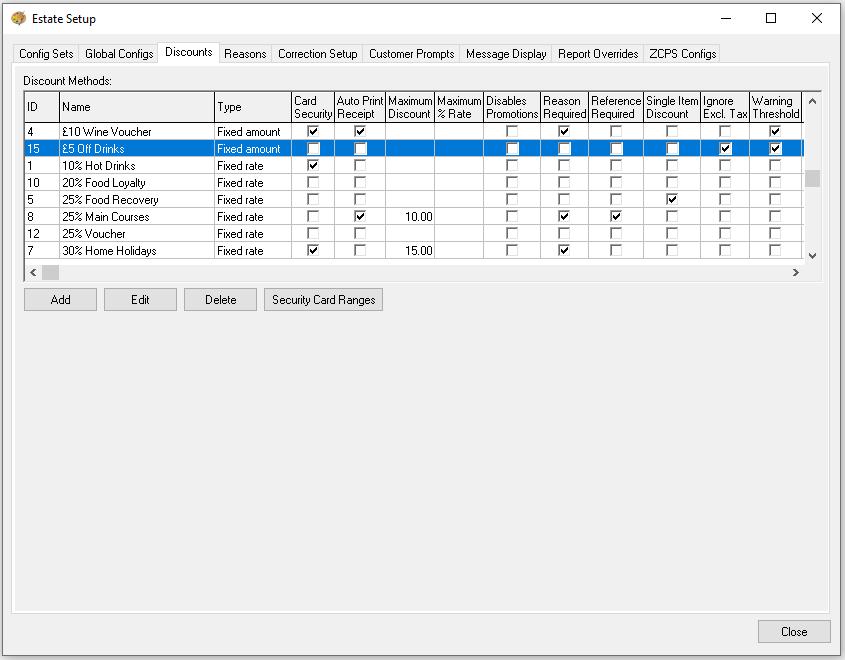
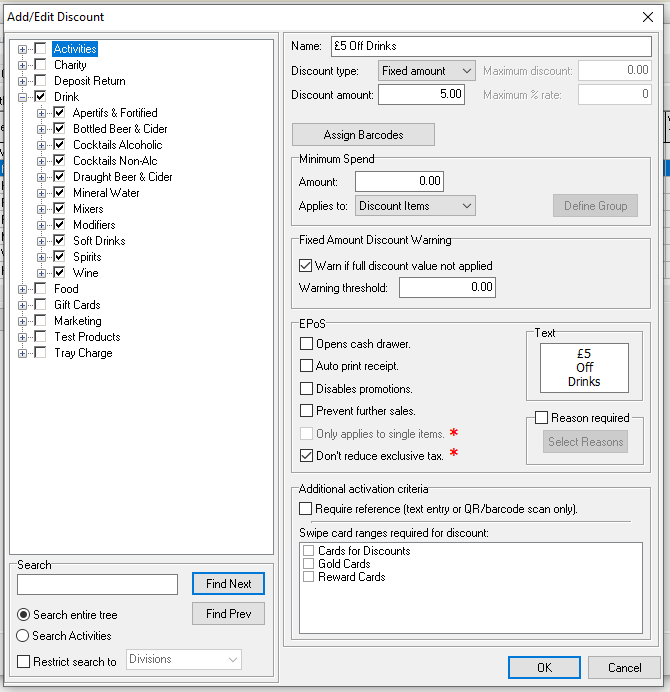
This example aim is to build a £5 off Drink Reward.
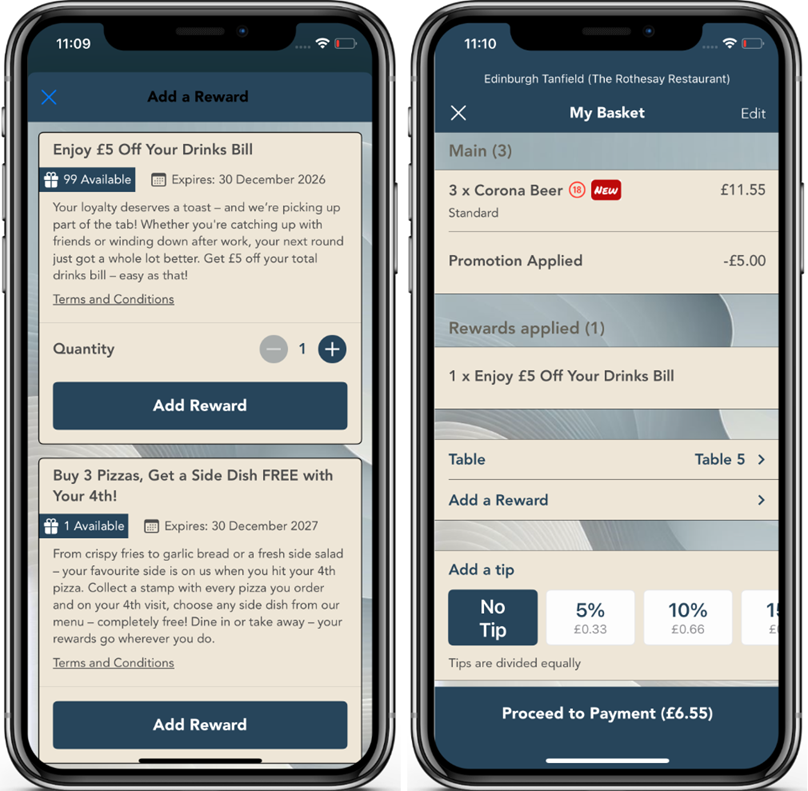
In Aztec
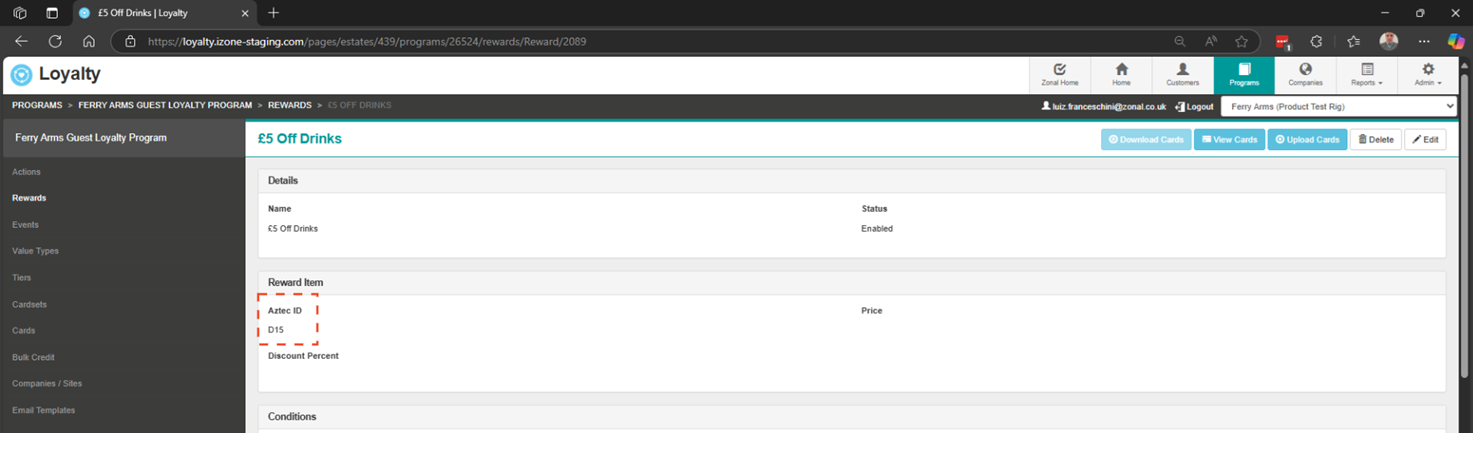
Create a Discount as desired in Aztec. In this case D15 was created with a £5 discount against drinks.
In Loyalty
-
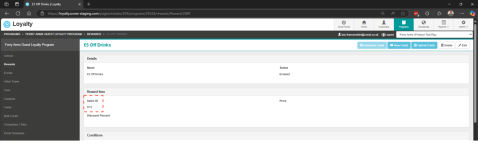
Create a Discount reward, save it and edit it to convert to an "Advance Reward".
-
Use the Aztec Discount code (D15) as the "Reward item".
-
Configure any additional restrictions or conditions as desired.
-
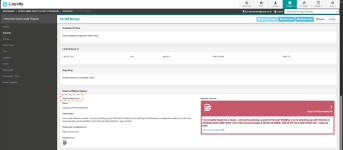
Configure the Balance Widget display and select "Show rewards" as true, so the reward can display in White Label Ordering.
Example 2: Based on an Aztec Promotion
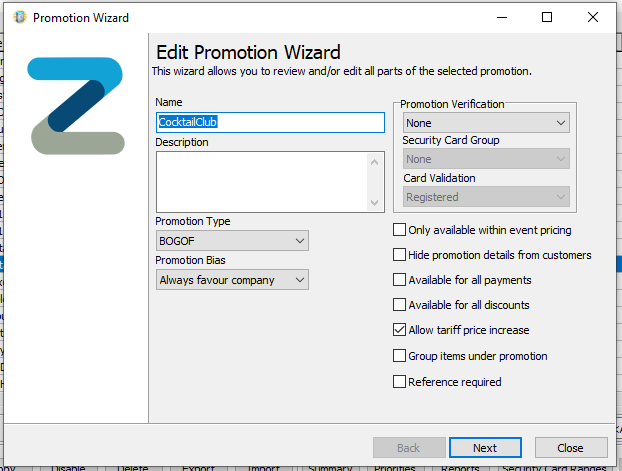
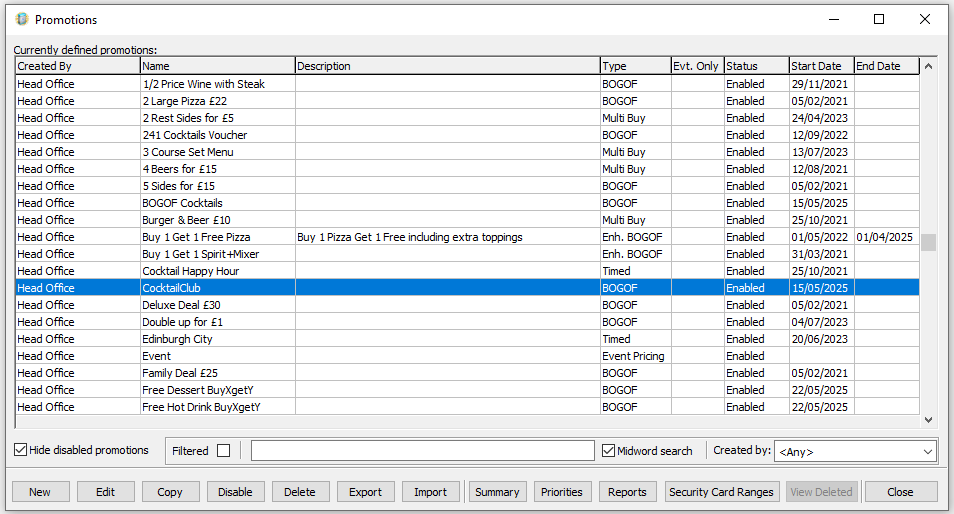
This example aim is to a Buy 7 Cocktails and Get One Free as a Reward.
In Aztec
-
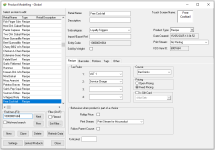
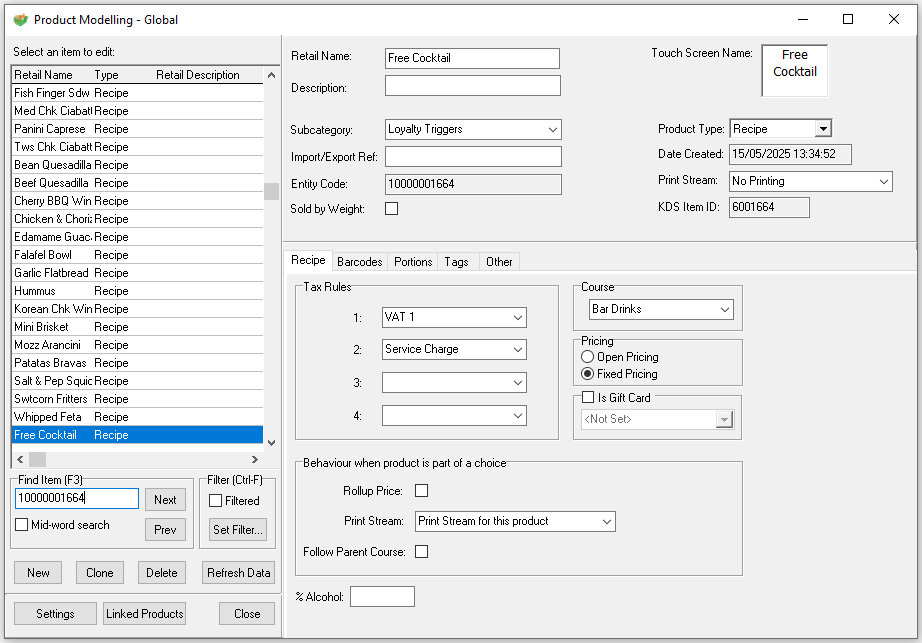
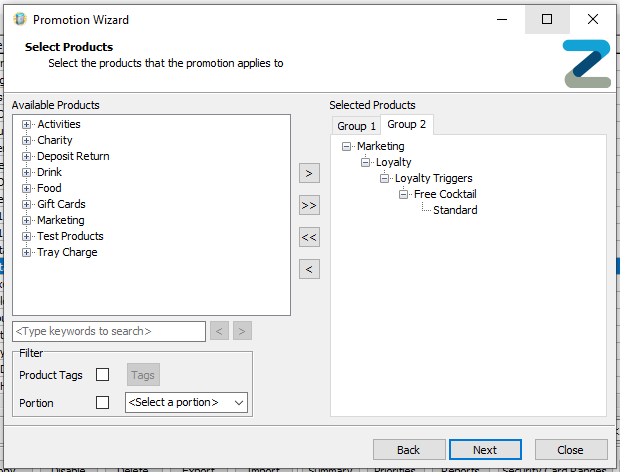
Create a product (recipe) type to be the "trigger" of a BOGOF promotion in this example we are using 10000001664
-
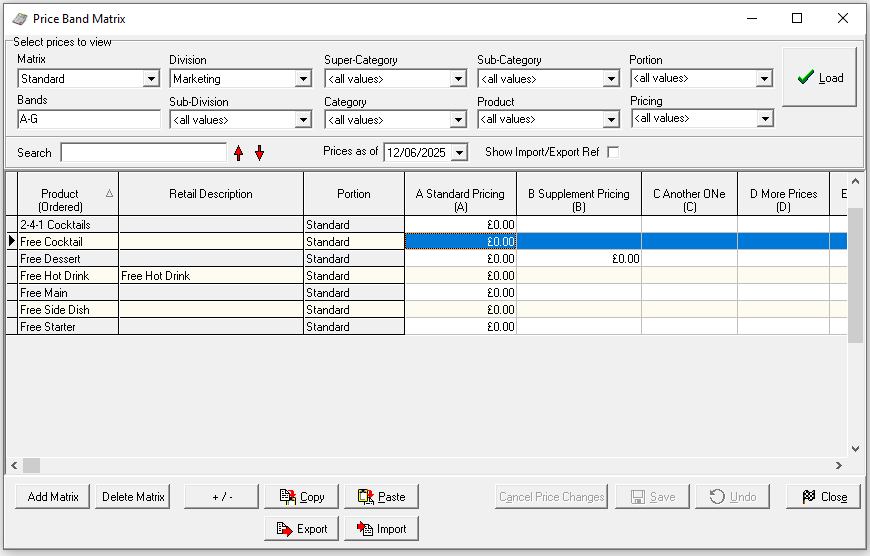
Give this product a base price of ZERO
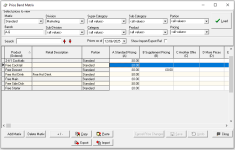
-
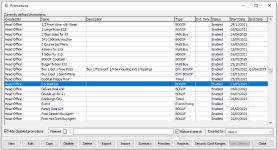
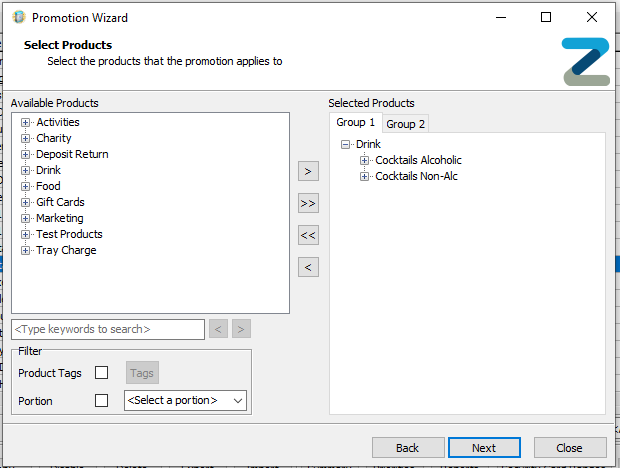
Create a promotion type of BOGOF with two groups
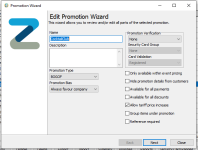
-
In Group one, add all qualifying products
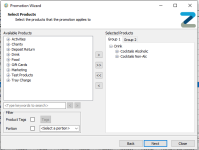
-
In Group two, add the "trigger" product created earlier (10000001664)
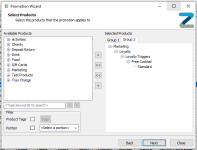
-
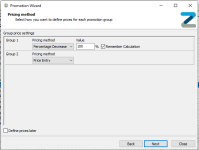
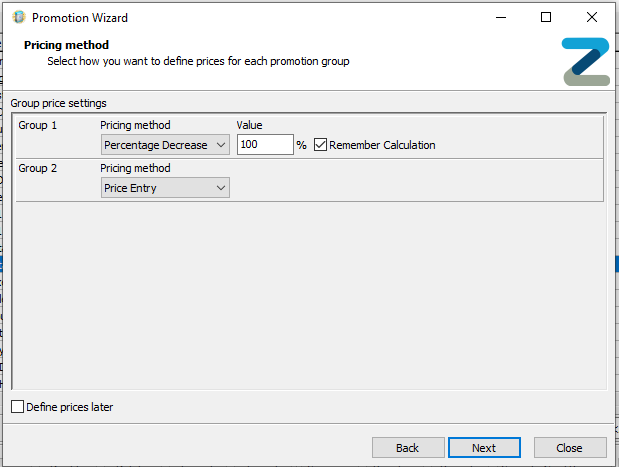
Apply the pricing method, in this case the applied Percentage Decrease is 100, as the intention is to give a free drink
-
The promotion is now ready to be used against a Loyalty Reward
In Loyalty
-
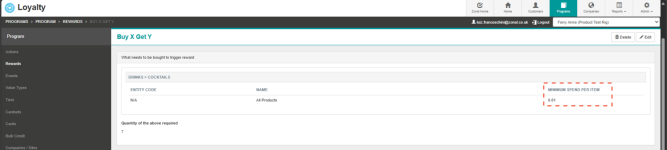
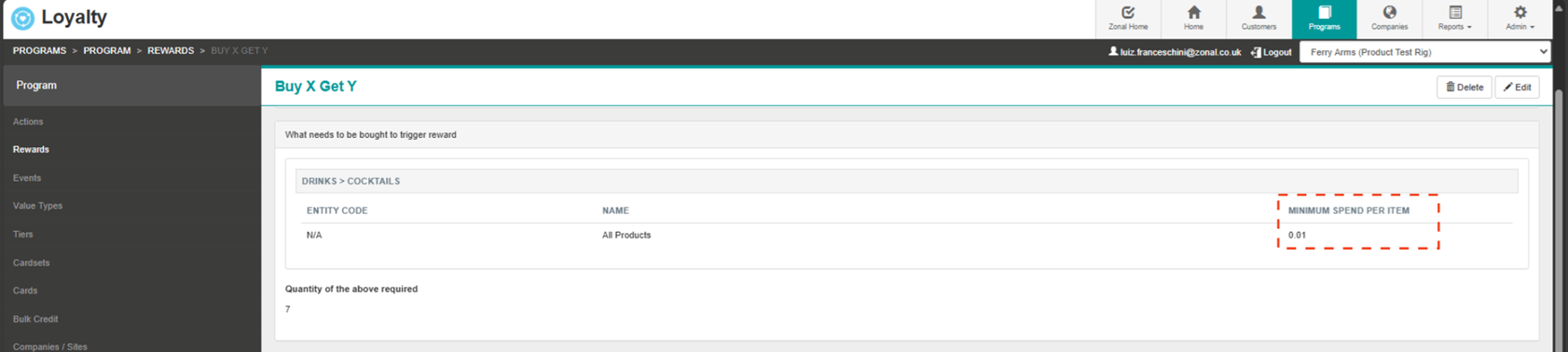
Create a new reward of "Buy x get y"
-
In "What needs to be bought to trigger reward" add the products that will generate a stamp after transaction (Remember to set up a minimum spend to avoid giving a "free stamp" when someone is redeeming a product that also is a “qualifying product”)
-
In "Reward given when above reached | Reward with an item" add the Aztec id of the Trigger product that have been previously set up (10000001664)

-
Do not add any schedule restriction, so the buy x get y will always display in balances
-
Configure the Balance Widget display and select "Show rewards" as true, so the reward can display in White Label Ordering

Currency redemption banner
For a currency banner to display, the Currency banner fields in iOrder must all be completed.
This can be configured in App Manager → Configure → App Theme → Loyalty Rewards → Currency Redemption
When adding "Currency", the discount amount to be added in the basket will be automatically calculated and cannot be specified by the guest. The value will be the lowest between:
-
The basket value
-
The guest currency balance
-
The "max currency" defined in iOrder
Setting up Currency redemption
Additional iOrder configuration
In addition to the above, a couple of fields must be completed in iOrder to allow Currency redemption:
This can be configured in App Manager → Loyalty Integration → Loyalty Integration Setup:

Aztec configuration
Currency balance redemption is only compatible when used against a pre-set discount in Aztec. Utilising "loyalty" currency as a payment method is not compatible with this feature.
The "Discount" id linked to the currency balance must be the same for all estate. Individual Ids for each site are not supported.
When setting up the "Discount", all product categories must be enabled, discount type must be "open amount" and no minimum spend must be set. The maximum discount value entered, must also be included in iOrder as previously described.