Each theme panel design can also include local panels. These function similarly to shared panels, but because they are local, they can only be displayed within the selected theme design. For this reason, local panels are typically not used during system configuration, as shared panels generally offer greater flexibility and functionality.
However, there are situations where local panels are beneficial for example, when handling products associated with loyalty schemes or vouchers. In such cases, a product may need to be contained within a theme panel design but remain hidden from the point of sale operator. The external system can then add these products virtually, provided they are already present within the theme.
Local Panels Topics
Adding Local Panels
Follow these steps to add local panels:
-
Select the Theme Panel Design
-
Click Design
The Select Panel drop down displays a list of existing local panels
-
Click Create New Panel
-
Enter the Panel Name and Description (optional)
-
Set the panel positions and size by defining Top | Left | Width | Height
If an existing local panel was selected before clicking create new panel it will automatically set the positions and sizes to be the same which can be adjusted as required -
Set the following options
-
Panel Hides Order Display - when selected the order display will be hidden, this is only ever used when a local panel covers the full 12" or 15" display on the terminal
-
Auto 'And' Panel - when selected any products ordered from this panel will be automatically linked to previous item, it is typically used for panels that related to food or drink modifiers where the modification is to be linked to the item being ordered - for example Coca Cola 'And' No Ice
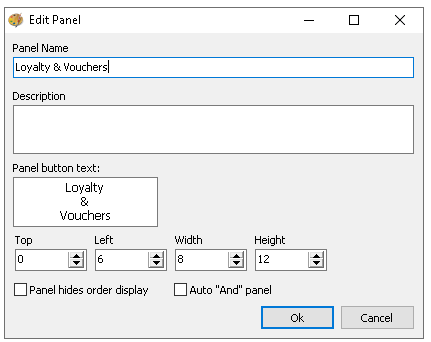
-
-
Click OK
Adding Buttons to Local Panels
The process to add buttons to local panels remains the same as adding buttons to a shared panel or root panel of the theme panel design. Typically products added here are needed by external systems and not directly used by point of sale operators, these might known as hidden panels or hidden products.
Follow these steps to add buttons to local panels:
-
From the Button Picker navigate to the required folders and drag the buttons on to the panel
Buttons that might be suitable to add to a local panel could be:
-
Loyalty related products that trigger the redemption of a prize
-
Voucher related products that trigger a promotion upon redemption of a voucher code
-
-
Continue adding all buttons to the panel as required
-
Click Save