Don't Let Check-Backs Fall Through the Cracks
How many times have your team meant to check back on table 12, only to get caught up with a new order or a guest request? It happens to the best teams and that's exactly why Kitchen iQ's automatic reminder function exists.
This often overlooked feature takes the guesswork out of table check-backs. Here's how it works: Once a course leaves the kitchen, Kitchen iQ automatically displays a reminder ticket on your selected service channels. Your staff sees the prompt, completes the check-back, and bumps the ticket to clear it, simple as that.
But it's more than just a helpful nudge. The system tracks every check-back, giving you valuable reporting data to ensure your team is meeting service standards within your agreed time frames. For larger operations, you can take it a step further by enabling a 'Message Action' feature that allows staff to clear reminders directly from point of sale terminals or iServe devices, keeping service flowing smoothly even during peak periods.
In this guide, we'll show you how to setup this feature.
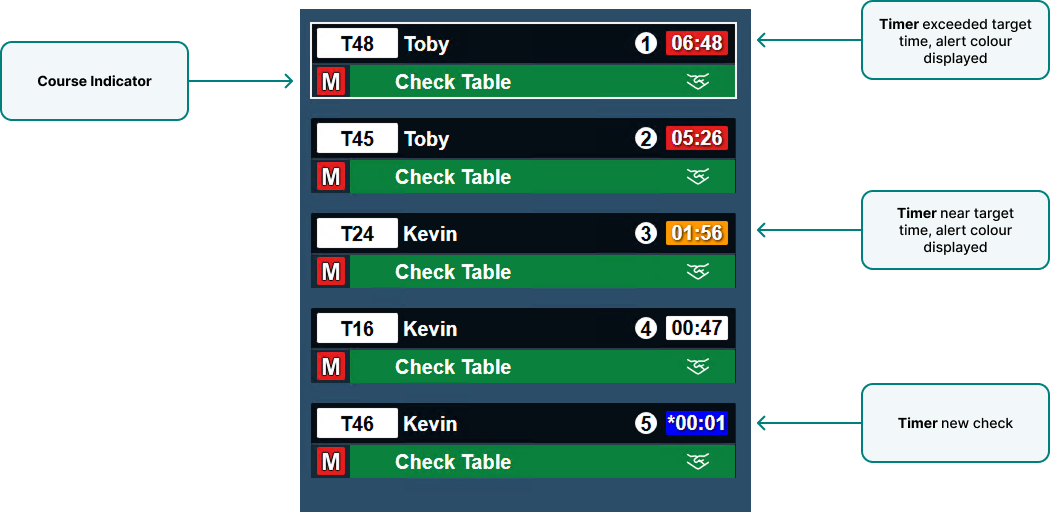
How do I setup check-backs?
For more detailed setup information for each section navigate to the detailed help topics.
Notifications
-
Add the required Check Table notification
-
Select the required Courses and Delay time
-
Set the Display Options as required
-
Colour | Icon
-
Target | Warn | Alert times
-
-
Set the Station(s) that the notification will be displayed on
-
Click Save
Optional Settings
Dedicated Screen or Tablet for Check-Backs
For operational ease you might choose to have a separate screen or tablet dedicated to check-backs which is in a more prominent front of house location.
-
Add a Check-Back Station
-
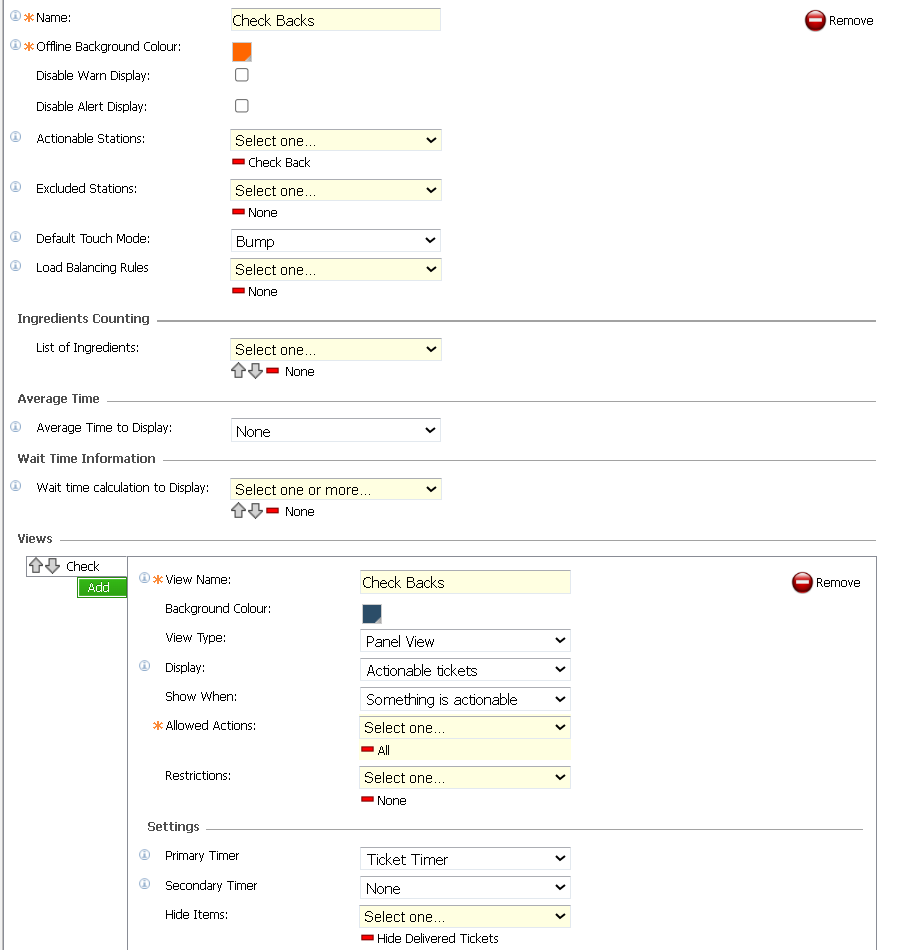
Add a Check Back Channel and assign the Station
-
Assign the Channel to a Screen
Message Action to 'Bump' the Check-Back
For sites where the account remains open at the point of sale, the bump action can be performed using a 'Message Action'. This allows the POS operator to add an instruction to the account and save it. Kitchen iQ will then automatically recognise this update and bump or clear the check-back, no additional screen navigation required.
-
Add a Check-Back Instruction and add to the Theme Panel Design
-
Add a Message Action for Acknowledge Check Table Notifications and enter the Message Text to be the same as the Instruction text