Redemptions
Gift cards sold through the Toggle platform can be redeemed at the point of sale to pay for a transaction. To enable the Toggle feature, complete the setup on the following page.
Redemptions Topics
Requirements
Credentials
The following credentials should be provided by Toggle:
-
Username
-
Password
-
API
-
Merchant Reference
Setup
Head Office Site Master
Payment Method
Follow these steps to add room payment method:
-
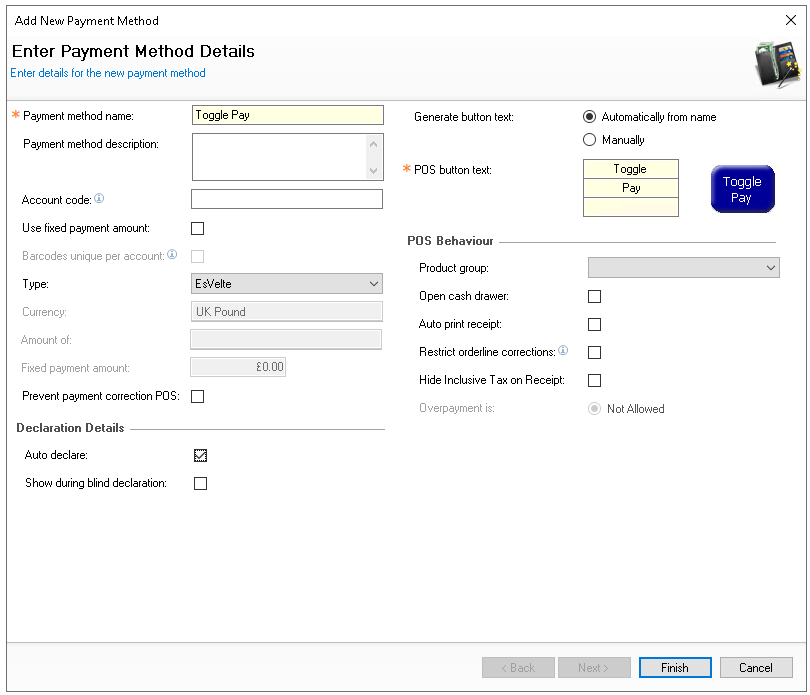
Click Enter the following information
-
Enter the name 'Toggle Pay'
-
Set the following options
-
Auto Declare - Enabled
-
Type - EsVelte
-
-
Set other fields and settings as required
-
Click Finish
-
Select the required Theme Panel Design or Shared Panel where the buttons should be added
-
From the Button Picker | Other Lists | Payment add the Toggle Pay payment method
For more information on adding buttons to shared panels click here -
Click Save
Balance Check
If required, a balance check button can also be added, which enables POS operators to check the balance of a gift card without needing to perform any sale or redemption activity.
Follow these steps to add the balance check function:
-
Select the required Theme Panel Design or Shared Panel where the buttons should be added
-
From the Button Picker | Other Lists | iZone add the EsVelte Balance Check button
-
Click Save
POS Integration Configuration
Follow these steps to configure the plugin information:
-
From the Plugin drop down select Esvelte
-
Enter the following required information
-
Username - as provided by Toggle
-
Password - as provided by Toggle
-
API - as provided by Toggle
-
Merchant Ref - as provided by Toggle
-
-
Click Save
Prefixes
For the point of sale terminal to recognise gift cards and perform the appropriate actions when they are entered or scanned, the prefix groups must be updated to match the specified number of digits that make up the gift card prefix.
For more information on managing prefixes click here to view the prefix setup help guide.
Other Setup
Site Master Site
-
POS Integration - 1.52.0 or above installed with Esvelte Plugin
Requests for POS Integration installation should be made to your Zonal Account Representative