Room Charges
Checked in guests can have transactions charged from the point of sale to their room account. To enable room charges, the following page of setup must be completed.
Room Charge Topics
Requirements
The following detailed should be provided by RMS:
-
URL - the Endpoint that Room posting requests will be sent to
-
Client ID - the Client ID for using the RMS API for endpoint security
-
Client Password - the Client password for using the RMS API for endpoint security
-
Property Identifier - the unique identifier for the hotel
-
Source for Room Postings - this should be confirmed with RMS but normally configured as Extras
-
Sundry ID for Tip Postings - the ID used if tips are sent to RMS
-
RMS IDs for Hotel Division Mapping
Setup
Head Office Site Master
Hotel Divisions
Hotel divisions are primarily used for integrations with hotel Property Management Systems (PMS), categorising sales revenue into defined groupings so the PMS can identify the type of charge and allocate the revenue accordingly.
The following should be completed:
-
Setup Hotel Divisions
-
Assign Hotel Divisions to Subcategories
-
Assign Hotel Division to Exclusive Tax Rules (if applicable / service charges are setup)
Payment Method
Follow these steps to add room payment method:
-
Click Add and enter the following information
-
Enter the name Room
-
Set the following options
-
Auto Declare - Enabled
-
Type - Room (SOAP) - Search Prompt
-
Overpayment
-
Not Allowed - when set no overpayments can be made and only the exact account total can be charged to the room
-
Tip - when set a POS operator can over tender the amount to charge to the room and any difference would be posted as a tip
-
-
-
Set other fields and settings as required
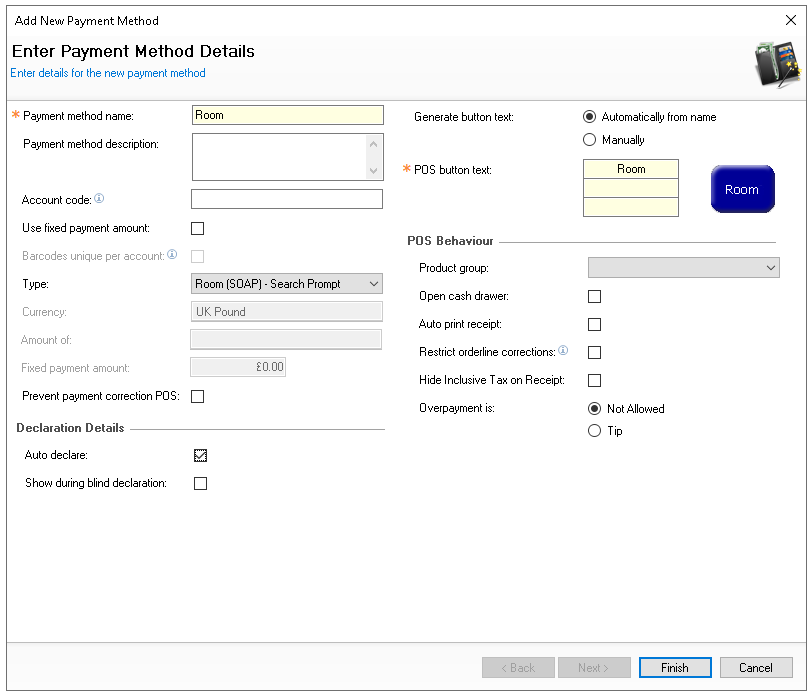
-
Click Finish
-
Select the required Theme Panel Design or Shared Panel where the buttons should be added
-
From the Button Picker | Other Lists | Payment add the Room payment method
For more information on adding buttons to shared panels click here -
Click Save
POS Integration Configuration
Follow these steps to configure the plugin information:
-
From the Plugin drop down select RMS
-
Enter the following required information
-
URL - as provided by RMS
-
Client ID - as provided by RMS
-
Client Password - as provided by RMS
-
Property ID - as provided by RMS
-
Source for Room Posting - as provided by RMS, but normally set as Extras
-
Sundry ID for Tip Posting - as provided by RMS
-
-
If required select the following (optional)
-
Use Gratuity instead of Tip - this wording is used on printed materials
-
Use RMS Accounting Date - the Aztec rollover adjusted date is sent to RMS with a room posting. If this setting, which is also sent, is enabled, the RMS system will instead use its own accounting date for the posting
-
Non Room Postings - click here for more information and setup
-
-
Click Save
-
Repeat for all required Sites
Other Setup
Site Master Site
-
POS Integration - 1.52.0 or above installed with RMS Plugin
Requests for POS Integration installation should be made to your Zonal Account Representative
Hotel Division Mapping
The RMS IDs for postings are required to mapped within the Configuration.xml to Hotel Divisions so that the correct revenue split is managed.