Room Charges
Checked in guests can have transactions charged from the point of sale, white label guest ordering, to their room or venue account. To enable room charges, the following page of setup must be completed and for guest ordering (white label app and web ordering) additional configuration is required in iOrder Platform.
Room Charge Topics
Requirements
Credentials
The following credentials should be provided by Oracle / Customer:
-
IP Address
-
Port
Setup
Head Office Site Master
Hotel Divisions
Hotel divisions are primarily used for integrations with hotel Property Management Systems (PMS), categorising sales revenue into defined groupings so the PMS can identify the type of charge and allocate the revenue accordingly.
The following important rules should be followed:
-
Hotel Division 1 - is not used
-
Hotel Divisions 2 - 11 used as itemizers to send to Opera
-
Hotel Division 17 - used for tips, which should be setup but not allocated
-
Hotel Divisions 18 - used for service charge
Revenue Centres
Revenue centres define where the transaction originated from and will be used to correctly map the hotel division (itemizer), time period (serving period) and transaction code. At least one revenue centre must be setup in order to configure the interface correctly, centres could include, Bar, Restaurant, In Room Dining, Conference & Events etc.
Payment Method
Follow these steps to add room payment method:
-
Click Enter the following information
-
Enter the name 'Room'
-
Set the following options
-
Auto Declare - Enabled
-
Type - Room (SOAP) - Search Prompt
-
-
Set other fields and settings as required
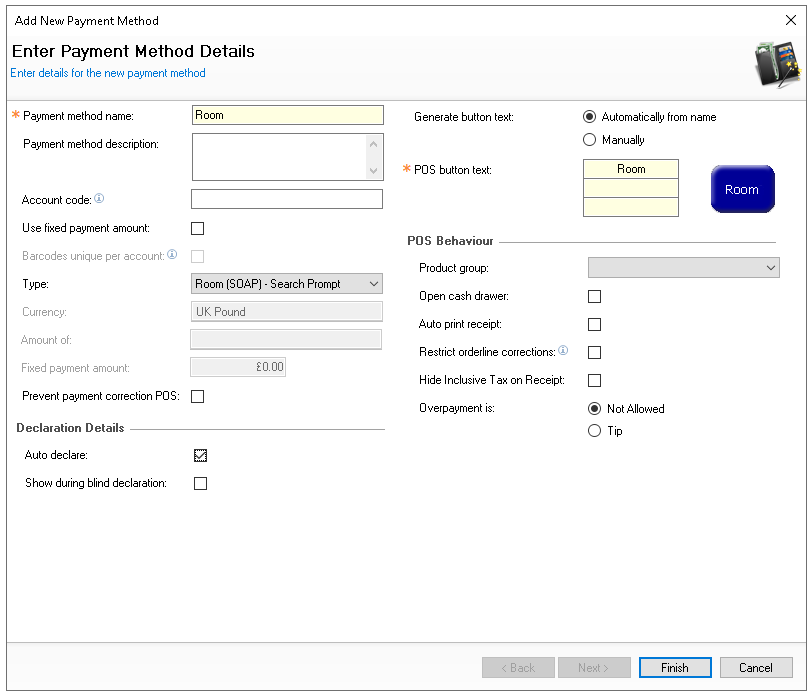
-
Click Finish
-
Select the required Theme Panel Design or Shared Panel where the buttons should be added
-
From the Button Picker | Other Lists | Payment add the Room payment method
For more information on adding buttons to shared panels click here -
Click Save
POS Integration Configuration
Follow these steps to configure the plugin information:
-
From the Plugin drop down select Opera
-
Enter the following information
-
IP Address - as provided by Oracle / customer
-
Port - as provided by Oracle / customer
-
Link Check Frequency (in seconds)
Defaults to 300 seconds if left blank -
Request Timeout (in seconds)
Defaults to 30 seconds if left blank
-
-
If required select the following (optional)
-
Use Gratuity instead of Tip - this wording is used on printed materials
-
Show Credit Limit of Guest - when performing room activities the available credit limit can be displayed
-
-
Click Save
Additionally a second end point can be configured so that one Aztec site can post room charges to two hotels in Opera PMS, when this is required complete the following additional setup:
-
Enter the Endoint Point Name (of the first hotel for example Hotel A)
-
Enter the following information
-
IP Address 2 - as provided by Oracle / customer
-
Port 2 - as provided by Oracle / customer
-
Endpoint 2 name - (for example Hotel B)
Endpoint names will be shown to the point of sale operator so they are aware of which hotel they are posting charges to -
-
Click Save
Time Periods
For the integration to be successful at least 1 time period covering a 24 hour period must be added, this task will be carried out by Zonal.
-
Sessions for a single config must cover a 24-hour period
-
No session can overlap another
-
There must be no gaps between sessions for a single config (i.e. one session must start when another ends)
-
It is valid for no sessions to be assigned to a config, however the POS terminal using this config set cannot
-
In turn be used to process hotel postings
-
If Non room posting is enabled, all config sets assigned to POS devices must have a set of sessions assigned
-
Table HotelDivision must be edited at Head Office / Site Master level
Other Setup
Site Master Site
-
POS Integration - 1.52.0 or above installed with Opera PMS Plugin