Room Charges
Checked in guests can have transactions charged from the point of sale to their room account. To enable room charges, the following page of setup must be completed.
Room Charge Topics
Requirements
The following detailed should be provided by Infor:
-
URL - the Endpoint that Room posting requests will be sent to
-
Username - the username for endpoint security
-
Password - the password for endpoint security
-
Property Identifier - the identifier for the hotel
Setup
Head Office Site Master
Hotel Divisions
Hotel divisions are primarily used for integrations with hotel Property Management Systems (PMS), categorising sales revenue into defined groupings so the PMS can identify the type of charge and allocate the revenue accordingly.
The following should be completed:
-
Setup Hotel Divisions
-
Assign Hotel Divisions to Subcategories
-
Assign Hotel Division to Exclusive Tax Rules (if applicable / service charges are setup)
Payment Method
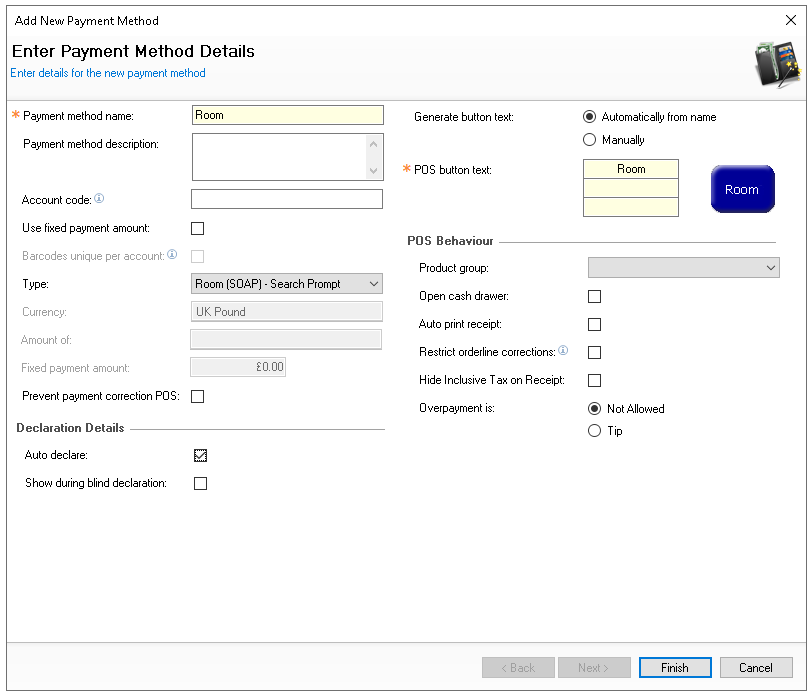
Follow these steps to add room payment method:
-
Click Add and enter the following information
-
Enter the name Room
-
Set the following options
-
Auto Declare - Enabled
-
Type - Room (SOAP) - Search Prompt
-
Overpayment
-
Not Allowed - when set no overpayments can be made and only the exact account total can be charged to the room
-
Tip - when set a POS operator can over tender the amount to charge to the room and any difference would be posted as a tip
-
-
-
Set other fields and settings as required
-
Click Finish
-
Select the required Theme Panel Design or Shared Panel where the buttons should be added
-
From the Button Picker | Other Lists | Payment add the Room payment method
For more information on adding buttons to shared panels click here -
Click Save
POS Integration Configuration
Follow these steps to configure the plugin information:
-
From the Plugin drop down select Infor
-
Enter the following required information
-
URL - as provided by Infor
-
Username - as provided by Infor
-
Password - as provided by Infor
-
Property Identifier - as provided by Infor
-
-
If required select the following (optional)
-
Use Gratuity instead of Tip - this wording is used on printed materials
-
Show Credit Limit of Guest - when performing room activities the available credit limit can be displayed
-
Non Room Postings - click here for more information and setup
-
-
Click Save
-
Repeat for all required Sites
Time Periods
For the integration to be successful at least 1 time period covering a 24 hour period must be added, this task will be carried out by Zonal.
-
Sessions for a single config must cover a 24-hour period
-
No session can overlap another
-
There must be no gaps between sessions for a single config (i.e. one session must start when another ends)
-
It is valid for no sessions to be assigned to a config, however the POS terminal using this config set cannot
-
in turn be used to process hotel postings
-
If Non room posting is enabled, all config sets assigned to POS devices must have a set of sessions assigned
-
Table HotelDivision must be edited at Head Office / Site Master level
Other Setup
Site Master Site
-
POS Integration - 1.52.0 or above installed with Infor Plugin
Requests for POS Integration installation should be made to your Zonal Account Representative