Miscellaneous income is used to record cash related income in the finance module when no sale has been processed through the point of sale terminal. This may include income from car parks, machines, charity events, or other sources that do not fall under standard product division revenue.
Quick Steps for Miscellaneous Income
Follow these steps to manage income:
🔑 Login to Aztec
Get started by logging into Aztec and open the Finance module
➡️ Misc Income
Select Cash Management → Misc Income → click Add Misc Income
💰 Select Safe
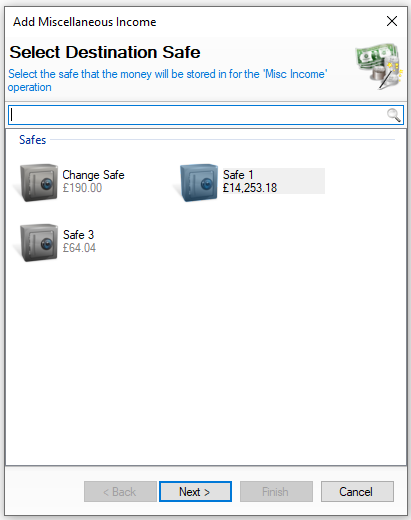
Select the Safe (where the money will be added to) → click Next
❗ This step is only shown if you have more than one safe
📅 Select Date
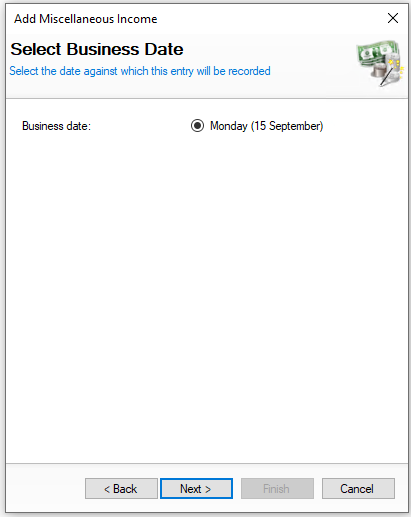
Select the Income Date → click Next
❗ You only have to choose a date if you work on a weekly sign off
⌨️ Enter Income Details
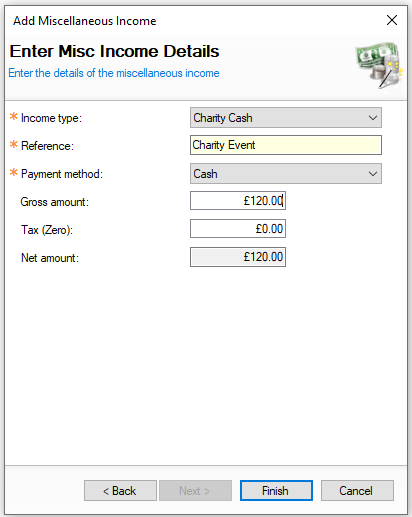
Select the Income Type → enter the Reference → select the Payment Method → enter the Gross Amount → click Finish
❗️ You maybe permitted to edit the tax amount
Misc Income Topics
Adding Misc Income
Follow these steps to add misc income:
| Click Add Misc Income | Select Safe | Click Next | → | Select the Misc Income Date | Click Next | → | Enter Income Information | Click Finish | |
|
Select the required safe where money will be added to You will not be shown this step if:
On this step you might:
|
Select the date of the income You will not be shown this step if:
|
Enter the income information
On this step you might:
|
|||
|
|
|
Editing Misc Income
When selecting misc income the list of entries are displayed by day and the options available are View | Edit | Delete
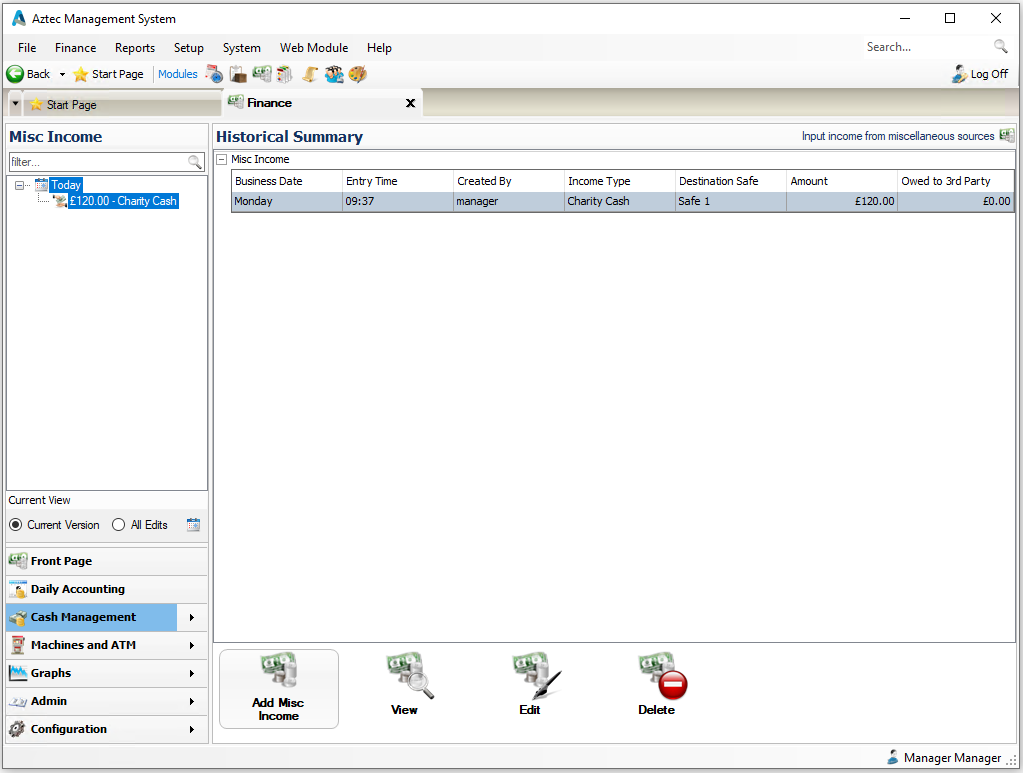
The following rules apply to editing misc income:
-
A entry can only be edited if the back of house operator has permission configured against their job role to edit misc income
-
When operating with daily sign off only the current days entries can be edited, once a day is signed off the misc income for previous days cannot be changed
Select an income and follow these steps to edit:
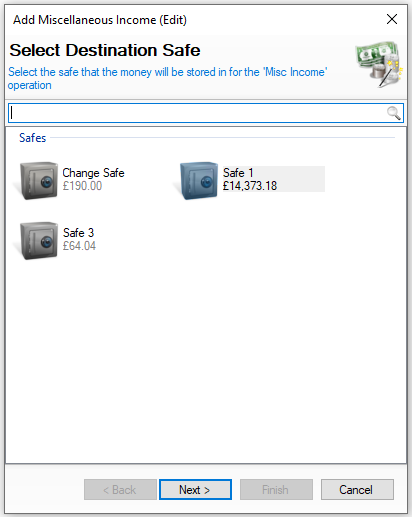
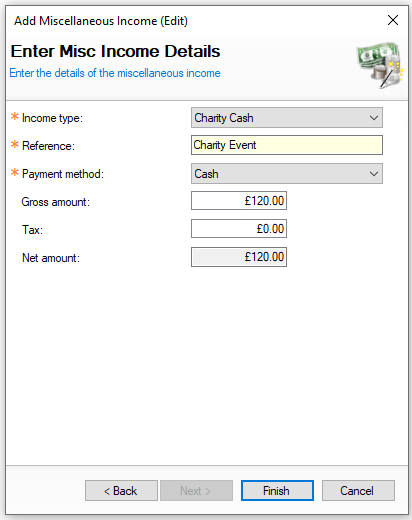
| Click Edit | Confirm Safe | Click Next | → | Confirm / Edit Expenditure Information | Click Finish | |||
|
Confirm the required safe where the money will be added to You will not be shown this step if:
On this step you might:
|
Confirm / edit the income information
On this step you might:
|
|
|||
|
|
|
Deleting Misc Income
When selecting misc income the list of entries are displayed by day and the options available are View | Edit | Delete
The following rules apply to deleting misc income:
-
A entry can only be edited if the back of house operator has permission configured against their job role to delete misc income
-
When operating with daily sign off only the current days entries can be edited, once a day is signed off the misc income for previous days cannot be changed
Select an income and follow these steps to delete:
-
Click Delete
-
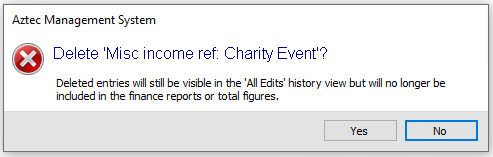
Confirm Yes to delete the income
-
The value of the income will be removed from the Destination Safe