Pennies Donations
Pennies lets your guests add a small charity donation when they pay by card on a Dojo device. The donation prompt appears after the tip prompt and before the guest presents their card. The donation is taken as part of the same card payment, so there is no extra step for your staff. It applies to ZCPS Dojo 1.3.8 and later, for counter and table payments.
Pennies is an optional service and is switched off by default. It needs a Pennies merchant account, donations enabled on your Dojo devices, and charity donations switched on in Aztec before it can be used.
Please contact your Zonal Account Manager to find out more and to arrange enabling Pennies for your estate.
Pennies Donations Topics
Who Controls What
With Dojo, the Pennies setup is shared between three parties. This is different from FreedomPay, where the donation amounts are chosen in Aztec.
| Who | What they control |
|---|---|
| Pennies |
The ctreation of your Pennies merchant account, the charity your guests donate to, and the donation settings shown on the device, such as the donation amount and any minimum bill value. |
| Dojo |
Enabling the donations service on your Dojo account and on each Dojo device. |
| Aztec |
Switching charity donations on for the estate and for each terminal configuration set, and a product structure for the donations to report against. The device only offers a donation when charity donations are enabled in Aztec for the terminal taking the payment. |
What the Guest Sees
-
Staff send the payment to the device as normal. If the POS prompts for cashback, choose No Cashback. A payment with cashback does not offer a donation.
-
If tips are enabled, the guest is asked for a tip first.
-
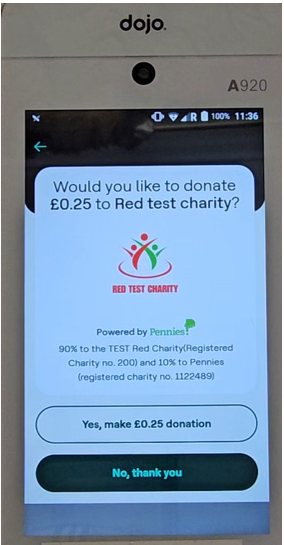
The device asks the guest if they would like to donate, showing the amount and the charity. The guest taps Yes or No, thank you.
-
The guest presents their card and the payment completes, with any donation included in the amount charged.
The donation is printed as a separate line on the device receipt. The donation and tip are returned to the POS as separate values, so they can be told apart from the sale amount. POS receipt printing is off by default for Dojo, see Processing Payments for how to turn it on.
Before You Start
-
You have a Pennies merchant account for your business. Your Zonal Account Manager can help you arrange this with Pennies
-
Dojo has enabled donations on your Dojo account and devices
-
Your sites are running ZCPS Dojo 1.3.8 or later
Setting Up in Aztec
-
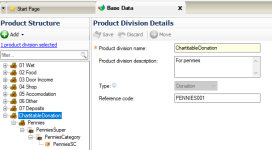
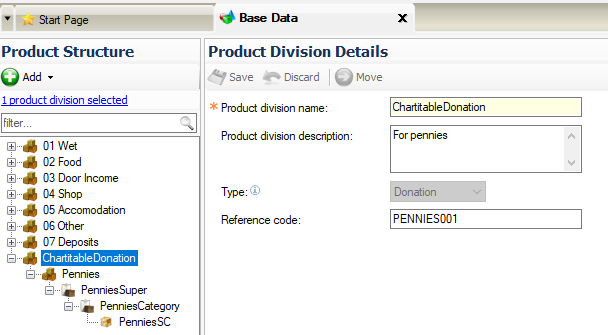
Create a product structure for donations
Base Data | Product Structure, create a separate full structure for donations with the division type set to Donation
-
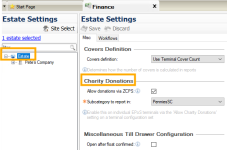
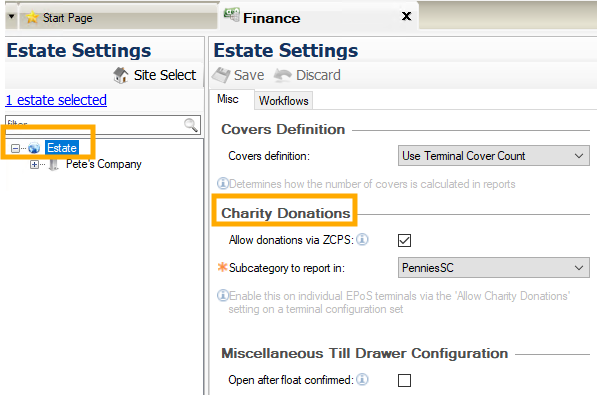
Enable charity donations for the estate
Finance | Estate Settings | Misc | Charity Donations, tick Allow donations via ZCPS and choose the donation subcategory to report in
-
Allow charity donations in the configuration set
Theme Modelling | Estate Setup | Config Sets, tick Allow Charity Donations for each terminal configuration set that should offer Pennies. This is how you switch donations on or off for a site or a group of terminals
For this configuration option to take effect a comms job to site and Send to POS must be performed -
Restart the ZCPS service on the site PC
Pennies should now prompt on the device after the tip prompt and before the present card screen.
Pay at Table
There are no separate donation settings for Pay at Table. Make sure the configuration set used by your Pay at Table devices has Allow Charity Donations ticked. You can check which configuration set a device uses under Theme Modelling | Site Setup, by editing the Pay at Table terminal.
Need Help?
To enable Pennies, arrange a Pennies merchant account, or change the donation amount, contact your Zonal Account Manager.
For device faults or anything shown on the Dojo device itself, contact Dojo on 0800 044 3550.