Checking dish quality and plating accuracy is essential to meeting brand standards. The Spec Images feature supports this process by displaying product images alongside the channel view for a selected ticket. When there are more images than the panel can show at once, they cycle through in the order they appear on the ticket.
When this functionality has been enabled a grey panel will be displayed the right hand side of the screen which is where images will be displayed when a panel view ticket or order line is in focus on the selected ticket.
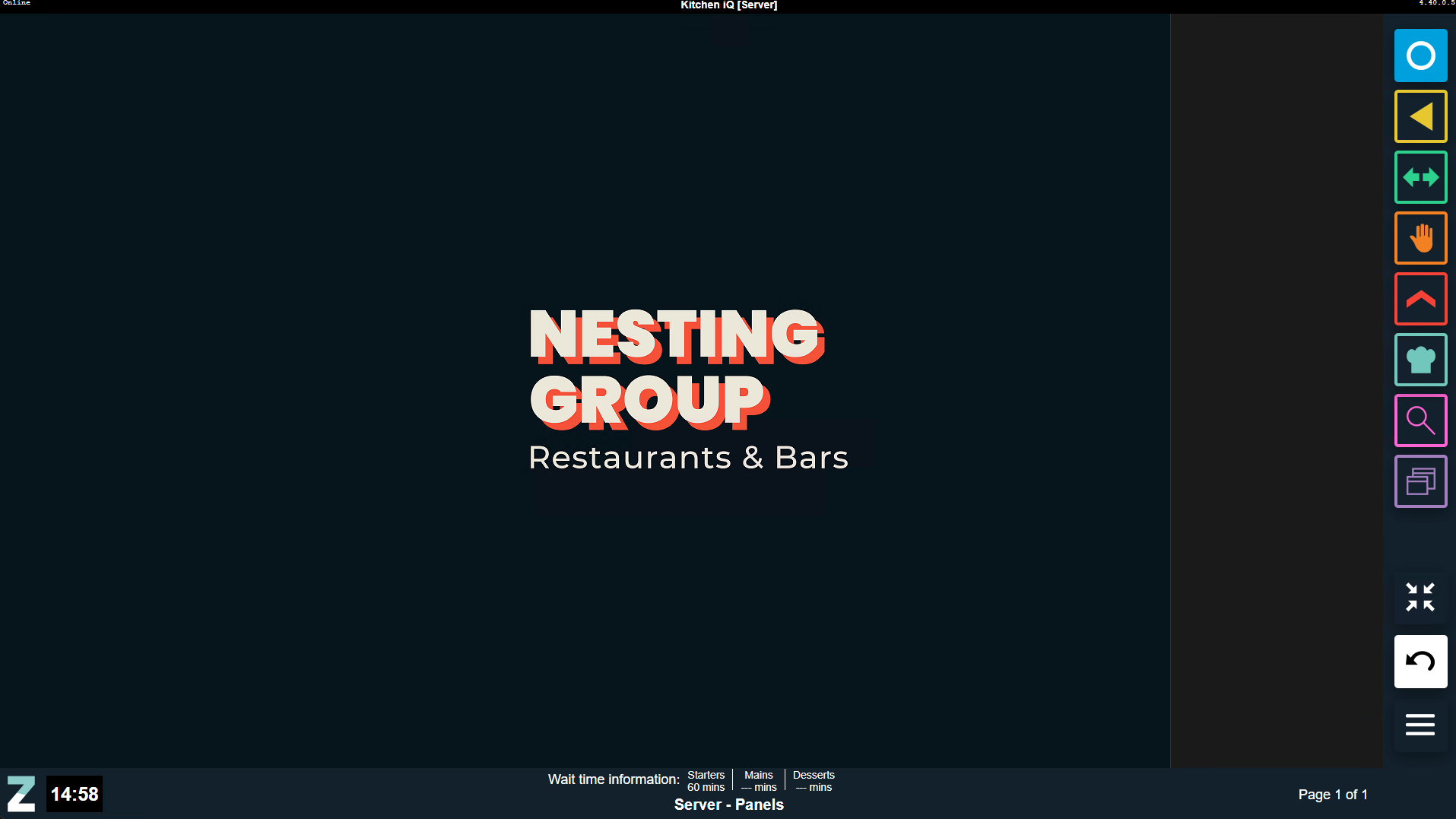
Viewing Spec Images
-
Images will be automatically displayed when a ticket is selected with a white rectangle border
-
Up to 4 images are displayed
-
If the order ticket contains more then 4 order lines then the images will cycle through display all items
-
Images are displayed in the same order that the ticket is displayed
-
If the order contains multiple of the same item the image is only displayed once
Viewing Individual Order Line Images
Follow these steps to view a single image with a bump bar:
| Step | Bump Bar Button | Action |
|---|---|---|
| 1 |


|
Bump Bar: Use the Item Up / Down button to select an order line item The item will be displayed with a white rectangle border and display only the selected image Navigating through each order line will display each image individually and navigating back to the same (or to another ticket) will display those related images |
Follow these steps to view a single image with a touchscreen:
| Step | Touch Screen Button | Action |
|---|---|---|
| 1 |
Touchscreen: Tap order line item The item will be displayed with a white rectangle border and display only the selected image Navigating through each order line will display each image individually and navigating back to the same (or to another ticket) will display those related images |
|