Manage the Guest Experience with Customer Facing Collection Screens
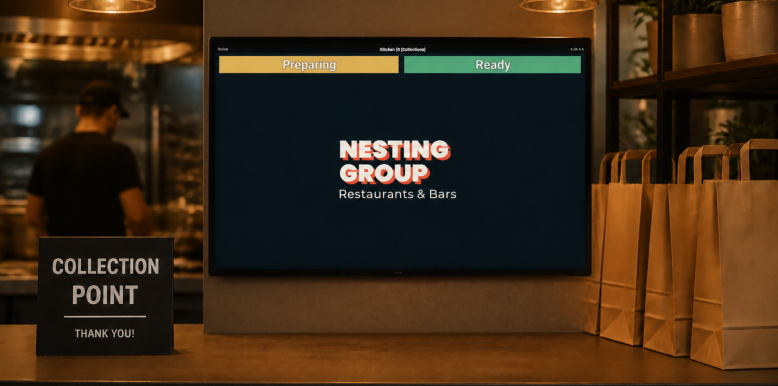
In hospitality businesses where guests collect their own orders, keeping them informed is key to a smooth service operation. When customers are waiting at a dedicated collection point, uncertainty about wait times can lead to crowding, repeated staff interruptions, and unmet expectations. A collection screen solves this by displaying live order progress letting guests see exactly where their order is in the kitchen and when it's ready for collection. Kitchen iQ supports several configuration options to tailor the experience to your operation.
How do I setup collection screens?
To get started, this guide walks you through everything you need to configure a customer collection screen, broken down into simple steps for a straightforward setup.
For more detailed setup information for each section navigate to the detailed help topics.
Step 1 of 2
Adding the Channel
The channel will define what the guest can see when viewing the screen.
-
Click Add
-
Enter the Channel Name
-
From the Views section click Add
-
Enter the View Name
-
Set the required Background Colour
-
Select the View Type of Customer View
-
Choose the required Kitchen Status Display Options
-
All
-
Being Prepared
-
Ready to Serve
If you select All or Being Prepared and Ready to Serve the Split Screen option will become available -
-
Optionally select the Split Screen check box
When the split screen option is selected it will show the orders bring prepared / ready to serve on two sections of the screen -
Select the required Order Destinations to display
-
Apply the other options and settings as required
-
Click Save
Step 2 of 2
Applying the Channel to a Screen
This step assumes you have already created a screen for customer collections. For guidance on setting up screens, click here.
-
Set the Allowable and Default Channel to be that of the new customer collection channel created in step 1
-
Click Save
Other Recommendations
As this screen is customer-facing, we recommend assigning your company logo or brand image to it. This will be displayed whenever there are no active orders, keeping the screen looking polished and on-brand.
For more information on adding branding click here to view our custom image guide.