Redemptions
Passengers with available credit due to a flight delay can use their issued coupon or boarding pass to redeem payment or discount for food and drinks.
Redemptions Topics
Requirements
The following detailed should be provided by iCoupon:
- URL
-
Client ID
-
Client Secret
The following should be agreed with iCoupon on implementation:
-
Location Ref
-
Service Provider Ref
-
Trading Outlet Ref
-
Trading Outlet Name
Setup
Head Office Site Master
Payment Method
If the redemption type being provided by iCoupon are 'Tender' then a payment method should be created.
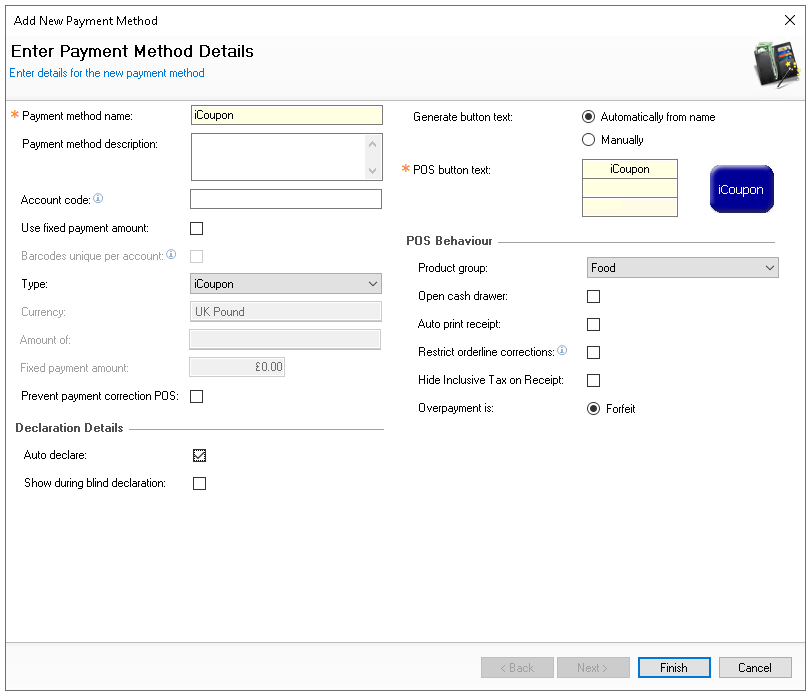
Follow these steps to add iCoupon payment method:
-
Click Add and enter the following information
-
Enter the name iCoupon
-
Set the following options
-
Auto Declare - Enabled
-
Type - iCoupon
-
Overpayment - Defaults to Forfeit
-
-
Optionally assign a Product Group to the payment method
If flight delay vouchers can only be accepted for specific product types such as food and soft drinks a group can be assigned and the payment method will only pay for those items on the account - click here for more information on creating product groups -
Set other fields and settings as required
-
Click Finish
-
Select the required Theme Panel Design or Shared Panel where the buttons should be added
-
From the Button Picker | Other Lists | Payment add the iCoupon payment method
For more information on adding buttons to shared panels click here -
Click Save
Discount
If the redemption type being provided by iCoupon are 'Discount' then a discount should be created.
Follow these steps to add iCoupon open discount:
-
Click Add and enter the following information
-
Enter the name iCoupon
-
Set the Discount Type to Open Amount
-
From the Product Structure Tree select the required hierarchy levels or individual products that required discount
-
Set other fields and settings as required
For more information managing discounts click here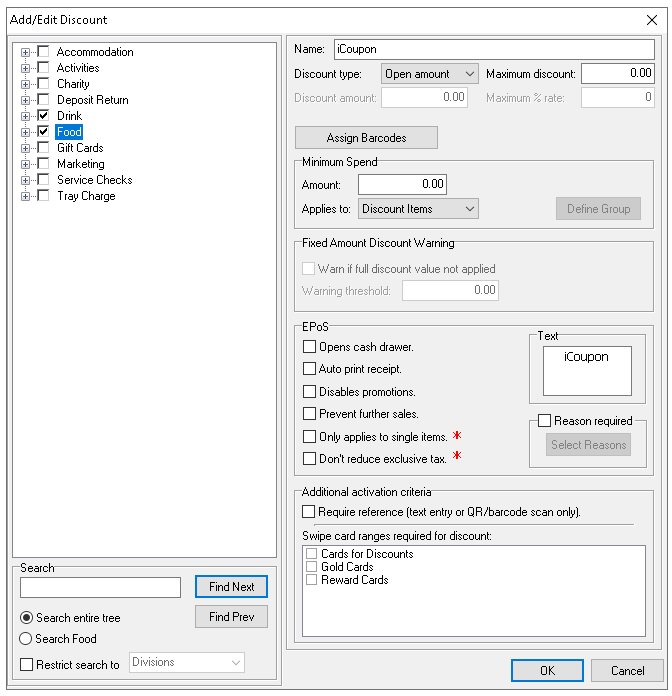
-
Click OK
Take note of the ID displayed in the Discount Methods list
-
Select the required Theme Panel Design or Shared Panel where the buttons should be added
-
From the Button Picker | Other Lists | Apply Whole Account Discount add the iCoupon discount
For more information on adding buttons to shared panels click here -
Click Save
Theme Settings
iCoupon Buttons
Follow these steps to add iCoupon buttons:
-
Select the required Theme Panel Design or Shared Panel where the buttons should be added
-
From the Button Picker | Other Lists | iZone add the following buttons
-
iCoupon Redeem
-
Enables a POS operator to redeem iCoupon vouchers (related to payment or discount)
-
-
iCoupon Void
-
Enables a POS operator to cancel / void the redemption
-
Zonal recommends to update the name of the buttons using the override text so that POS operators understand their usage -
-
Click Save
POS Integration Configuration
Follow these steps to configure the plugin information:
-
From the Plugin drop down select iCoupon
-
Enter the following required information
-
URL - as provided by iCoupon
Plugin URL must end with forward slash ' / ' For example https://icoupon.global/api/ -
Client ID - as provided by iCoupon
-
Client Secret - as provided by iCoupon
-
Location Ref - agreed with iCoupon on implementation
-
Service Provider Ref - agreed with iCoupon on implementation
-
Trading Outlet Ref - agreed with iCoupon on implementation
-
Trading Outlet Name - agreed with iCoupon on implementation
-
Discount ID - enter the ID of the Open Amount discount configured
-
-
Click Save
-
Repeat for all required Sites
Other Setup
Site Master Site
-
POS Integration - 1.62.3 or above installed with iCoupon Plugin
Requests for POS Integration installation should be made to your Zonal Account Representative