3.36.0 - Setup & Operations
The following information describes the setup and use of features within this release of Aztec.
Standard Loyalty - Automatic Forced Basket Re-Adjudication
The estate should already be configured for the use of Standard Loyalty, using a minimum of POS Integration Engine 1.57.0.
Setup
-
Set Force Loyalty Re-Adjudication check box to be enabled for the required Config Set(s)
-
Ensure that the updated config set is assigned to the required Terminal(s)
-
Perform a Comms Job & Send to POS to site
POS Operations
When Forced Re-Adjudication is enabled and a Loyalty Card is assigned to a POS Account, the POS re-adjudicates the account at these points:
| POS Action | Re-Adjudicated When | Prompt Displayed |
|---|---|---|
| Save the Account |
The account has changed since the last adjudication |
No. Instead the saved account shows the updated account total and any reward details. |
| Print the Bill |
The account has changed since the last adjudication |
No. Instead both the saved account and the printed bill will show the updated account total and any reward details. |
| Tap any Payment Method |
The account has changed since the last adjudication |
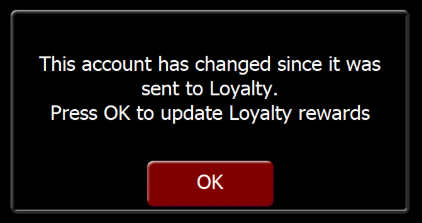
Yes before the payment is taken: "This account has changed since it was sent to Loyalty. Press OK to update Loyalty Rewards" |
| Apply a Discount |
Every time a discount is applied |
Only if the balance would increase |
An account is considered to have changed when a product has been added or removed since the last adjudication, for example ringing up a new product, or correcting a product from the account using the Fast Clear function- any correction made in the Corrections Panel will already automatically trigger a re-adjudication.
An account will not be re-adjudicated when:
-
No Loyalty Card has been assigned, or Loyalty is not configured.
-
Nothing has changed since the last adjudication
-
Only a payment has been added or removed since the last adjudication.
Making a Payment
-
Press the required payment method on an account that has changed since its last adjudication
-
On dismissing the prompt the adjudication is completed.
-
Press the required payment method again to process the payment.
Applying a Discount
-
Apply the required discount as normal
-
If the account has changed since the last adjudication, the POS first re-adjudicates it to bring it up to date
-
Once the discount is applied the POS re-adjudicates again so the loyalty provider can remove any rewards in line with their activation criteria.
-
If the balance remains the same or decreases then no prompt is displayed to the POS operator.
-
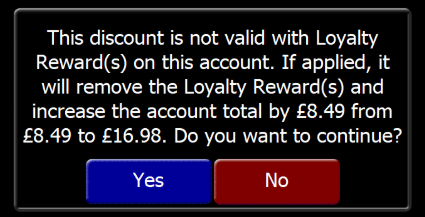
Press Yes and the discount will stay on the account, the loyalty rewards are removed and the account total increases
-
Press No and the discount will be removed and the POS re-adjudicates to reinstate the loyalty rewards
-
-
Make a selection from the prompt
-
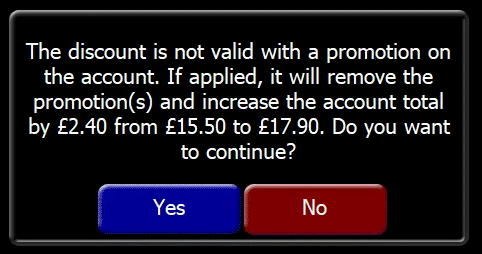
Make a selection from the prompt- the figures in the above are from a sample account, so will change in
-
Press Yes and the discount stays on the account and the promotion is removed
-
Press No and the discount is removed, then the POS re-adjudicates the account to update the loyalty provider.
-
Communications Failure
If the POS is unable to contact the loyalty provider for adjudication a message is displayed on the screen
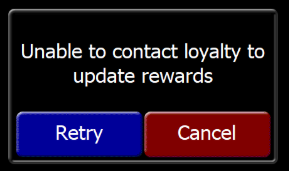
Press Retry to try again. The message stays on the screen until the call succeeds or Cancel is pressed.
Press Cancel to continue without re-adjudicating. The loyalty card stays assigned and any redeemed rewards are retained and the POS operator can continue.
Communications failures are recorded, in the Aztec database, speak to your Zonal Account Representative if this information is required.