Signing in with the new PMS login and setting up MFA
Zonal is moving hotelier sign-in to a new, more secure login that includes multi-factor authentication (MFA). This article walks you through what changes, what you'll see the first time you sign in, and how to set up MFA.
What's changing
Your email address and password stay the same. What changes is where you enter them and an extra step the first time you sign in: setting up an authenticator app for MFA.
- You'll sign in from the same login page you use today
- The first time you sign in after the migration, you'll see a one-off confirmation screen
- You'll then be asked to set up an authenticator app. This only happens once per account
- After that, every sign-in will ask for your email, password, and a 6-digit code from your authenticator app
Step 1: Go to your usual login page
Nothing changes here. Go to the same hotelier login page you use today. You'll notice a new button underneath the usual "Log in" button:
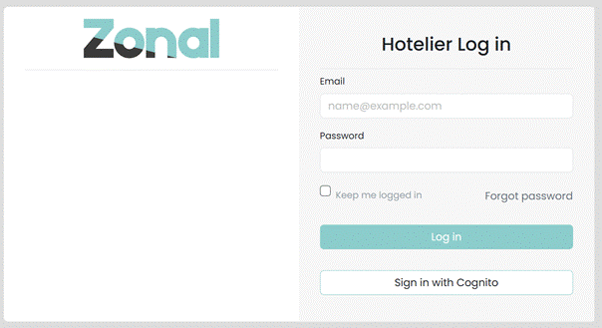
Select “Sign in with Cognito” to move to the new login. If you sign in with your email and password as normal instead, you'll be guided through the same steps automatically the first time.
Step 2: The one-time “login has changed” notice
If you sign in the old way after your account has been migrated, you'll see this confirmation screen once:
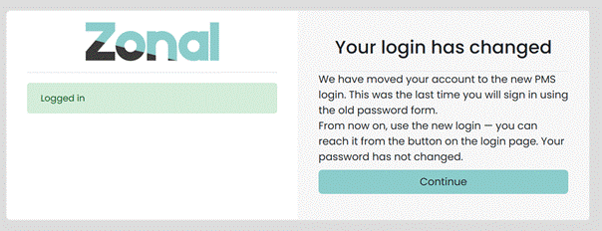
This confirms you're logged in and lets you know the old password form won't be used again. Your password has not changed. Select “Continue” to carry on.
What you'll see if you use the old form again
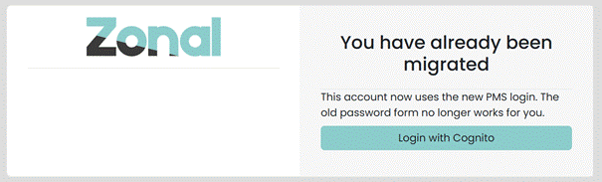
After that one-time notice, the old email and password form will no longer sign you in. If you try it again, you'll see this message instead:
Step 3: Sign in with your email
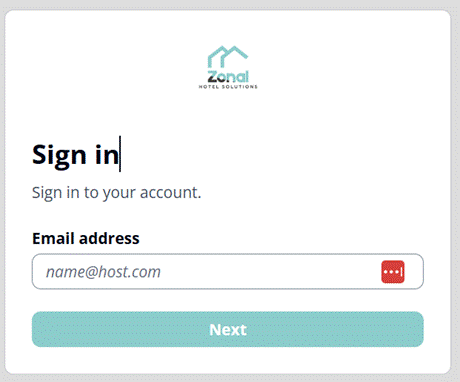
On the new login screen, enter the same email address you use today and select “Next”.
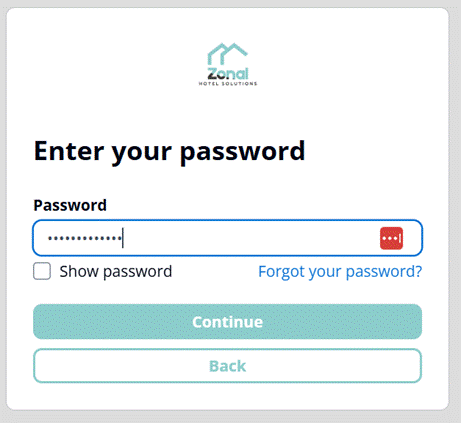
Step 4: Enter your password
Enter your existing password and select “Continue”. If you've forgotten it, use the “Forgot your password?” link on this screen.
Step 5: Set up your authenticator app (first sign-in only)
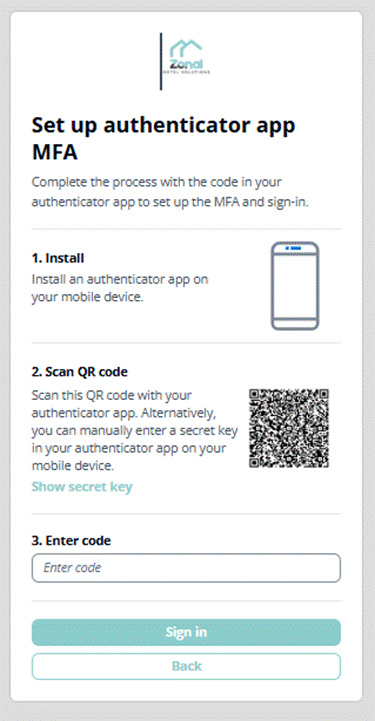
The first time you sign in, you'll be asked to set up MFA. You won't see this step again on future sign-ins from the same device unless you're asked to re-register.
-
Install an authenticator app
If you don't already have one, install an authenticator app on your phone, such as Google Authenticator, Microsoft Authenticator, or Authy.
-
Scan the QR code
Open the app and scan the QR code shown on screen. If you can't scan it, select “Show secret key” and enter that key into your app manually instead.
-
Enter the code
Your authenticator app will display a 6-digit code that refreshes every 30 seconds. Enter the current code into the “Enter code” box and select “Sign in”.
After you're set up
From now on, every sign-in will ask for:
-
Your email address
-
Your password
-
A 6-digit code from your authenticator app
-
Keep your phone or authenticator app accessible when signing in
Frequently Asked Questions
Why did I just get a weird error message?
e.g. “Session has expired”, or “invalid challenge transition”
Your login session has timed-out and expired. Go back to https://live.high-level-software.com/login and start a new one.
What’s the most common reason TOTP (6 digit time-based code) doesn’t work?
The clock on the computer logging in has to be correct
What’s the best authentication to setup and use?
Passkey – it’s faster and more secure
Can I have multiple passkeys on a single computer?
Yes, most modern operating systems support multiple passkeys on a single computer. So you can have a passkey for each member of staff who uses the same computer to access the PMS.
As a hotelier how can I reset my password?
If you don’t have a valid e-mail address you can’t reset your own password. You will need to ask a site manager to trigger a reset for you. If you have a valid e-mail address you will need to:
- Go to https://live.high-level-software.com/login
- During the transition period select Login with Cognito
- Sign in with your e-mail address
- If you have a valid passkey select Use Password instead
- Select Forgot your password
- Enter your e-mail address again, and select Reset my password
- You will be sent a code which you can use on the subsequent password reset screen to set a new password. The code must be used within 10 minutes
How can a site manager or Zonal PMS staff admin reset a hotelier password?
A staff members authentication credentials can be fully reset via the following steps.
Please note that setting a new password will also reset this user’s TOTP MFA (and passkey, if applicable) - they’ll need to set these up again on next login.
- Go to the relevant hotelier staff member page. e.g.
- https://live.high-level-software.com/hotels/demostephenspalace/hoteliers
- Click the edit pencil for the desired staff member
- Enter a temporary password for the staff member
- Securely communicate the temporary password to the staff member. They will need to go through the initial setup process again, selecting a new password and setting up MFA and optionally passkey.
What happens if I share my PMS login with another member of staff?
We strongly advise having an individual account for every member of staff. Your PMS license allows any number of hotelier logins, so please do create one for every member of your staff. This will ensure a proper audit trail, and avoids additional complications with authentication and MFA. Any Manager level account can create new hoteliers accounts for your site.
If you have no option but to share an e-mail address, you can create individual PMS accounts using an e-mail address modification as follows: (e.g. for Fred and Jane)
-
reception+fred@therustyferret.co.uk
-
reception+jane@therustyferret.co.uk
In this case Fred and Jane can still have individual PMS logins, and individual MFA authentication credentials.
If this is impossible then you may wish to consider a desktop-based TOTP app, so that it can easily be used by all users of the computer.
TOTP app recommendations, including for desktop, are included below.
Time-based One-Time Passcodes (TOTP)
TOTP
Time-based One-Time Passcodes (TOTP) is a computer algorithm that generates a one-time password (OTP) using the current time as a source of uniqueness; a 6 digit random code is generated every 30 seconds by an app on your smartphone or computer.
Find out more about time-based one-time passwords here.
You’re welcome to use any TOTP compatible authenticator app you’re comfortable with. You may already use one approved by your organisation, these are simply recommended free options.
Mobile apps – iOS and Android
2FAS Authenticator
-
Download for iOS (App Store)
-
Download for Android (Google Play)
Microsoft Authenticator
-
Download for iOS (App Store)
https://apps.apple.com/us/app/microsoft-authenticator/id983156458
-
Download for Android (Google Play)
https://play.google.com/store/apps/details?id=com.azure.authenticator
Desktop Apps
Most Password Managers support TOTP
Functionality is generally available within both their mobile and desktop apps, and browser extensions.